welcome to your fps guide learn how to pay with fps by divit in simple steps
pay by bank app
FPS guide for mobile
find the FPS guide for popular banks to make your FPS payment it’s fast, secure and instant
scan qr code
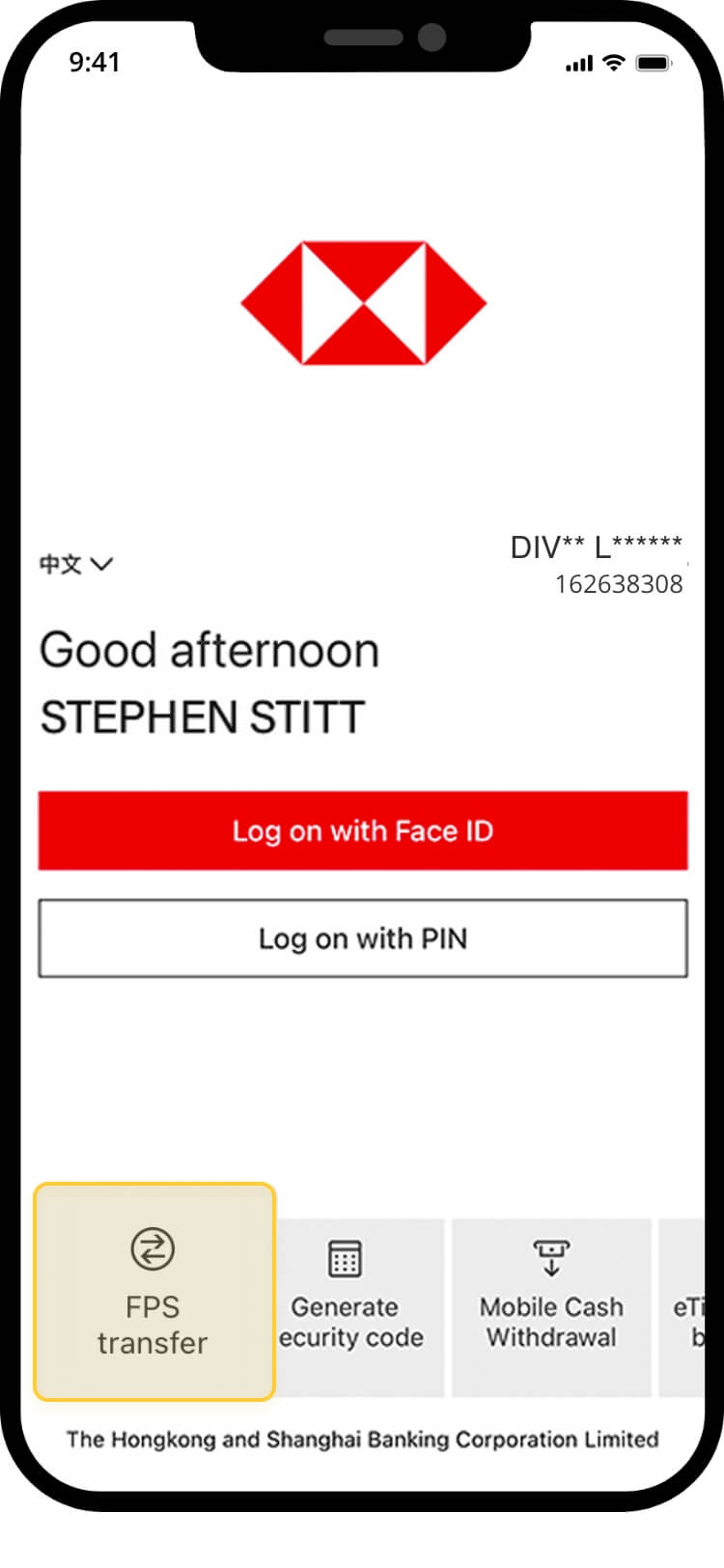
you don’t need to log on! tap “FPS transfer” from the bottom-left and select “scan to pay”
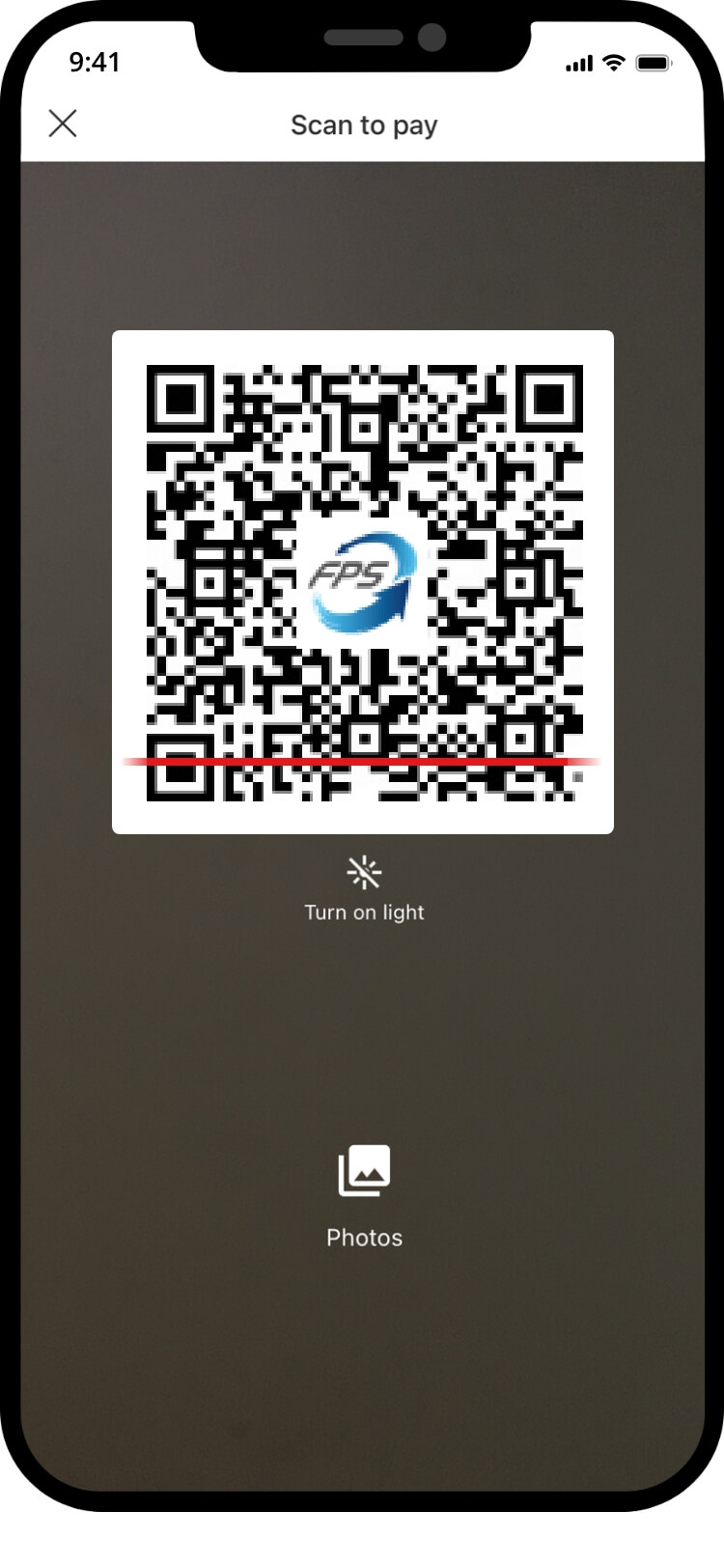
scan the qr code
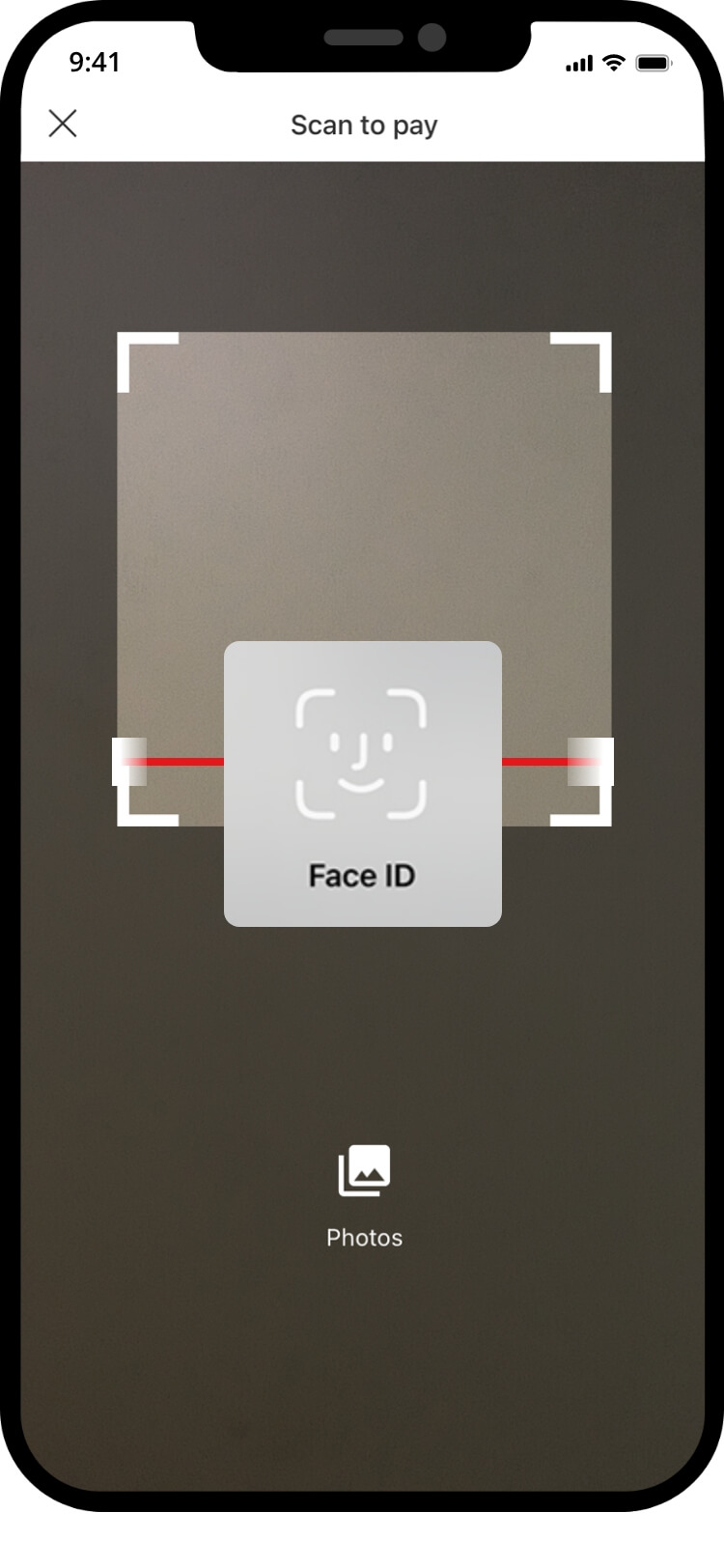
authenticate to proceed with the transaction
your transfer is complete! you will receive a confirmation via sms and email
import qr code
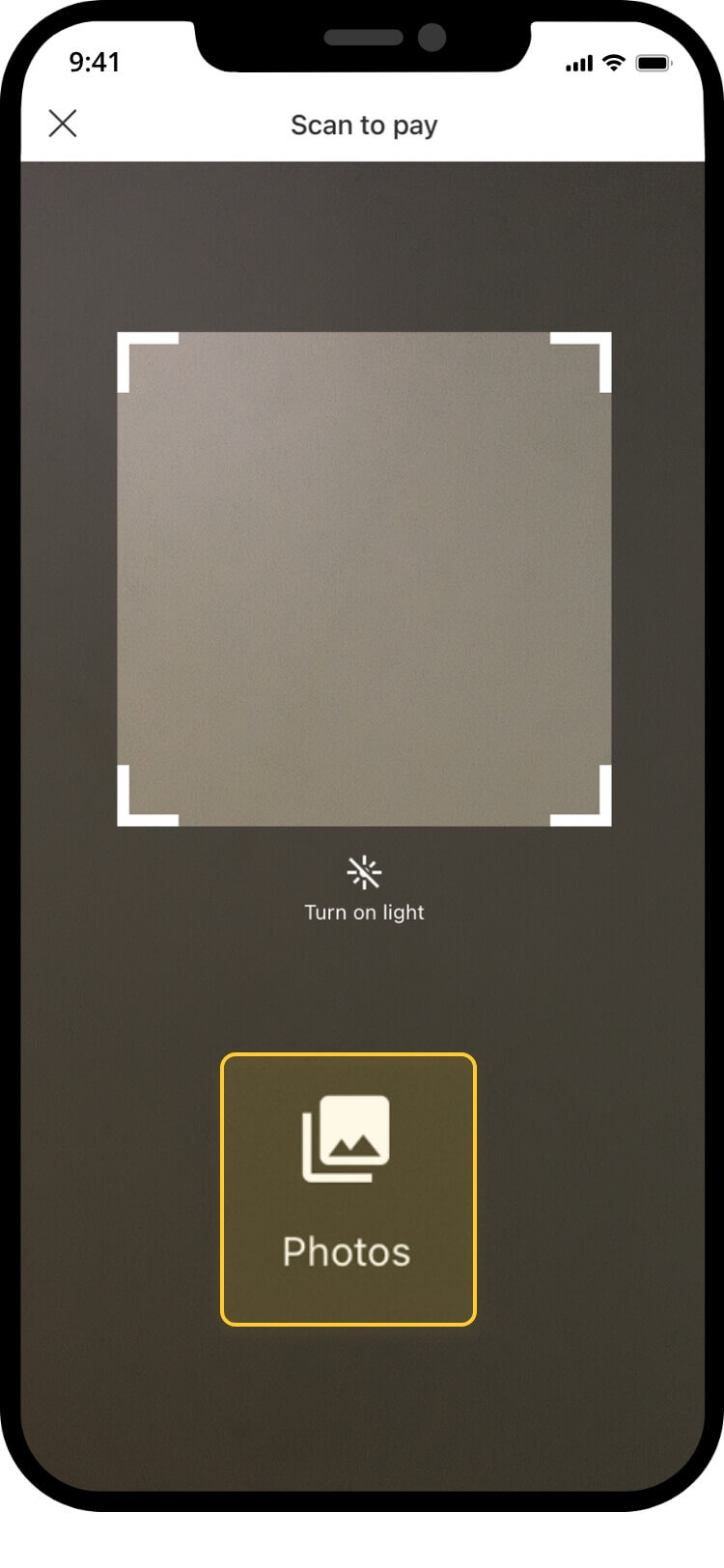
you don’t need to log on! tap “FPS transfer” from the bottom-left and select “scan to pay”
select the photo
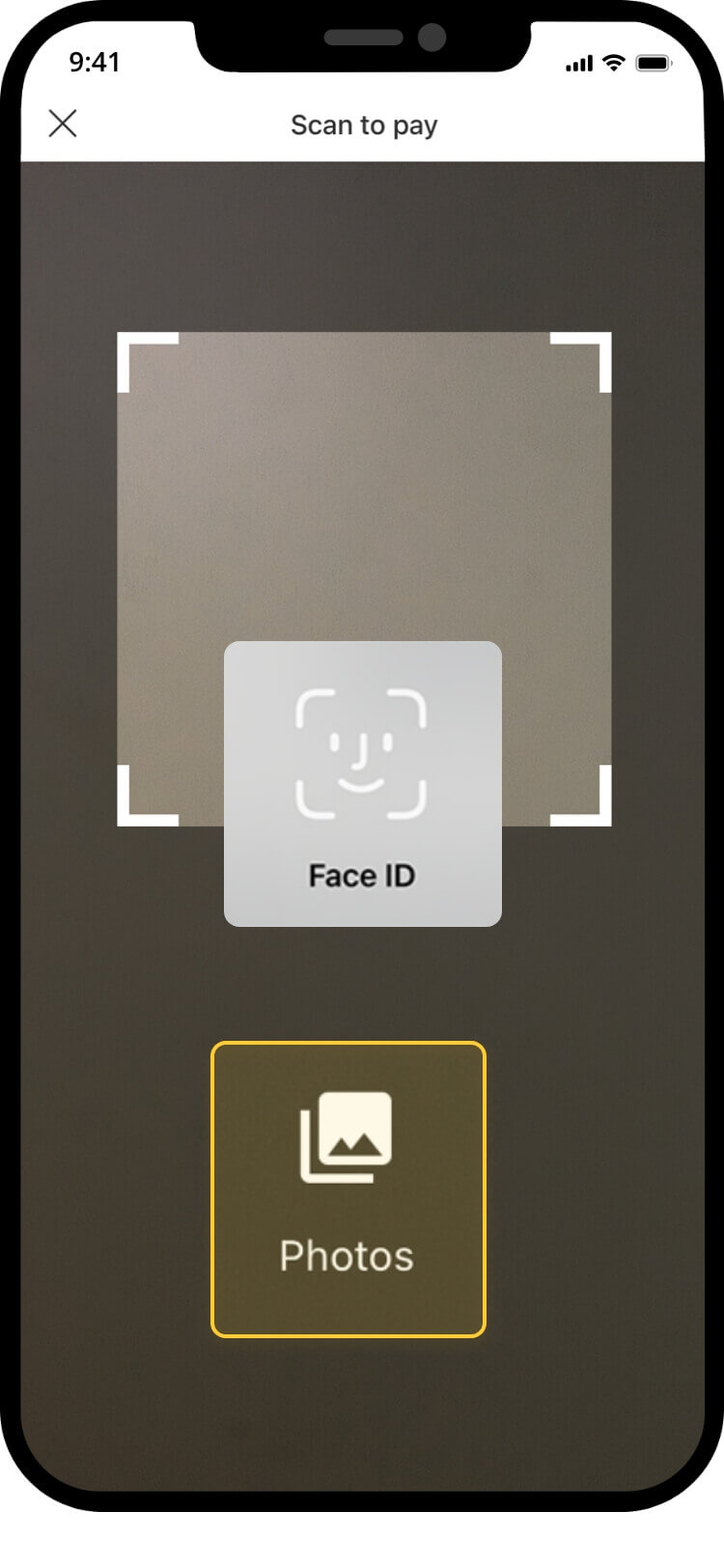
authenticate to proceed with the transaction
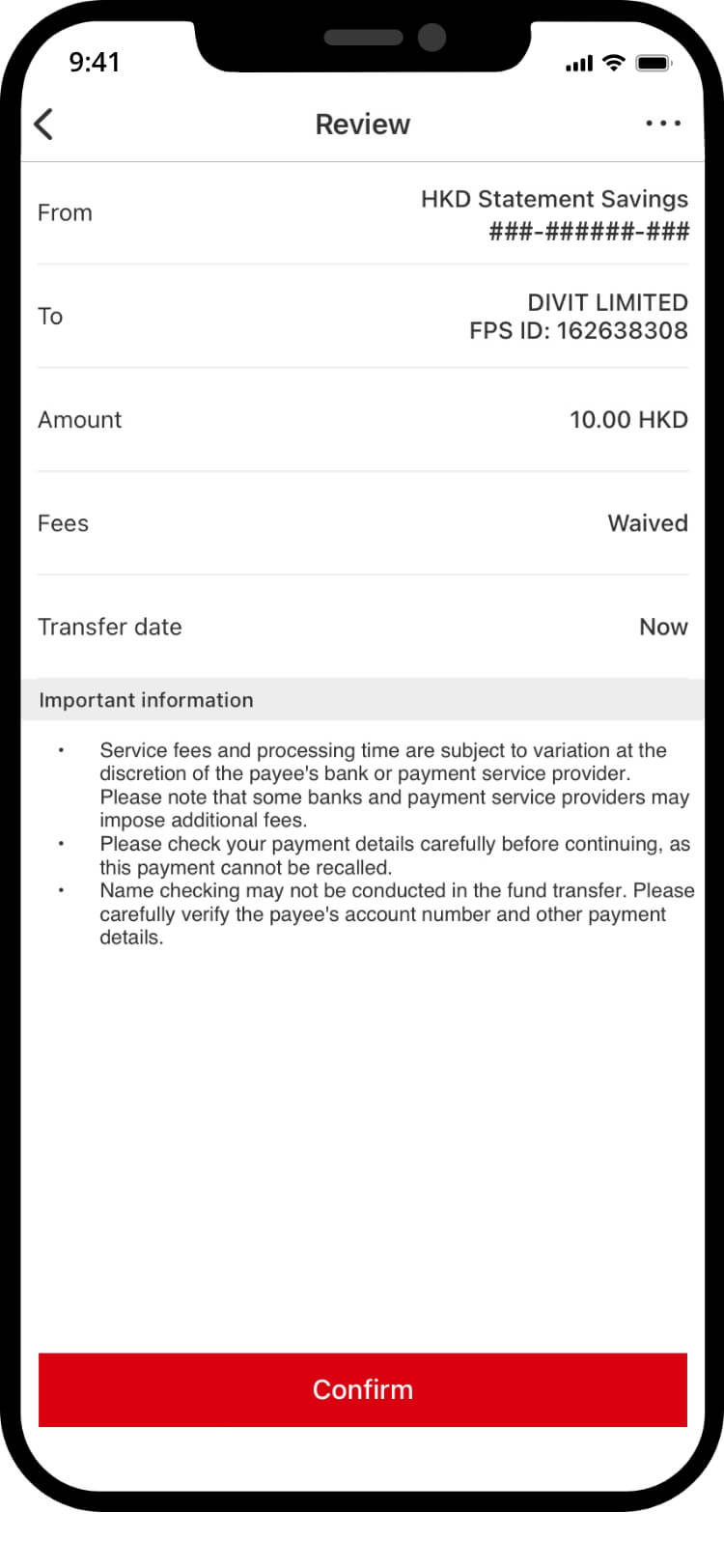
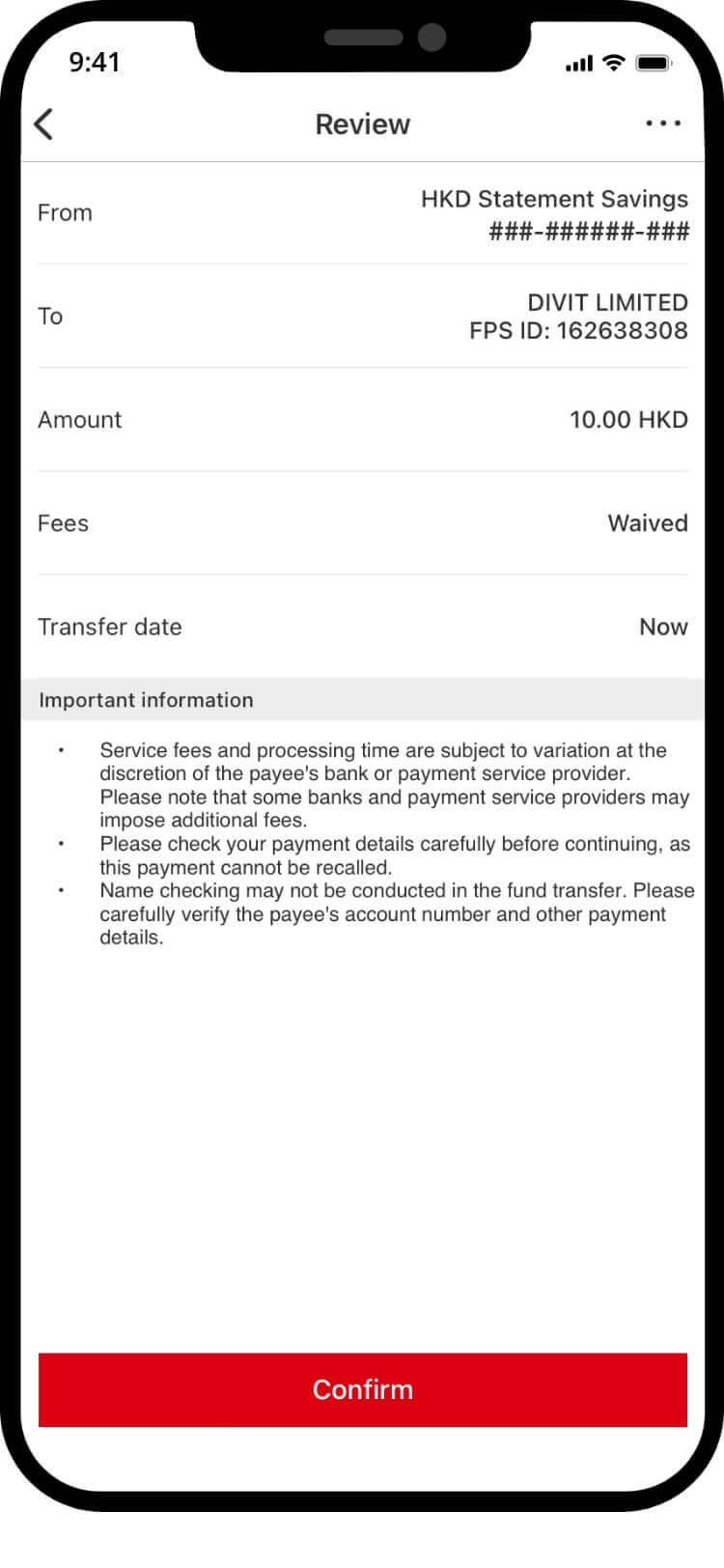
verify transaction details, and “confirm” the transaction
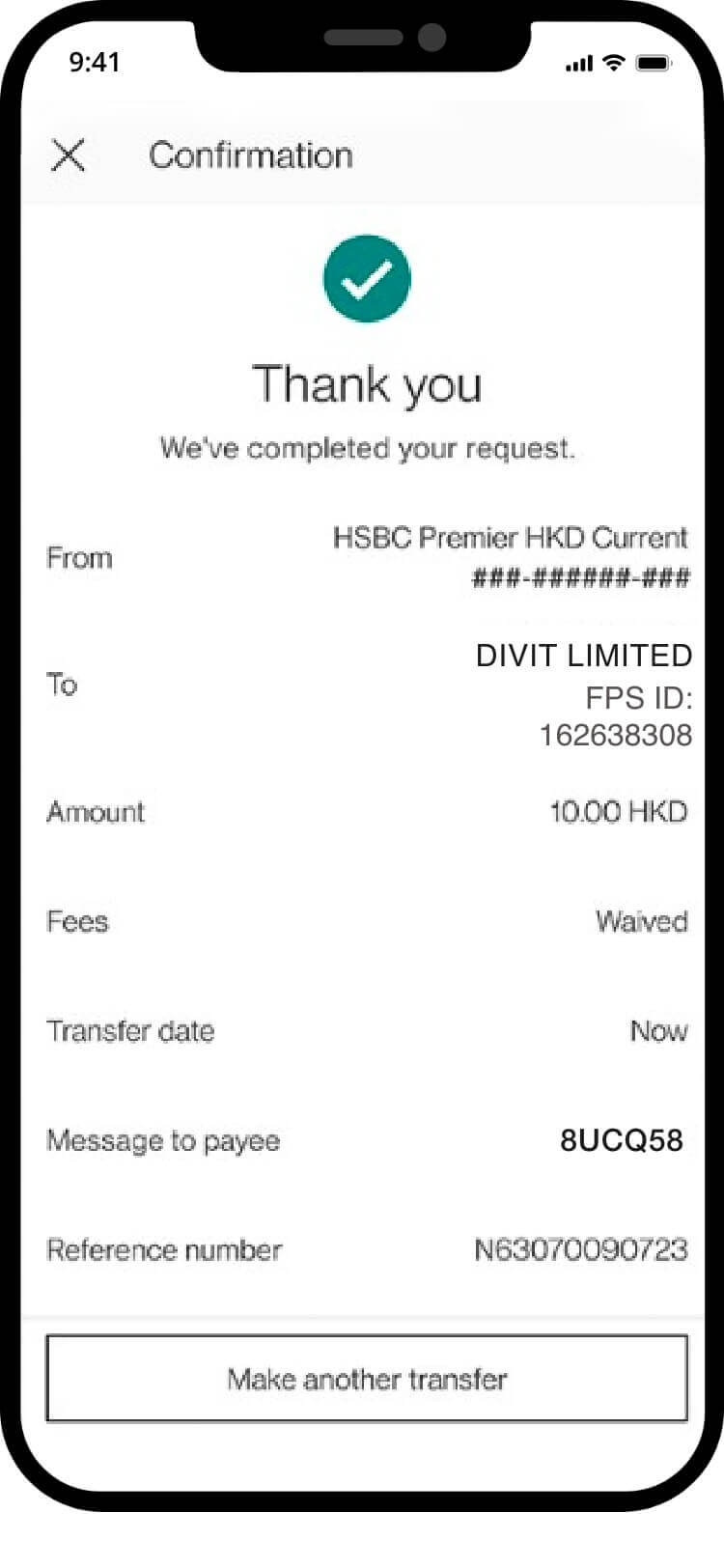
your transaction is complete! you will receive a confirmation via sms and email
fps id
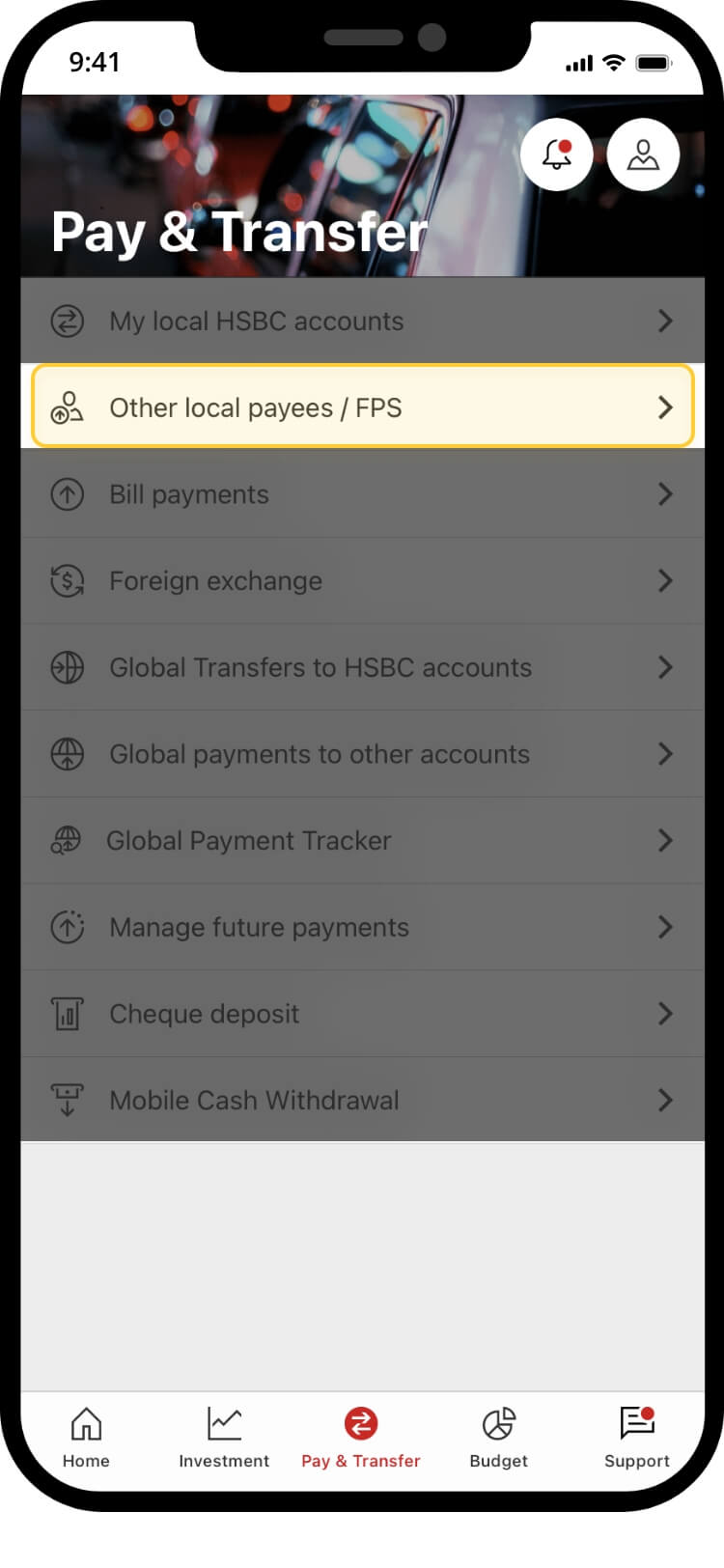
log on your HSBC account! tap “Other local payees/FPS” at “Pay & Transfer” in bottom menu
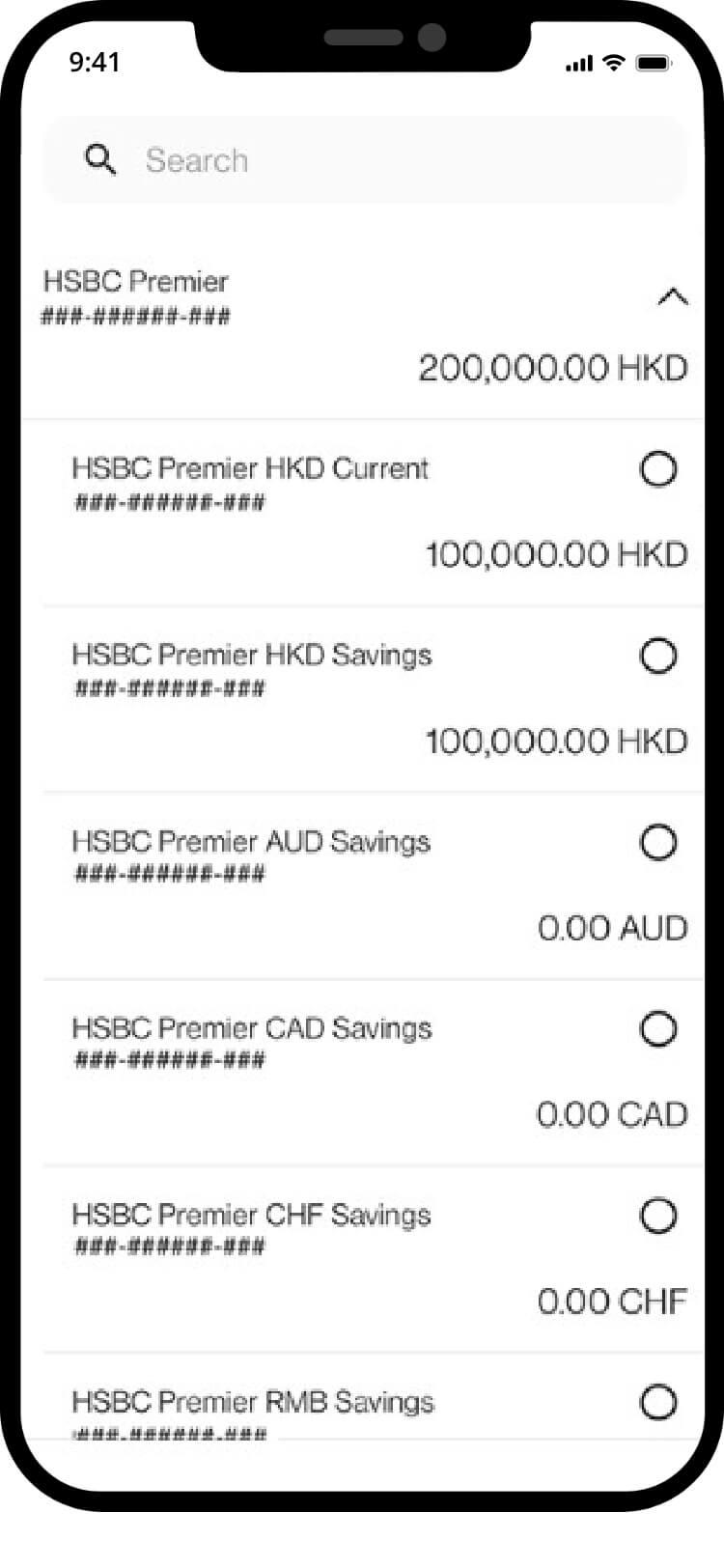
choose from account
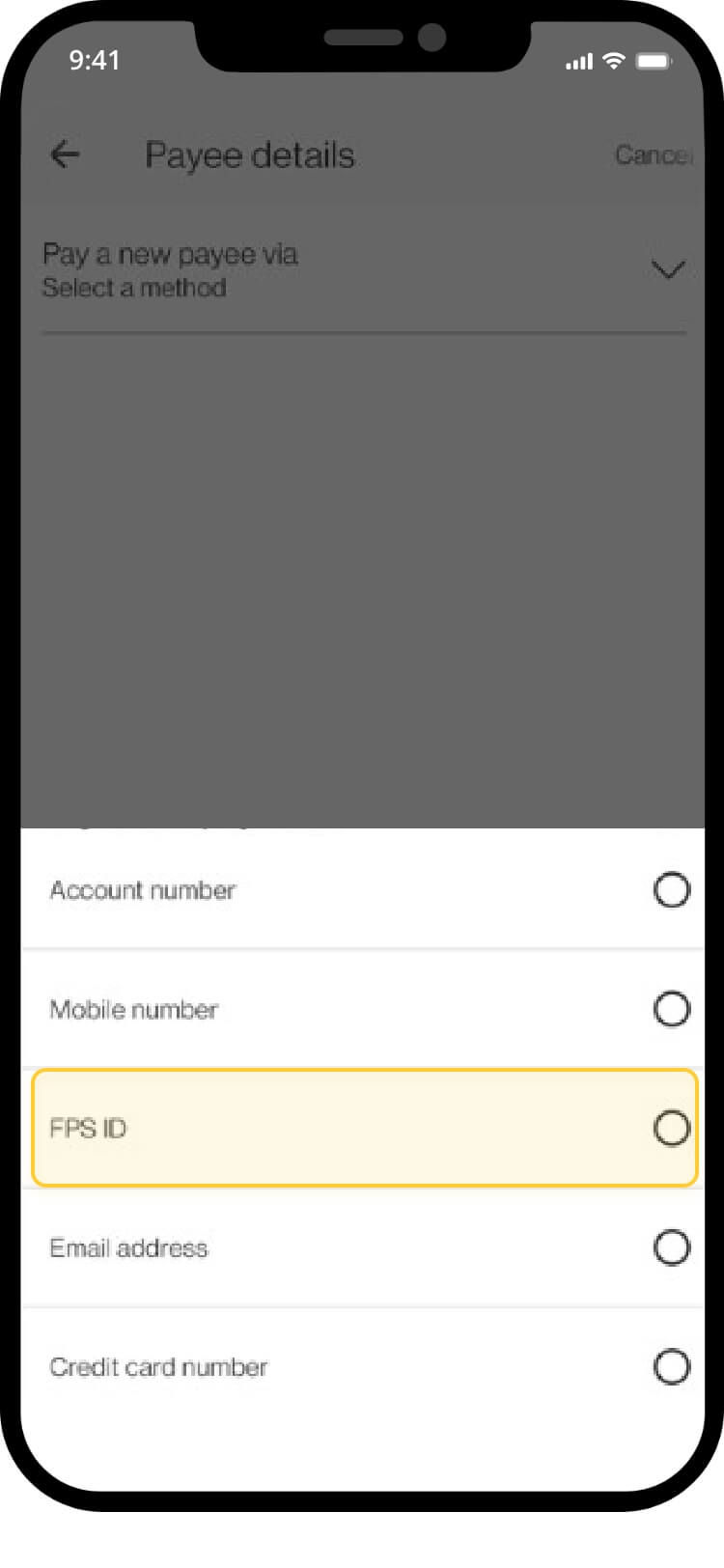
choose new payee
select “FPS ID”
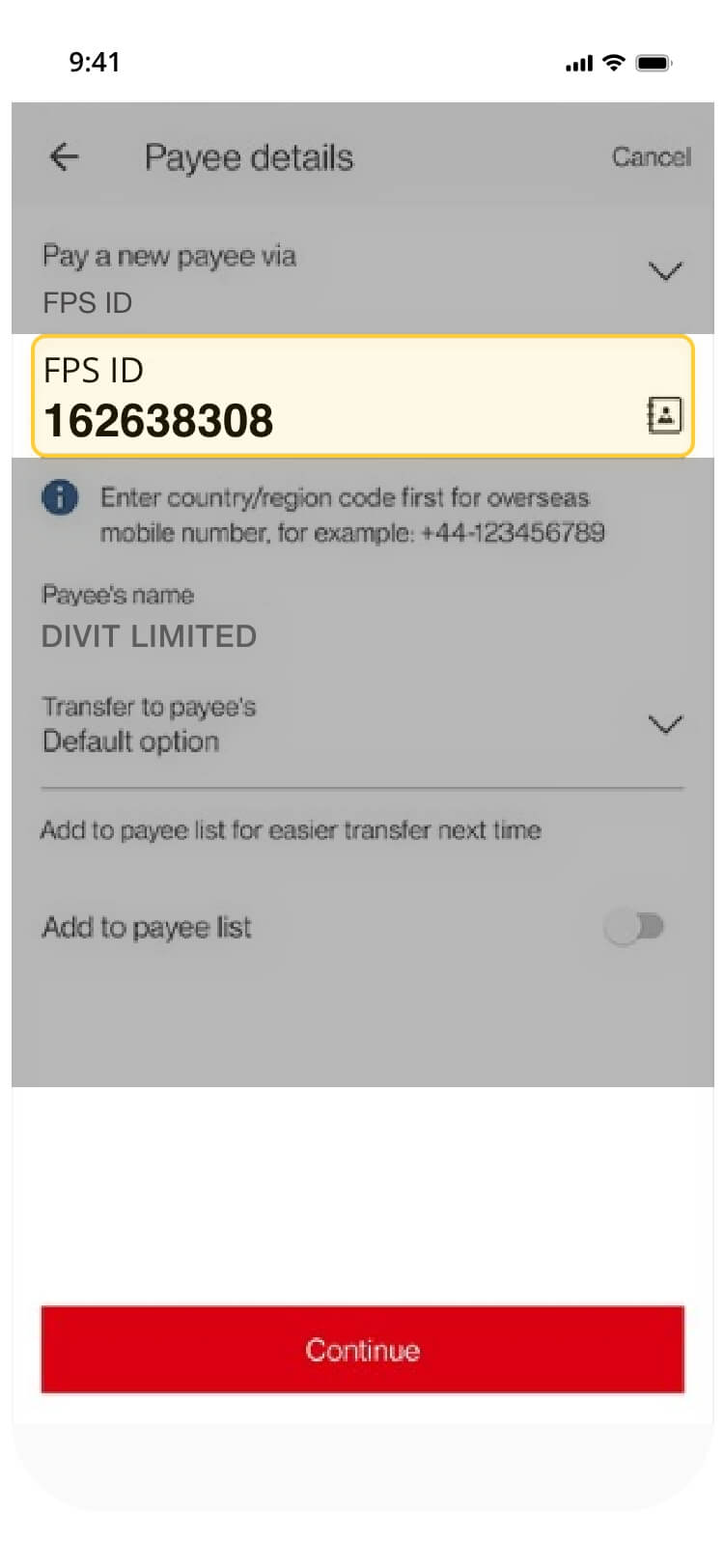
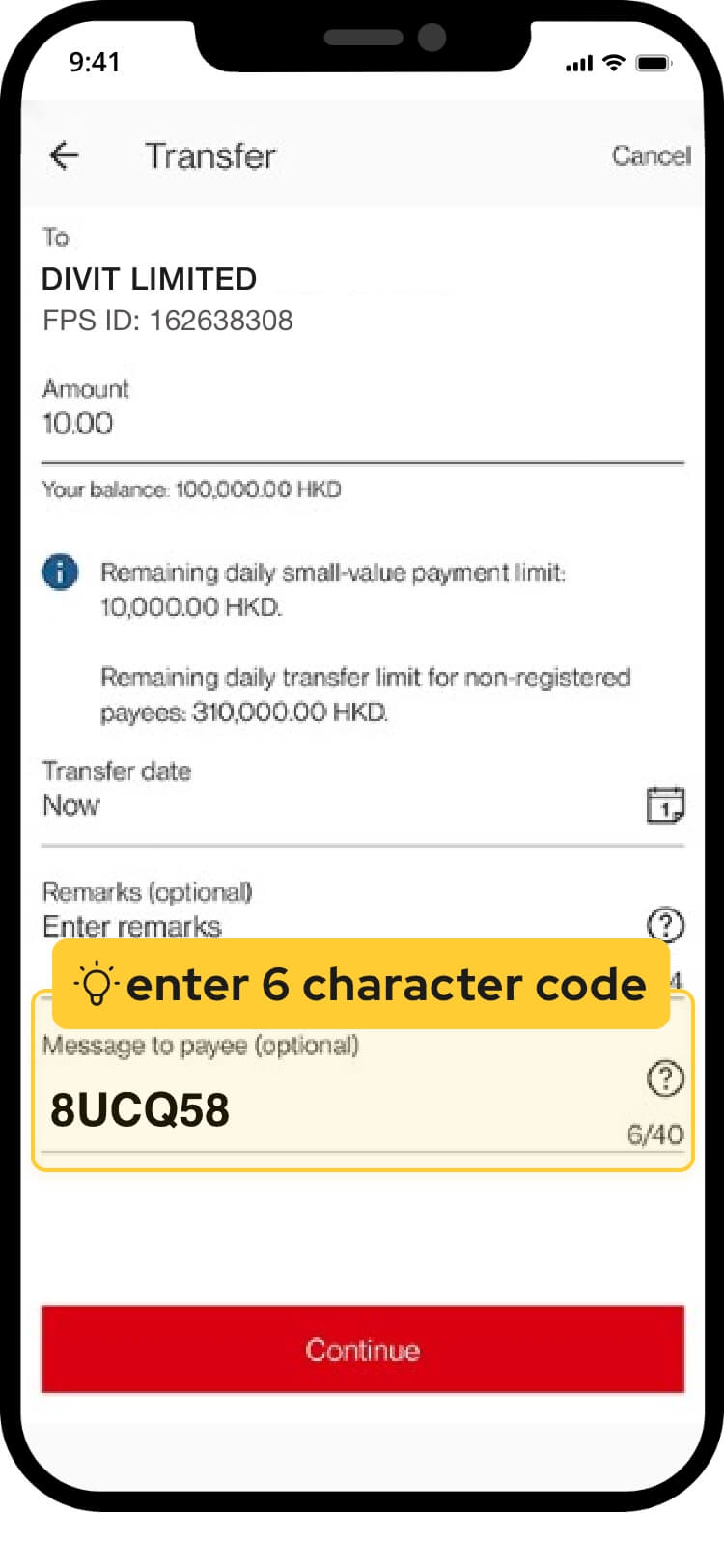
enter our fps id: 162638308
input payment amount and the 6-character code at “message to payee”
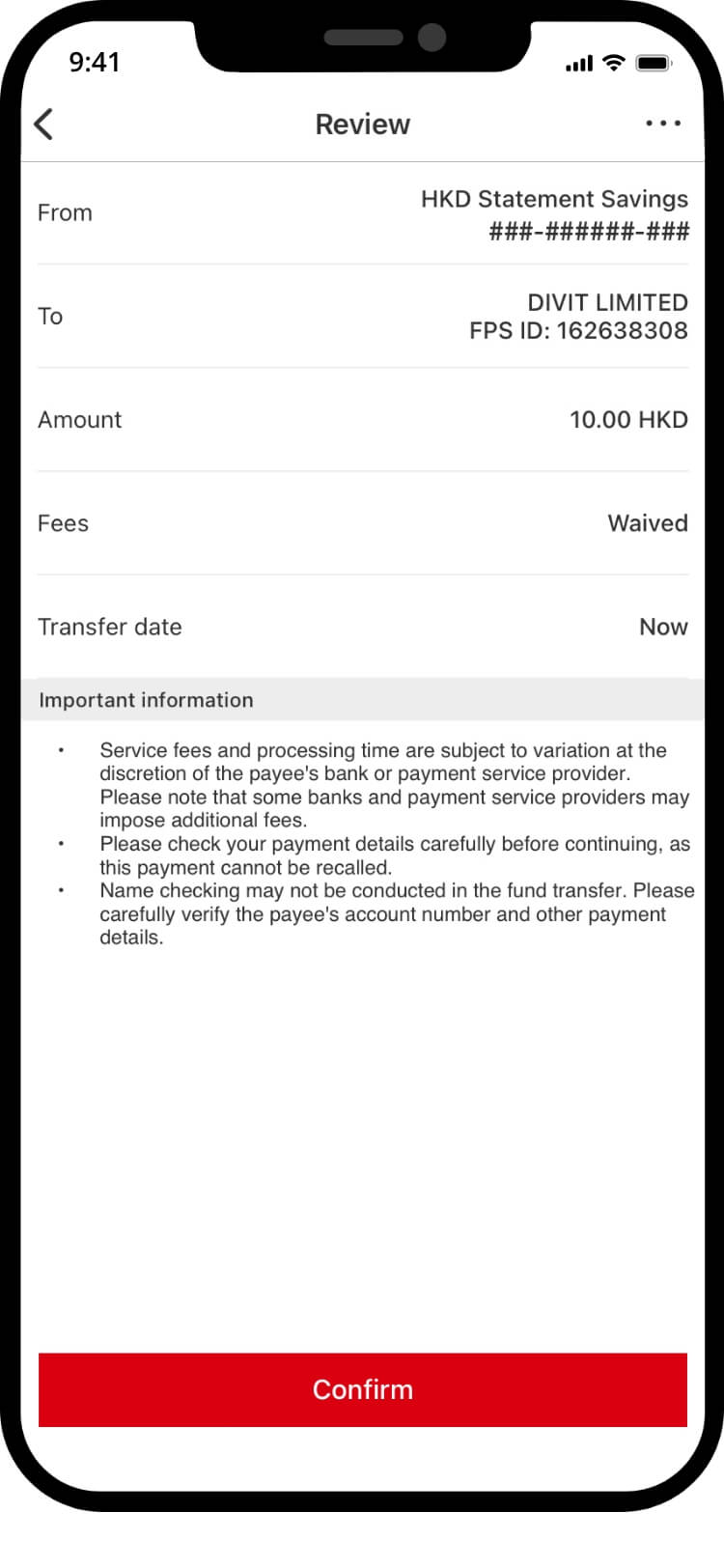
verify transaction details, and “confirm” the transaction
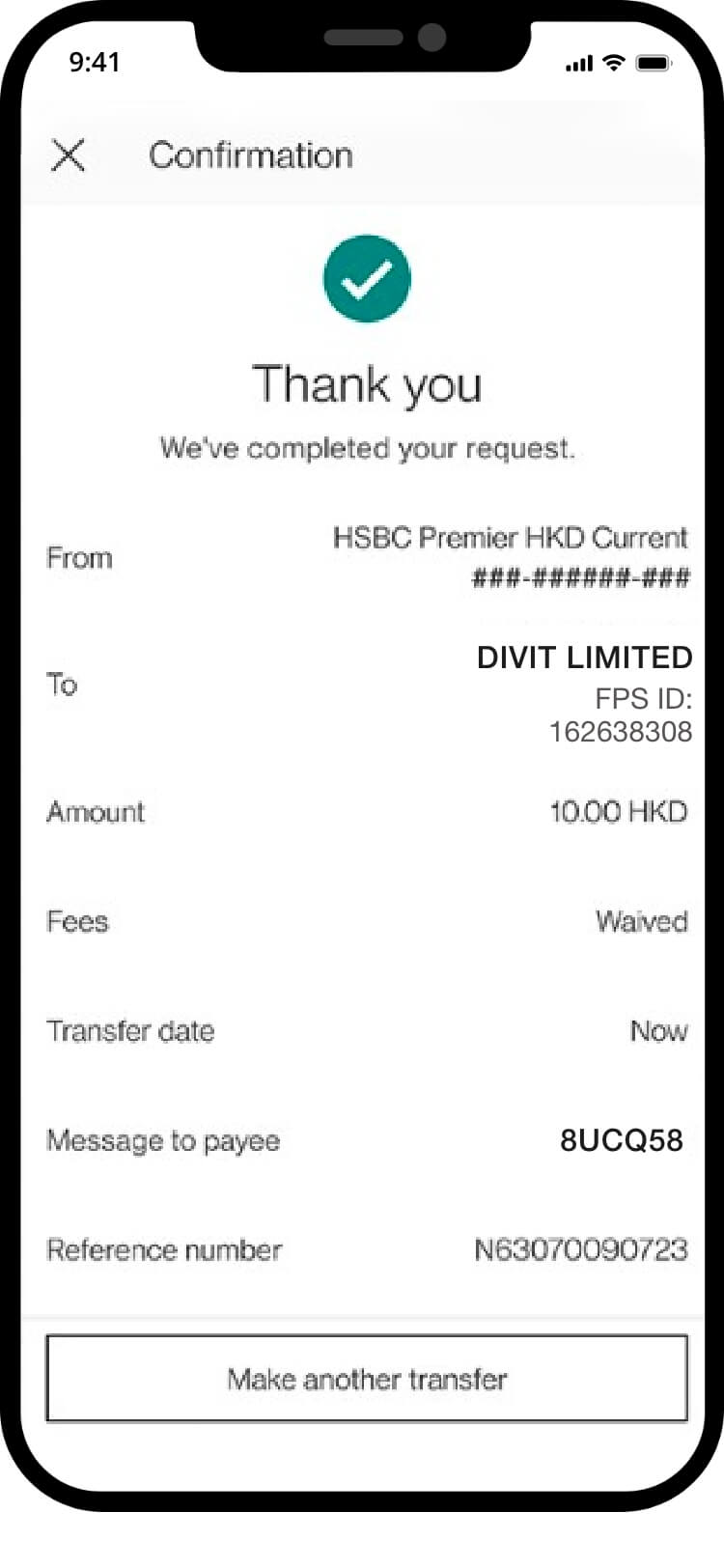
your transfer is complete! you will receive a confirmation via sms and email. *if you send the payment without the 6-character code, your order may not be confirmed instantly
scan qr code
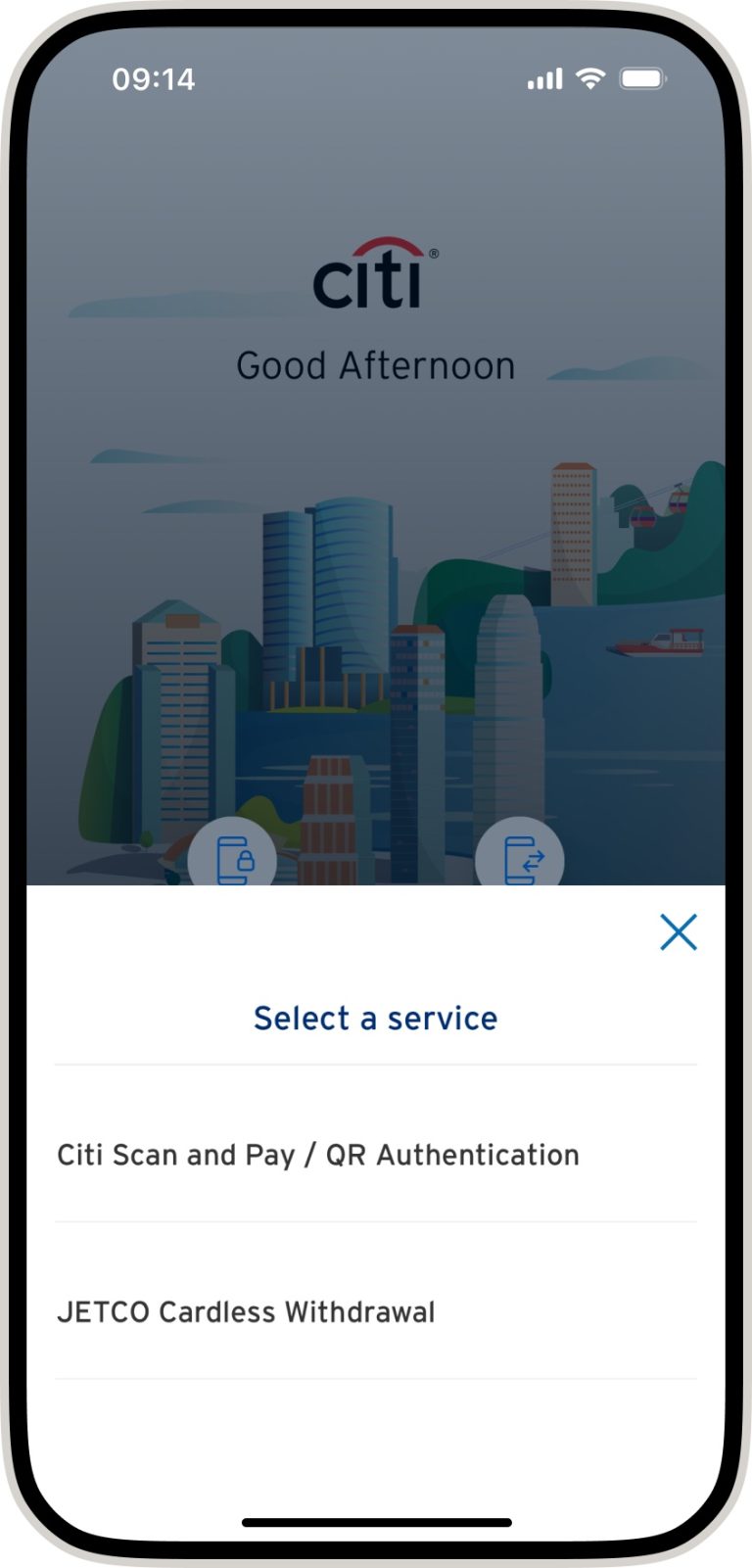
click on “fps” to start a payment
select “scan and pay/qr authentication
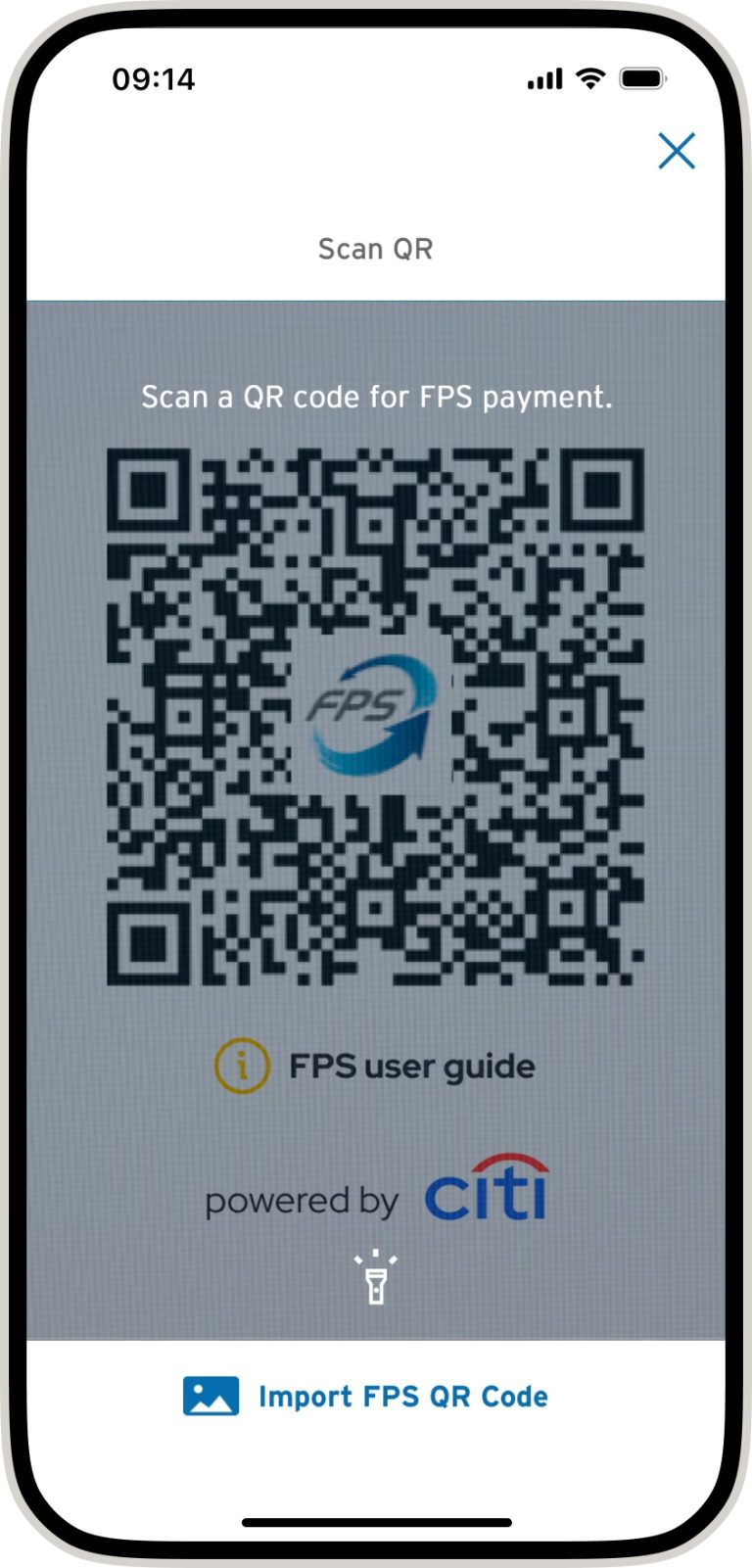
scan a qr code for fps payment
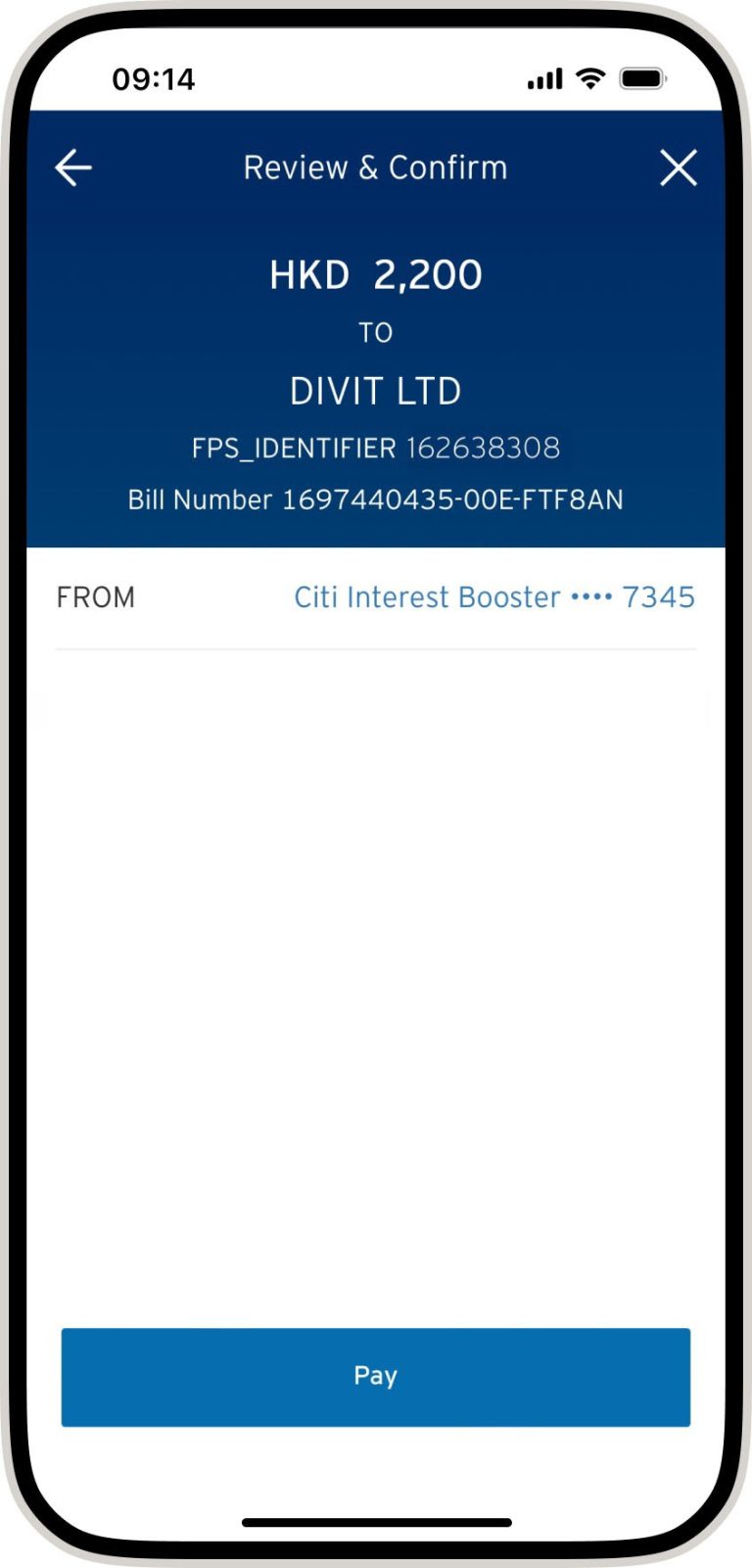
verify the transaction details and tap “pay”
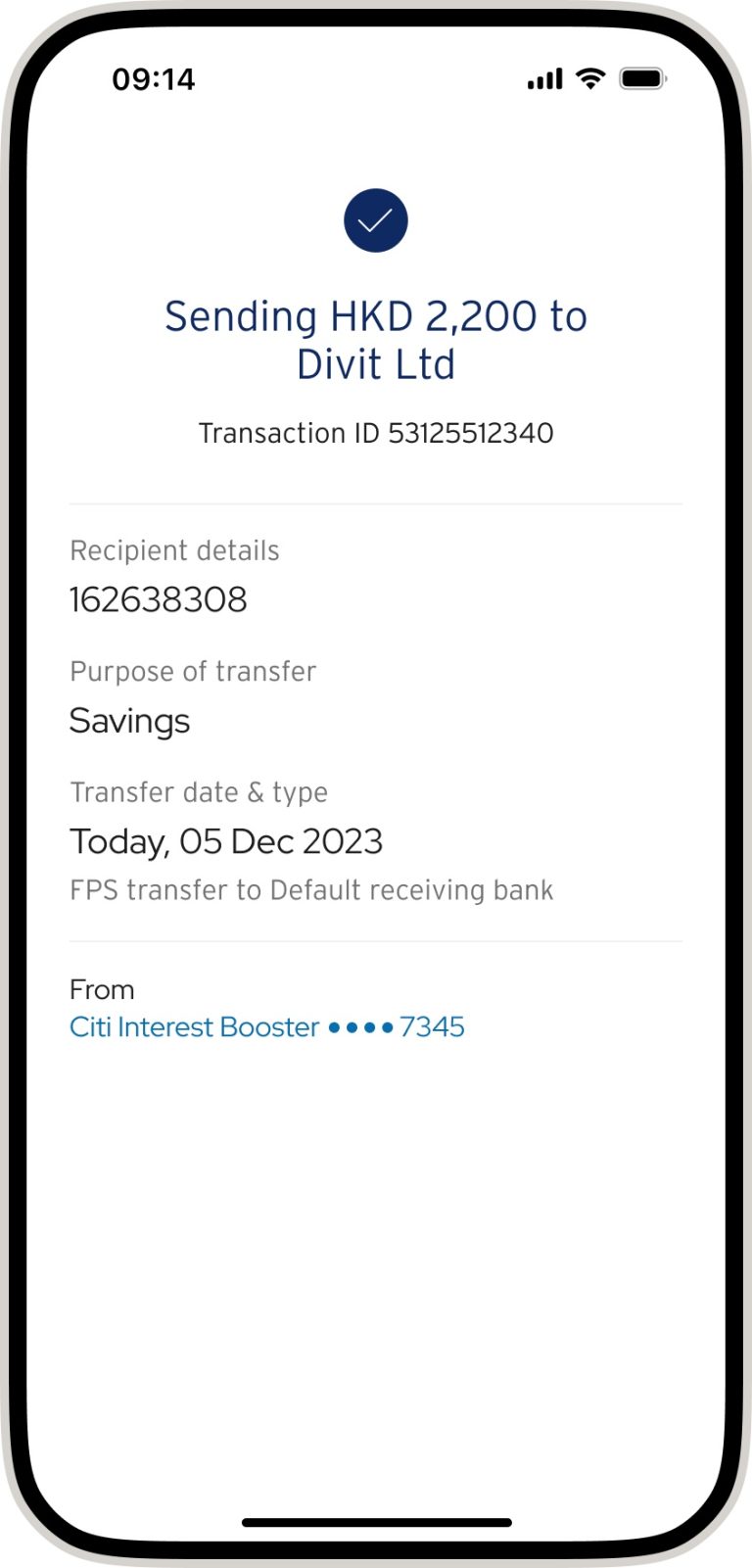
your transfer is complete! you will receive a confirmation via sms and email
import qr code
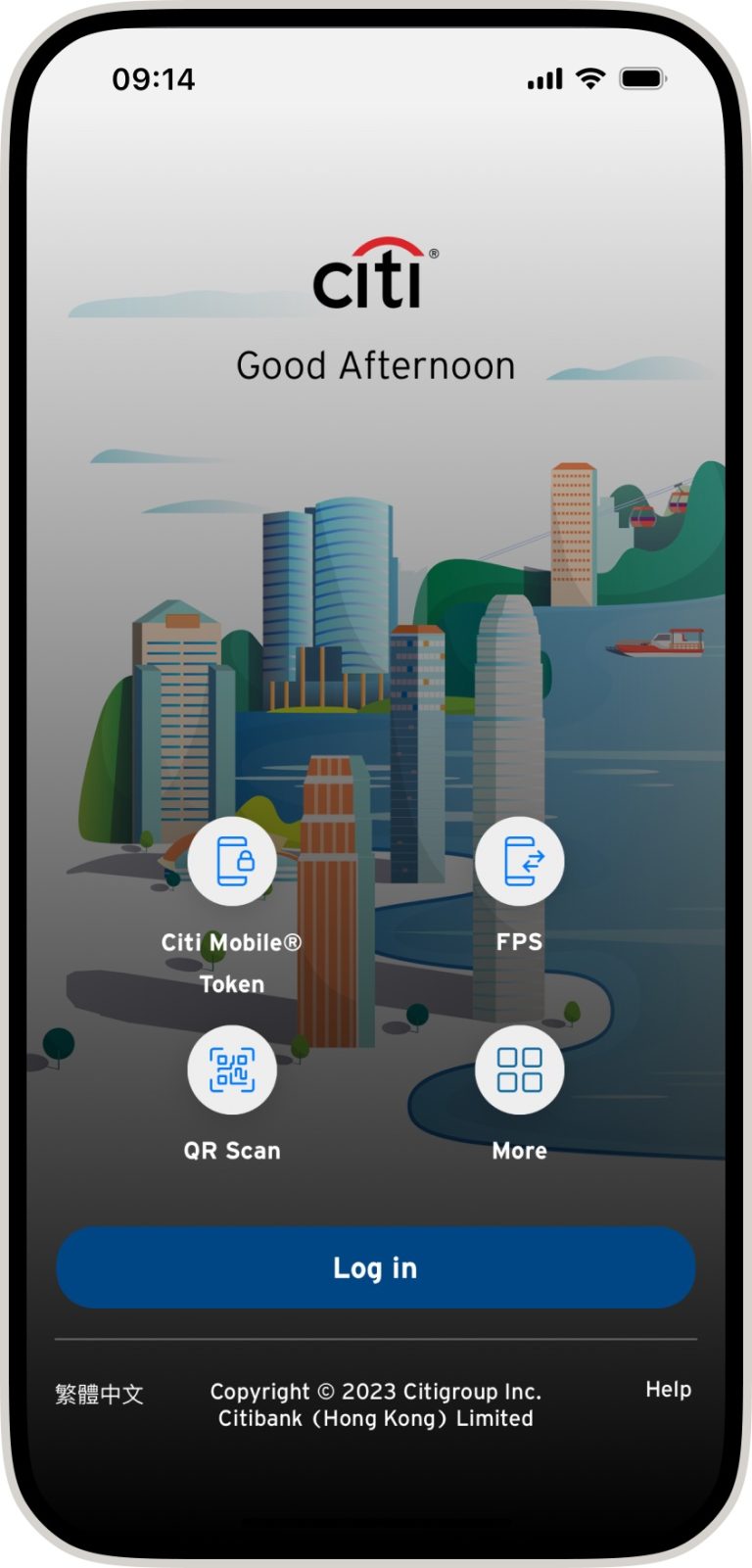
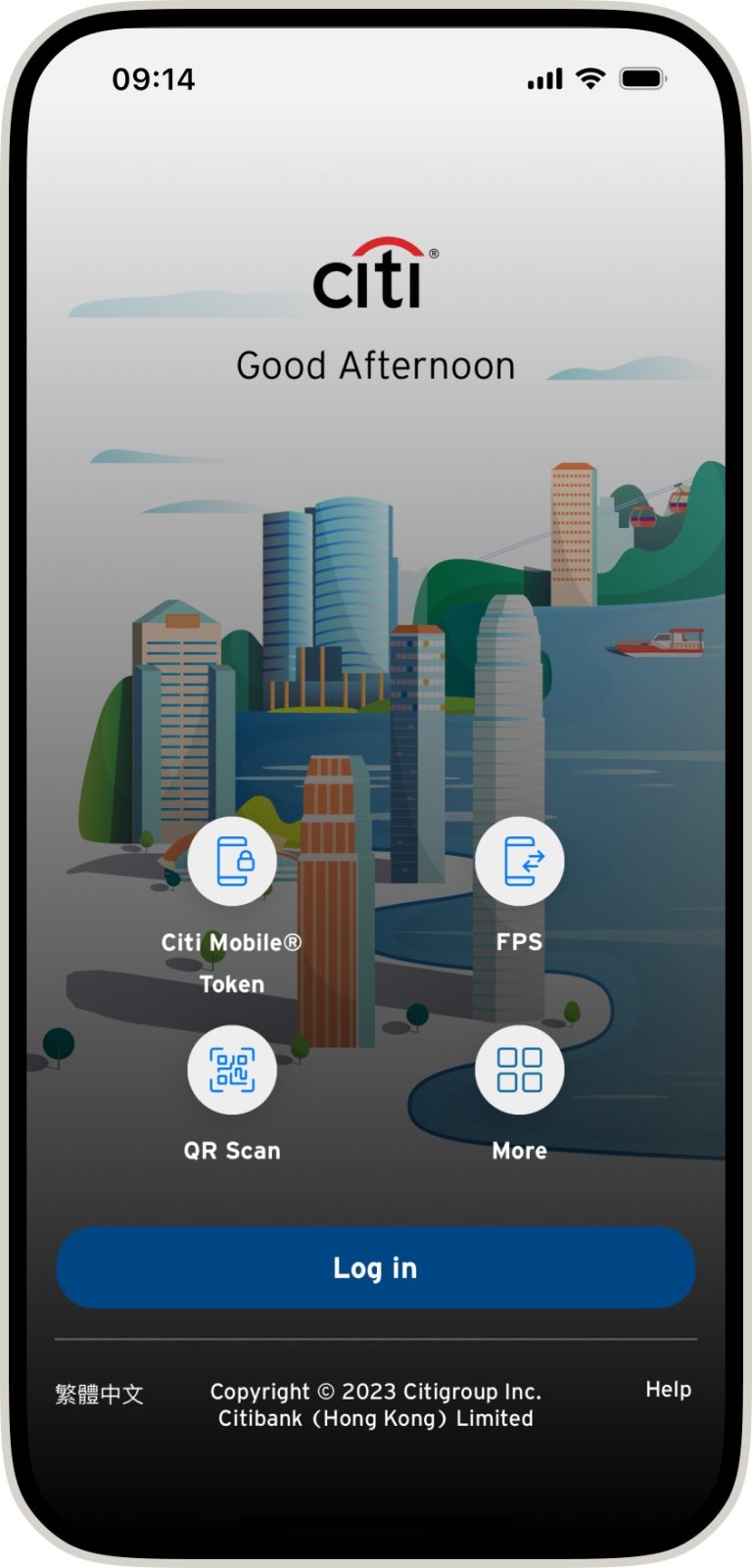
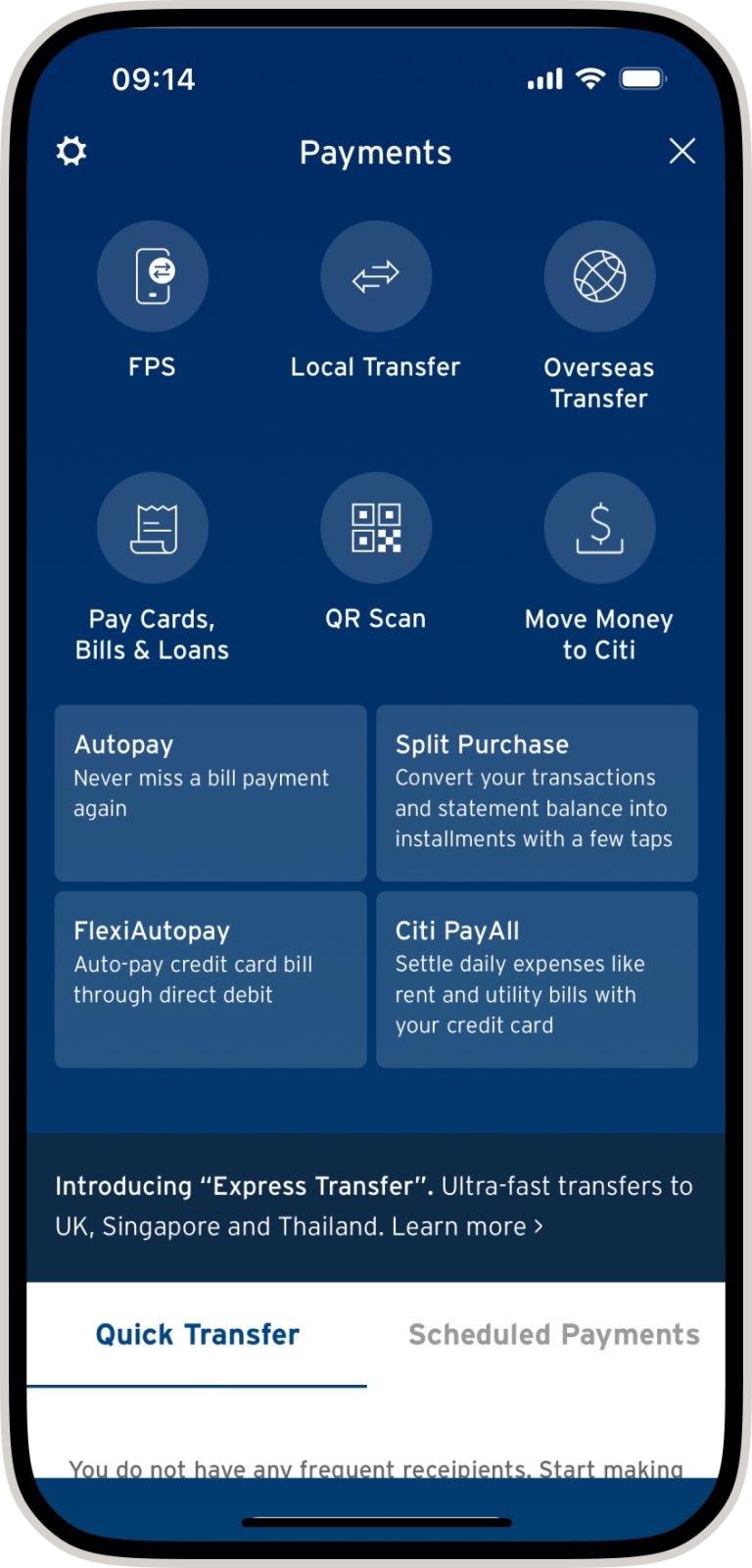
click ‘qr scan’ the welcome screen
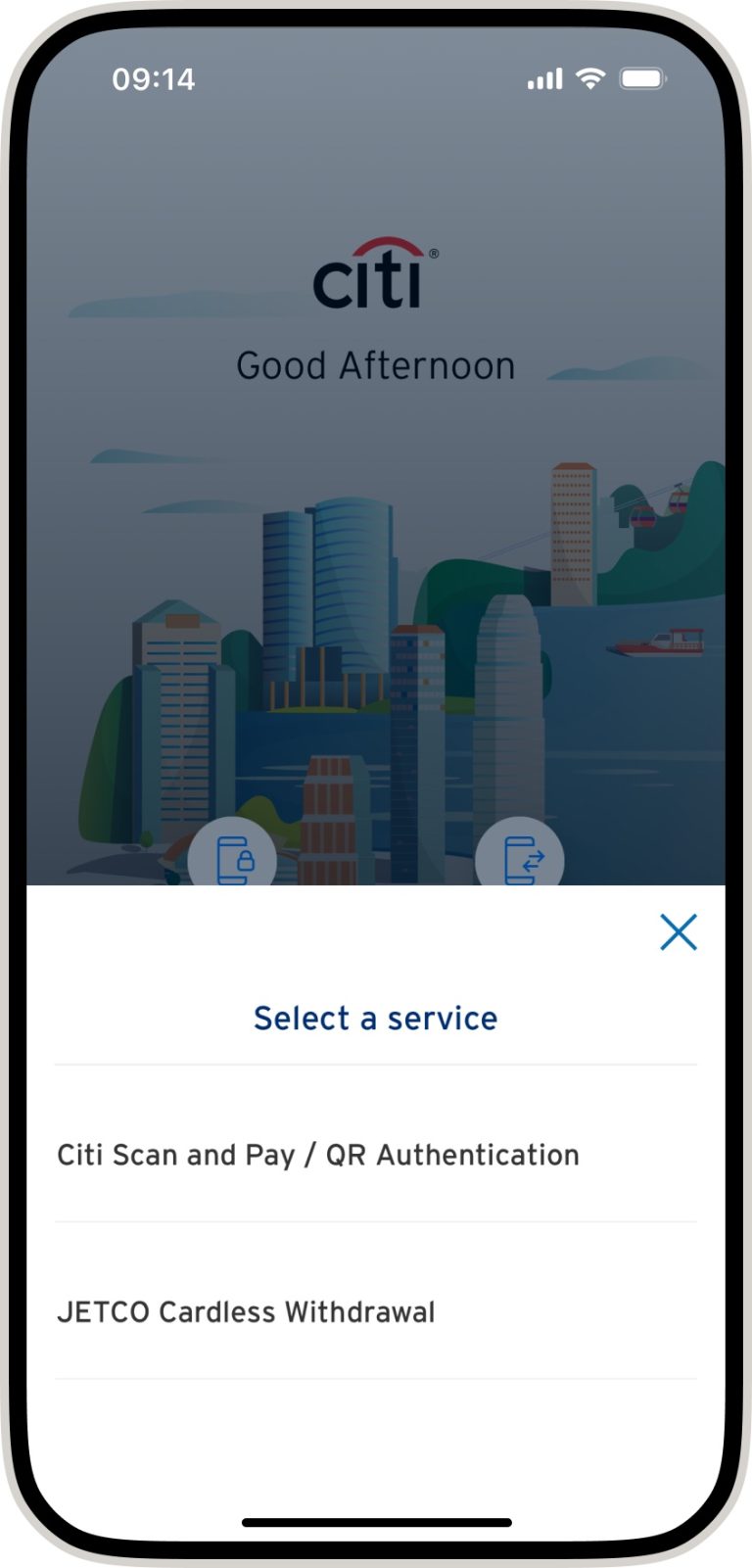
select “citi scan and pay/qr authentication”
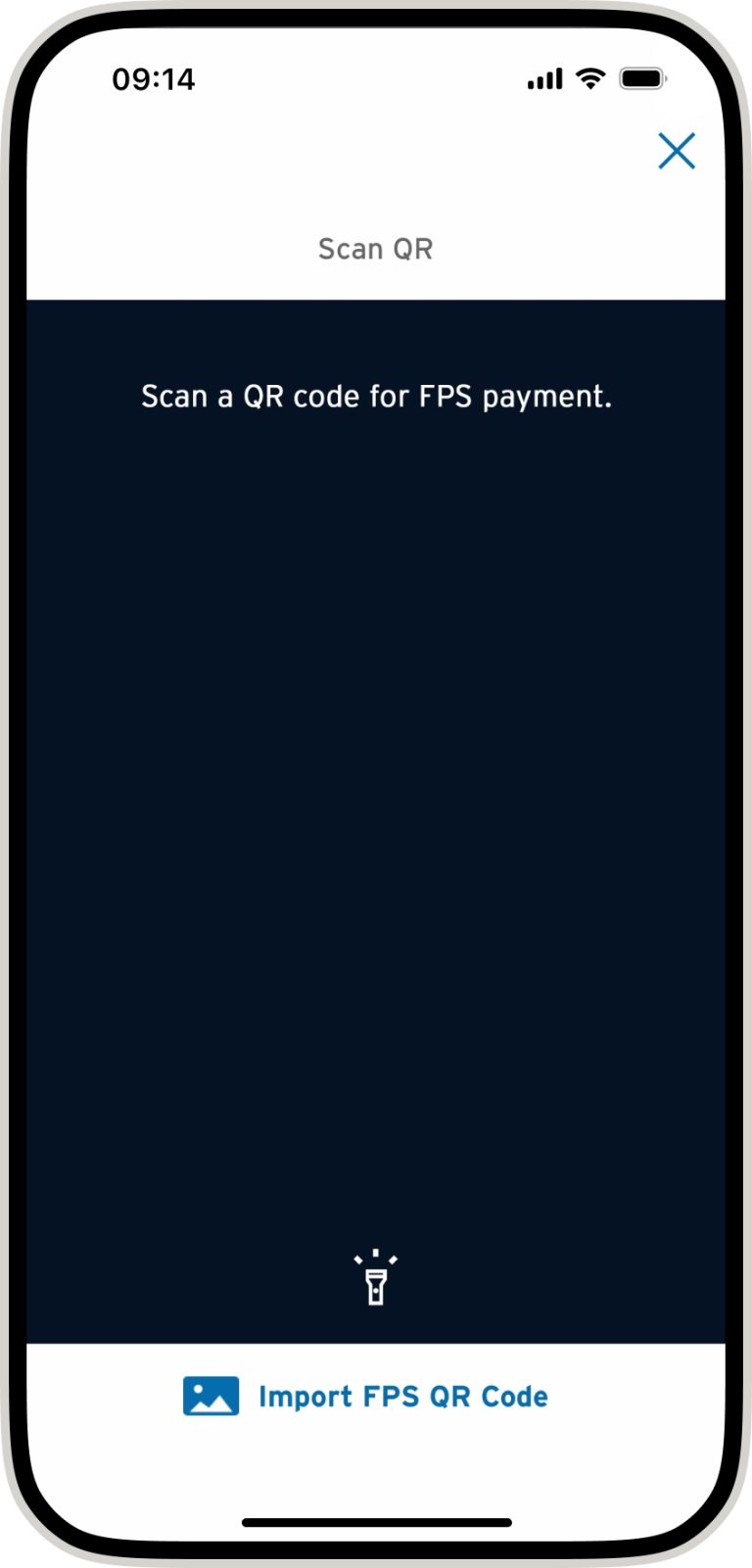
tap “import fps qr code”
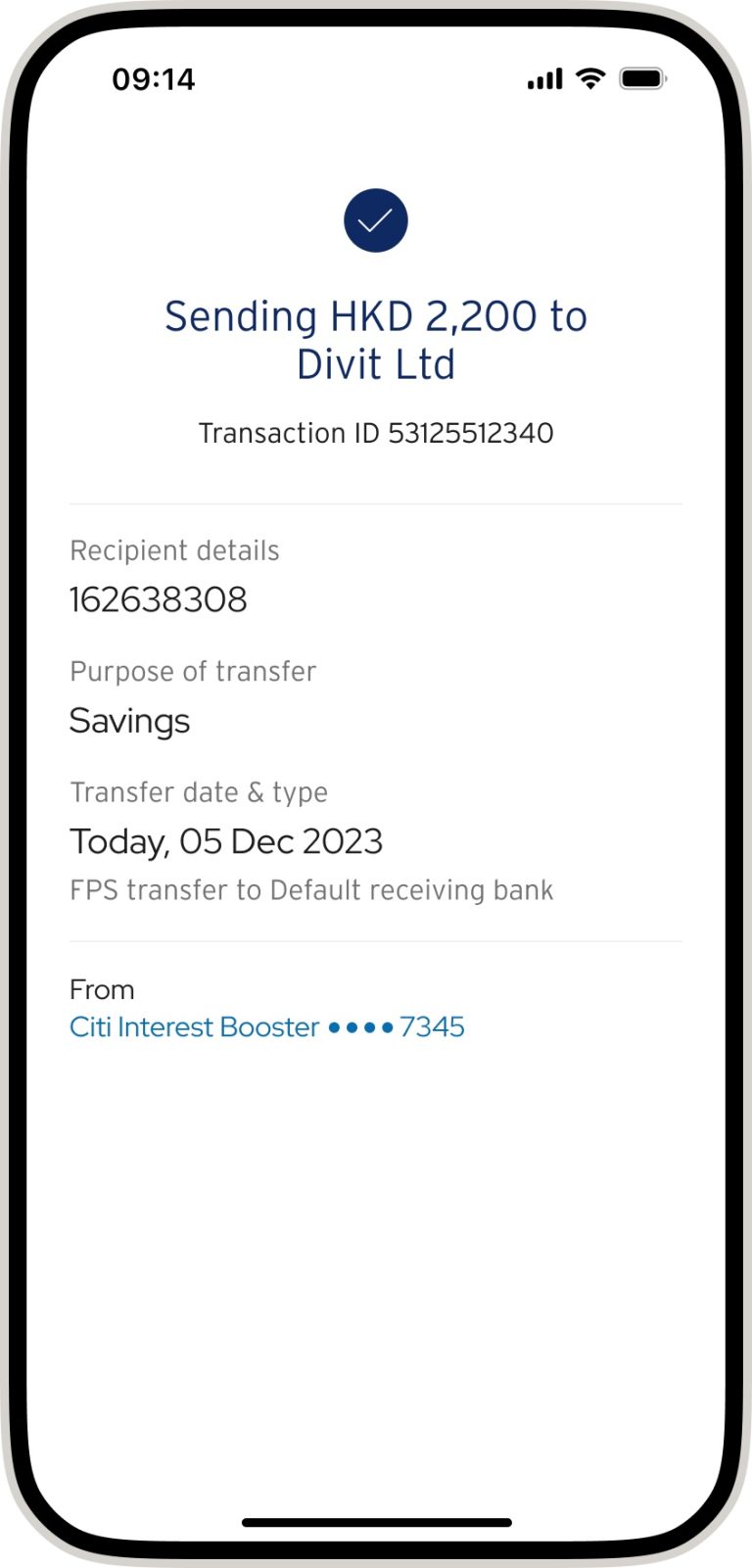
verify your payment details and tap “pay”
your transfer is complete! you will receive a confirmation via sms and email
fps id
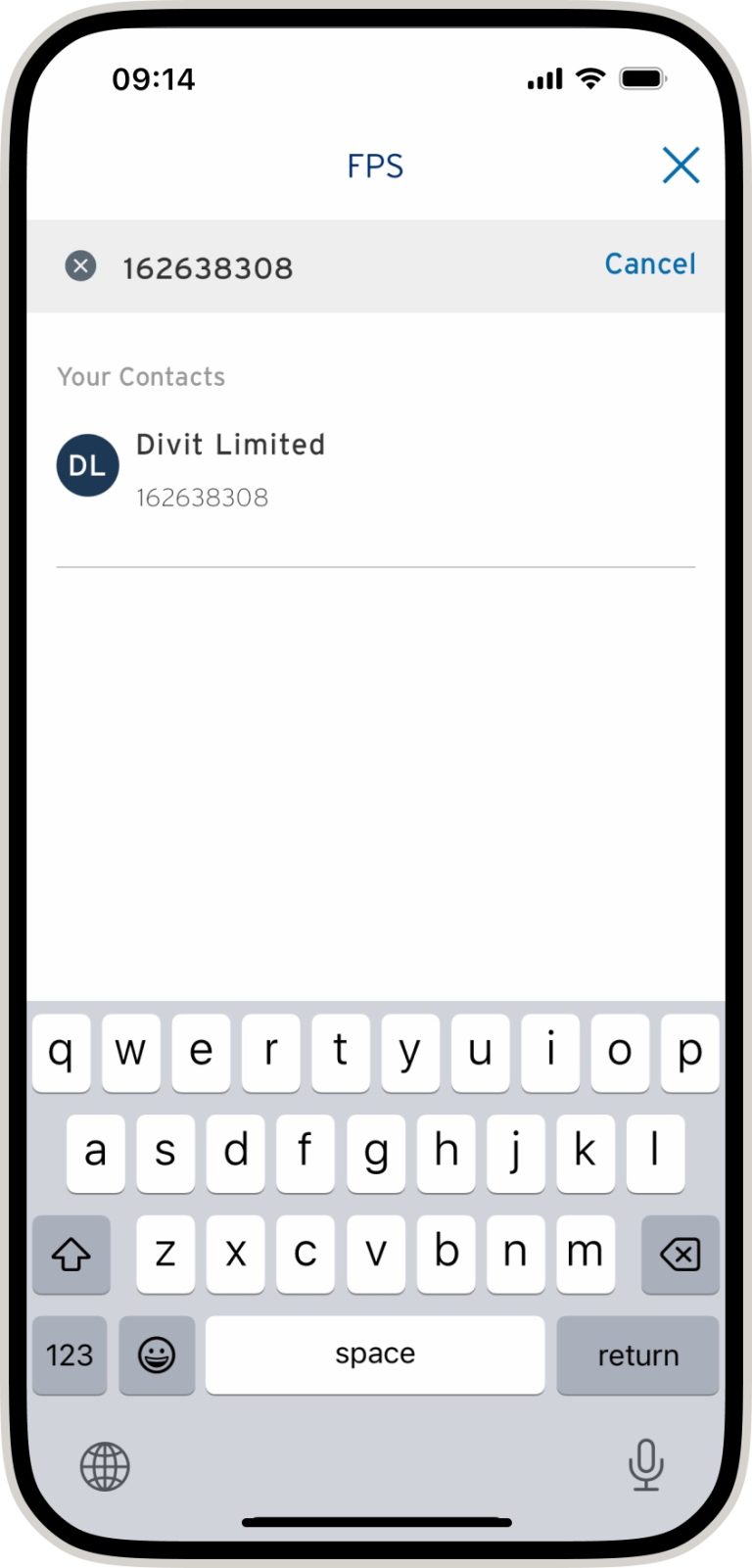
select “fps”
enter our fps id: 162638308 and tap “divit limited”
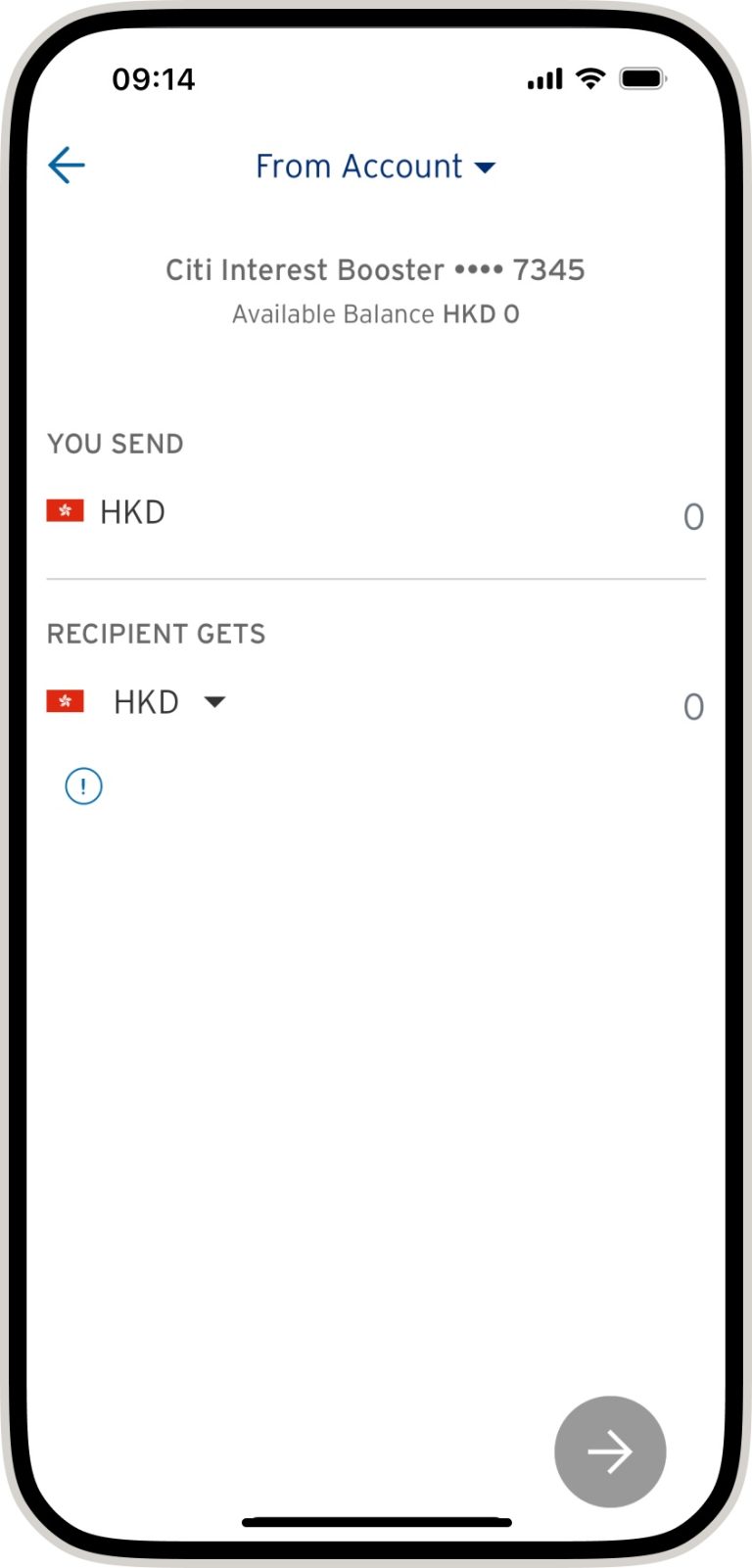
input payment amount
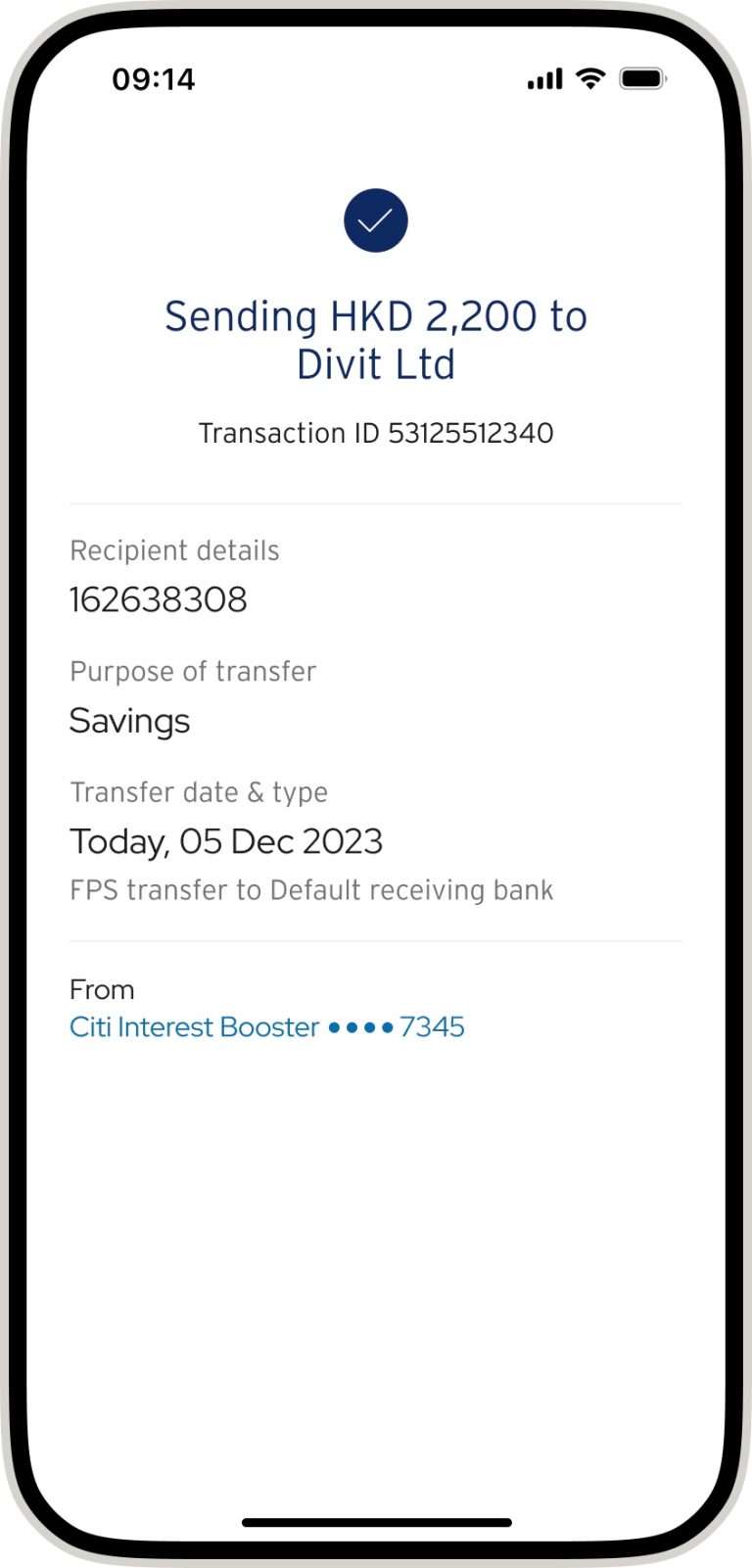
verify the payment details and tap “pay”
your transfer is complete! you will receive a confirmation via sms and email *if you send the payment without the 6 character code, your order might not be confirmed instantly
scan qr code
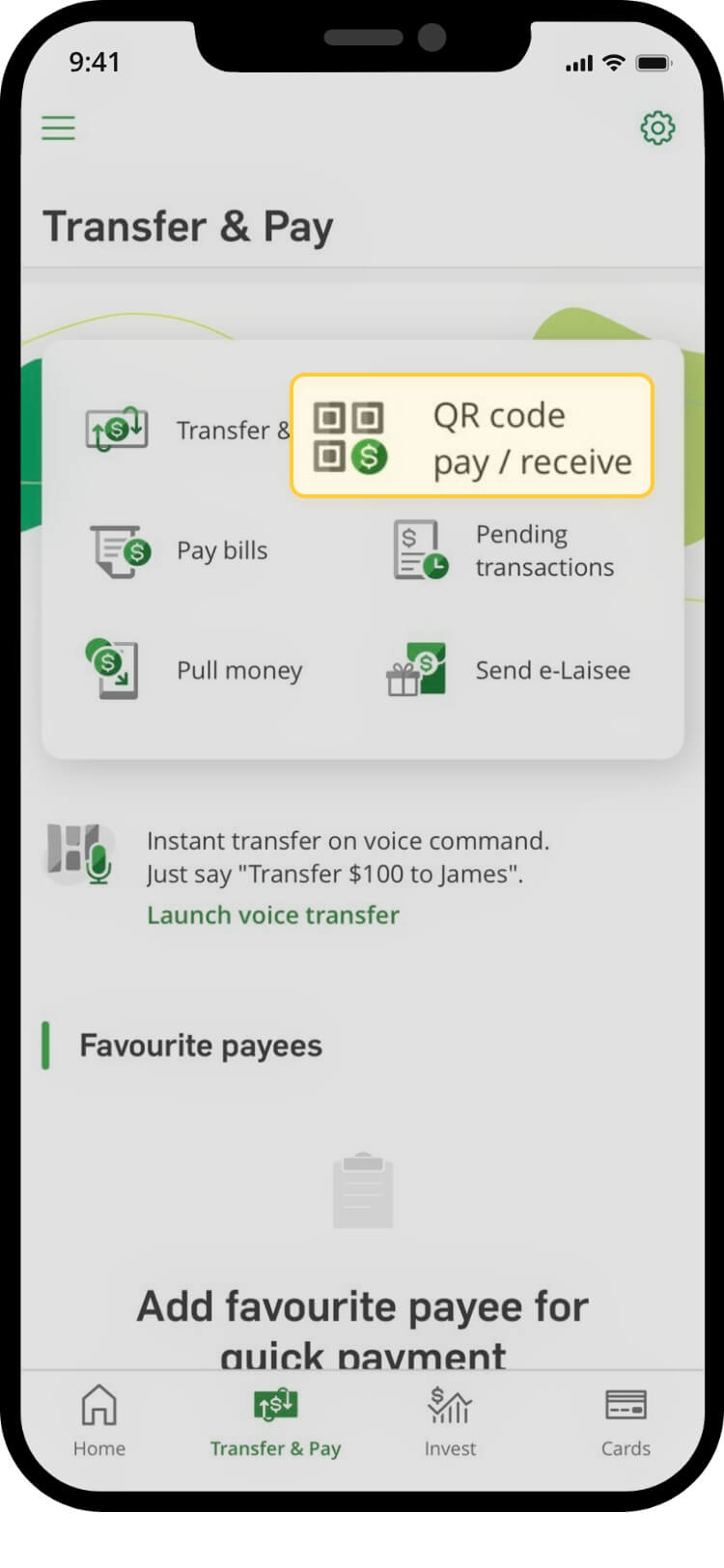
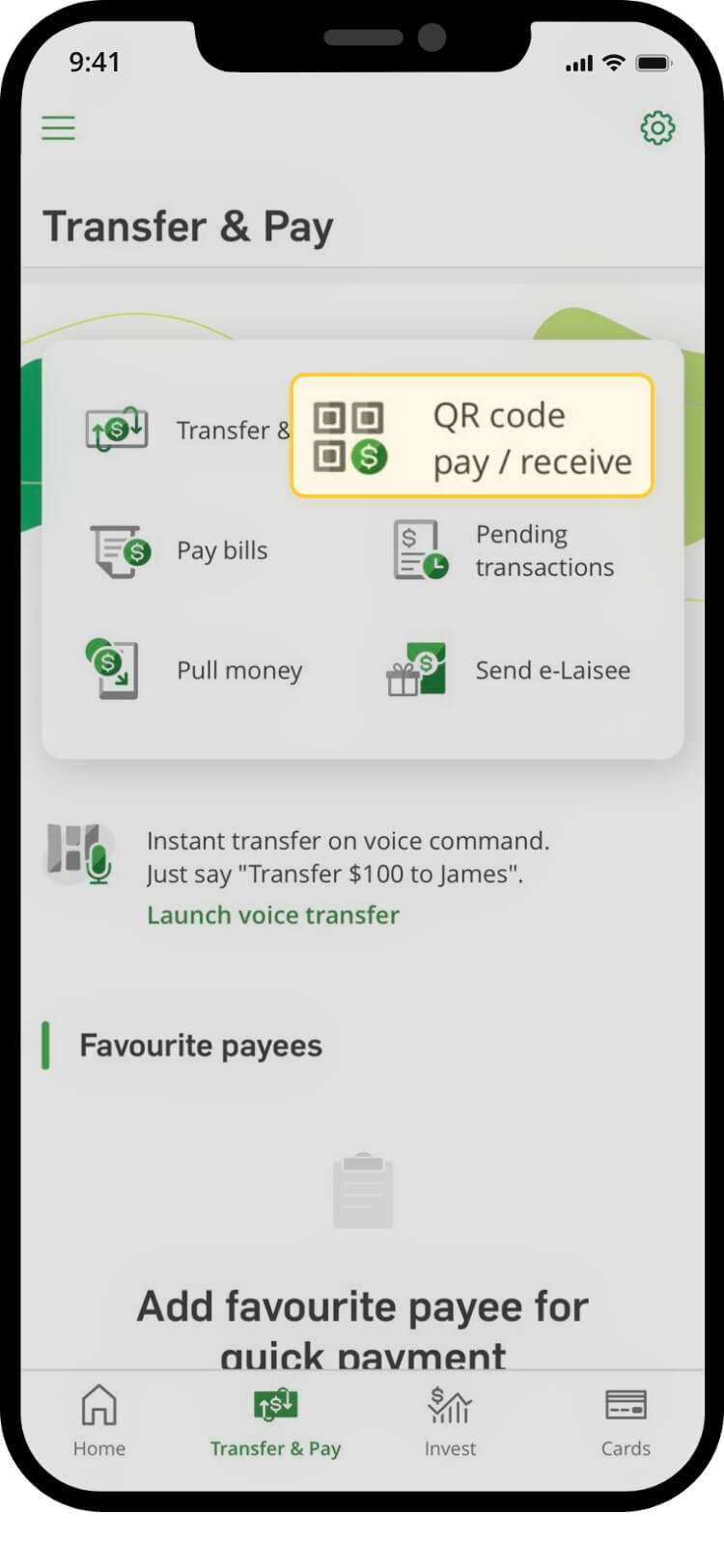
tap on “transfer & pay”
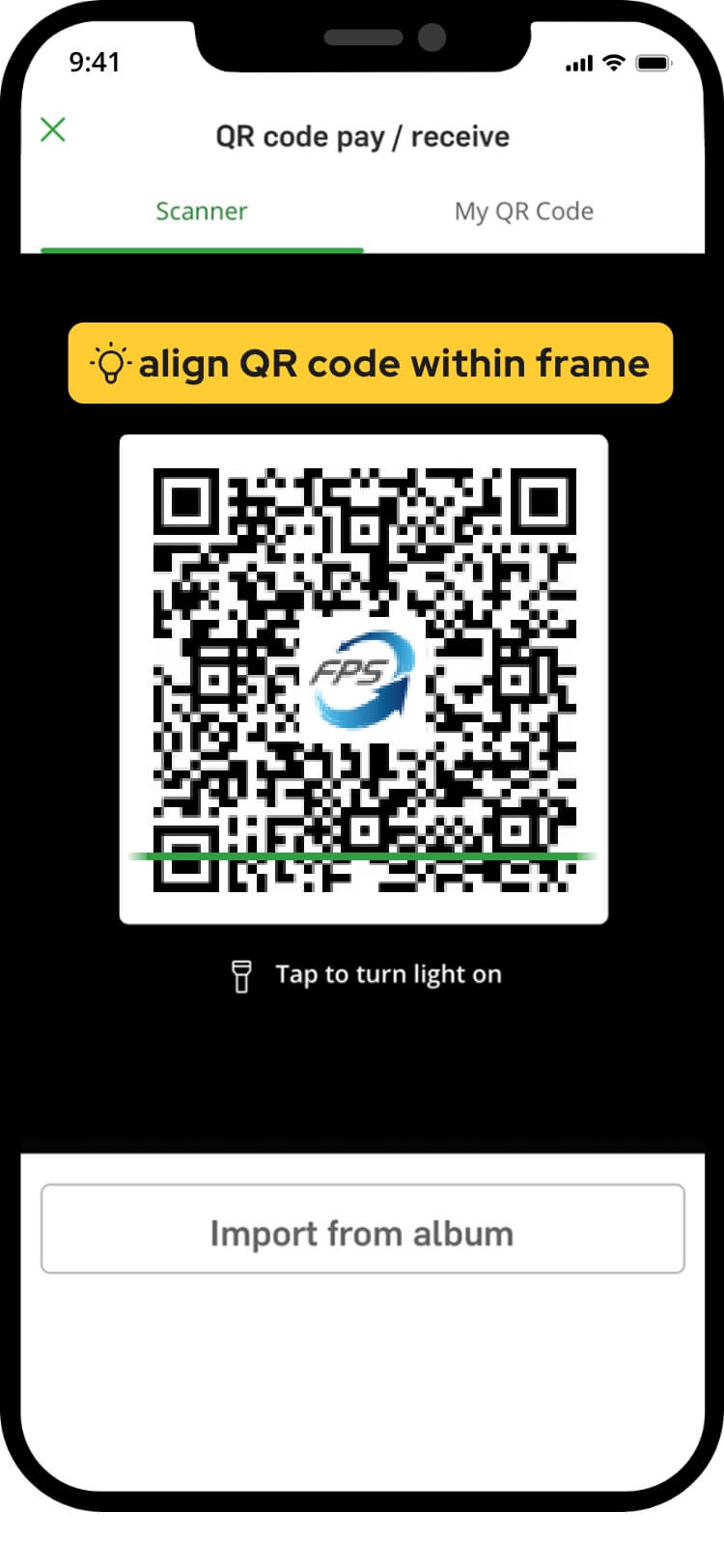
scan the qr code
authenticate to proceed with the transaction
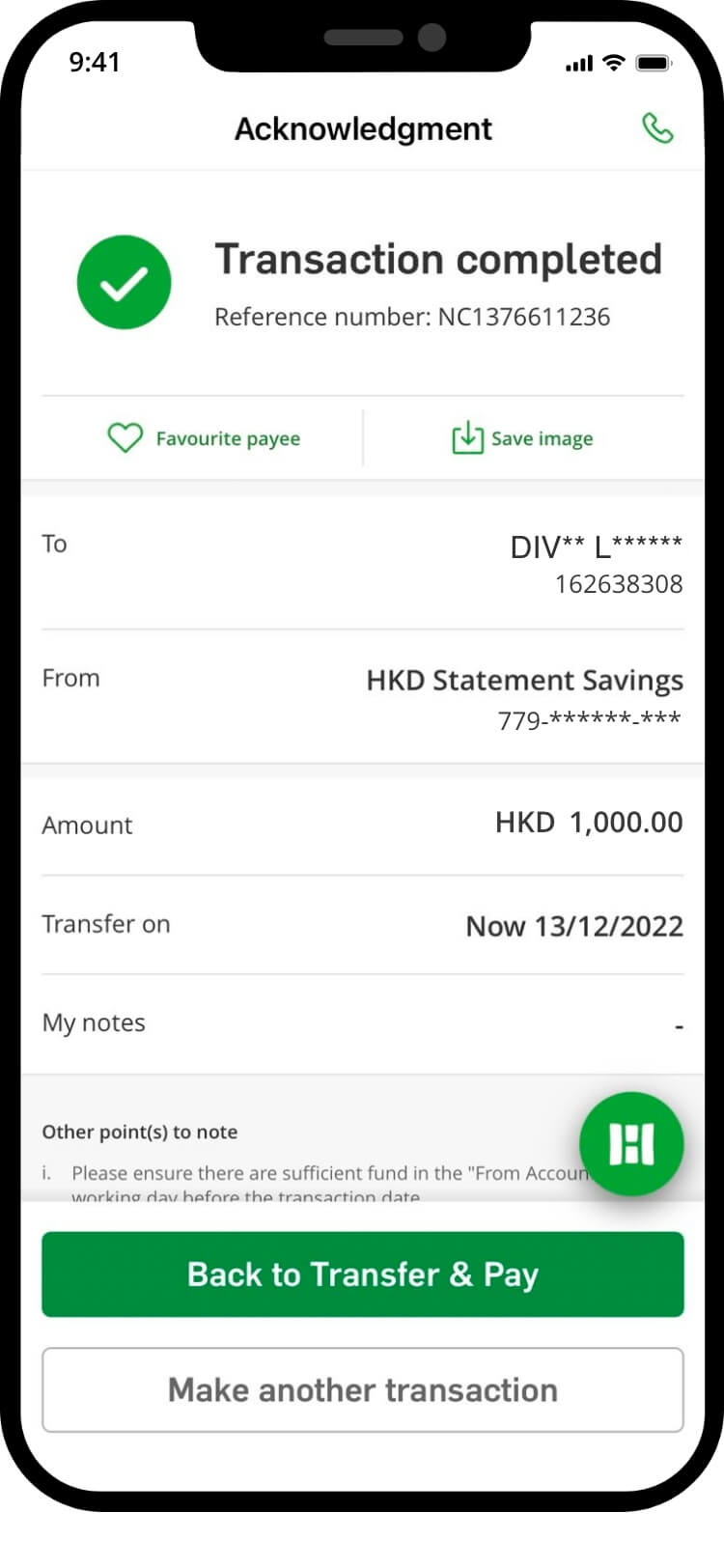
your transfer is complete! you will receive a confirmation via sms and email
import qr code
tap on “transfer & pay”
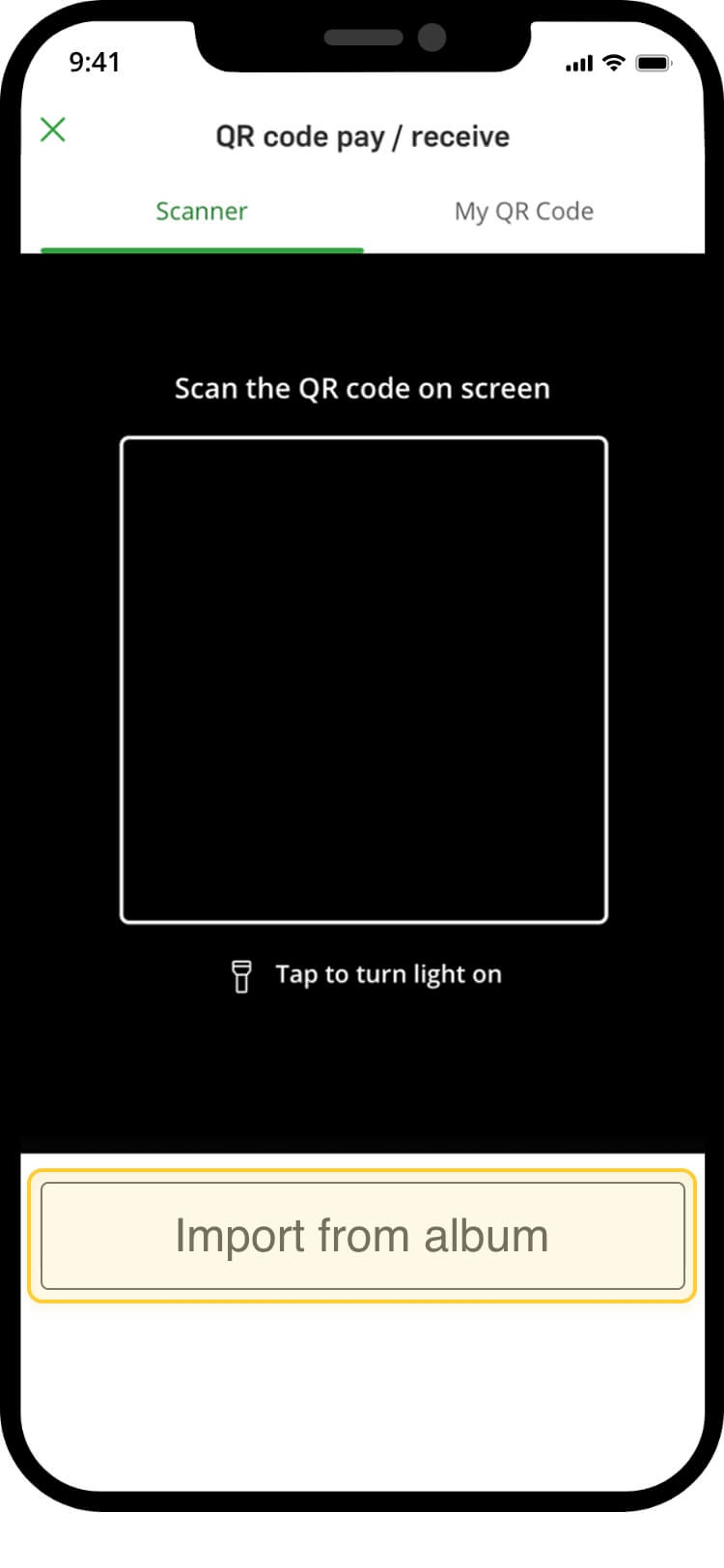
select ‘import from album’
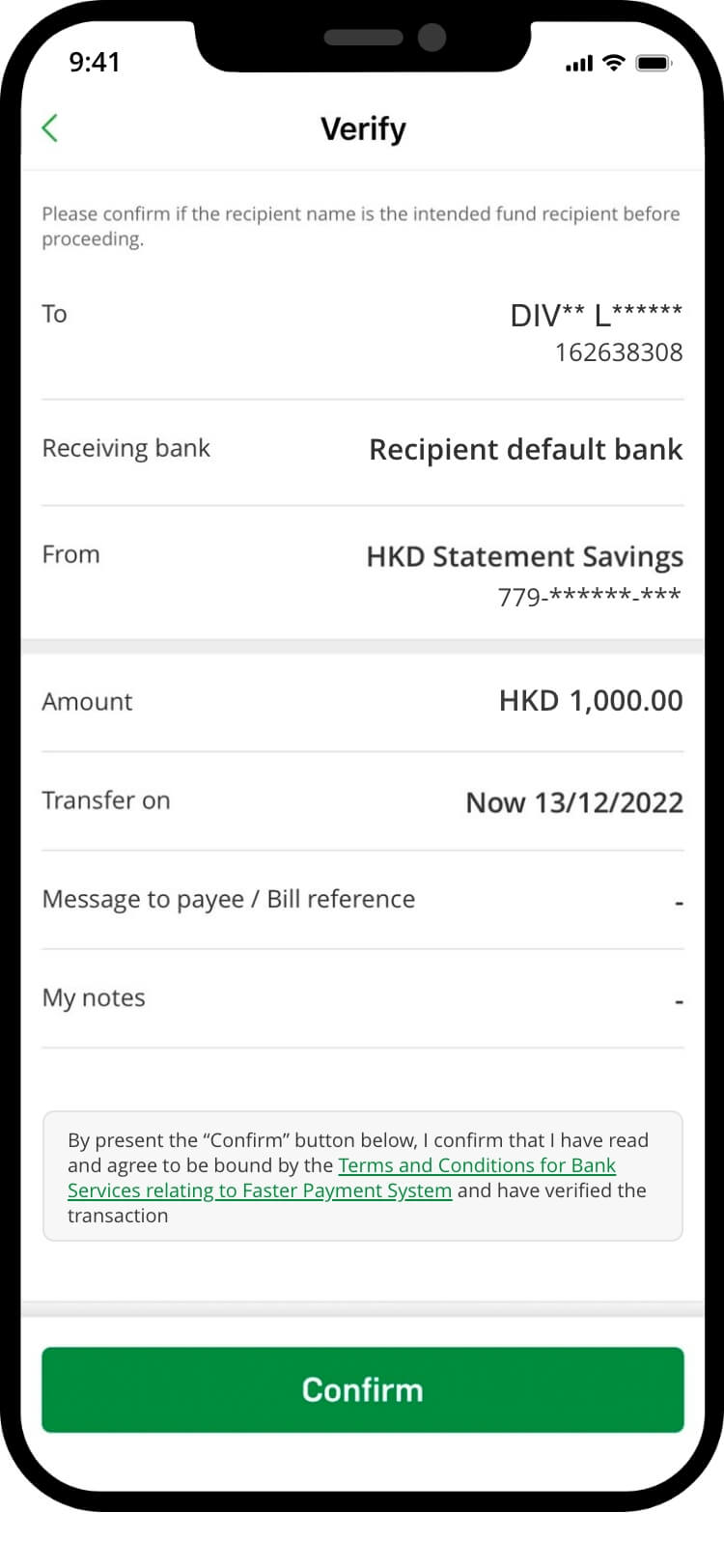
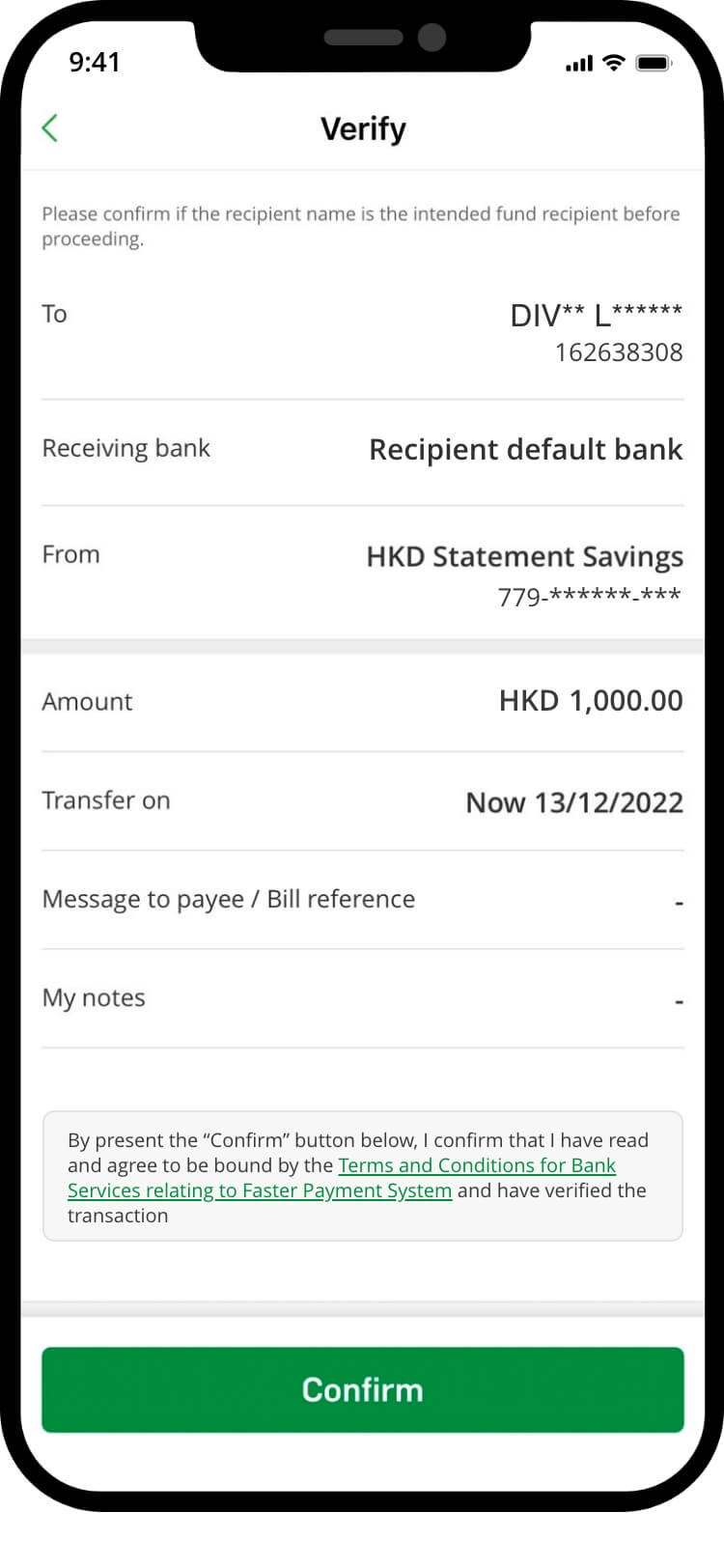
verify transaction details and “confirm” the transaction
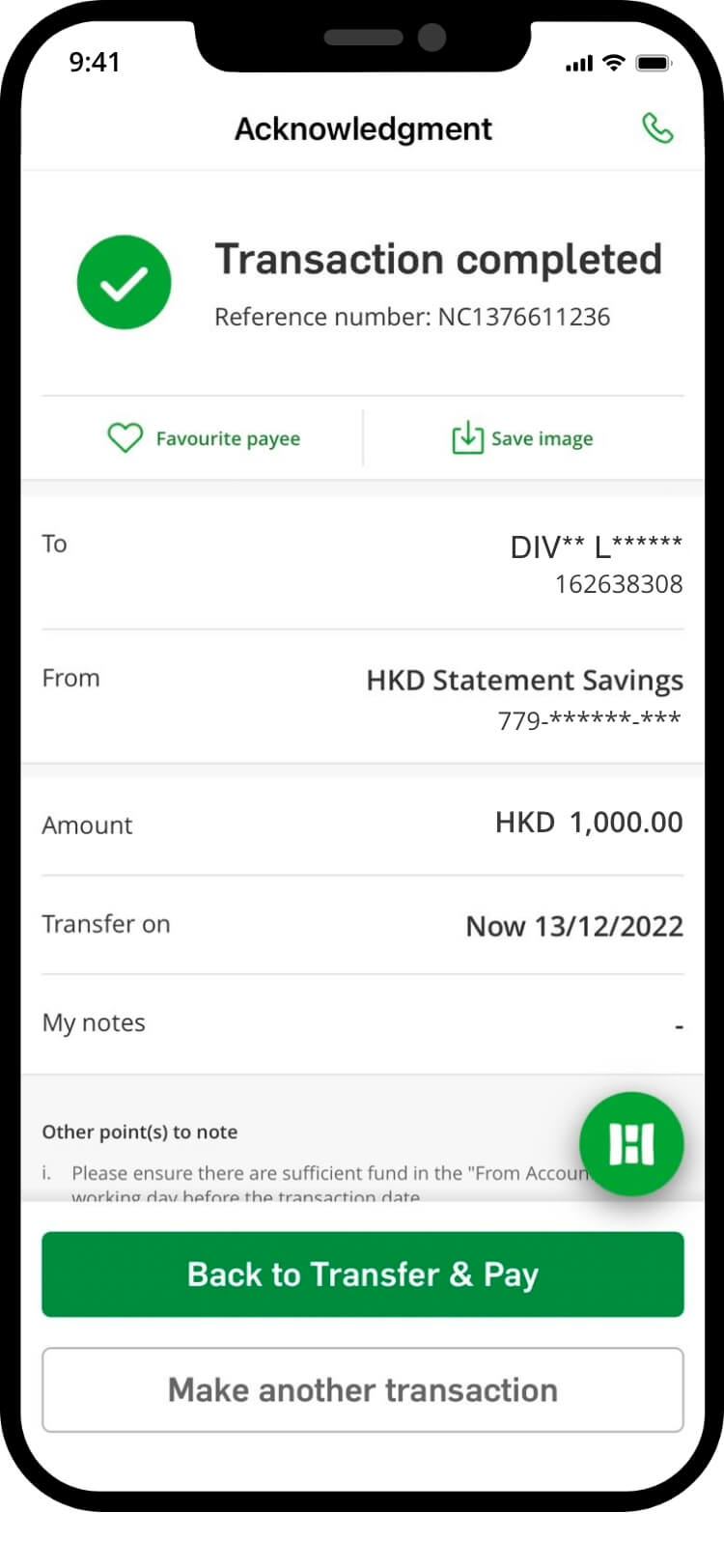
your transfer is complete! you will receive a confirmation via sms and email
fps id
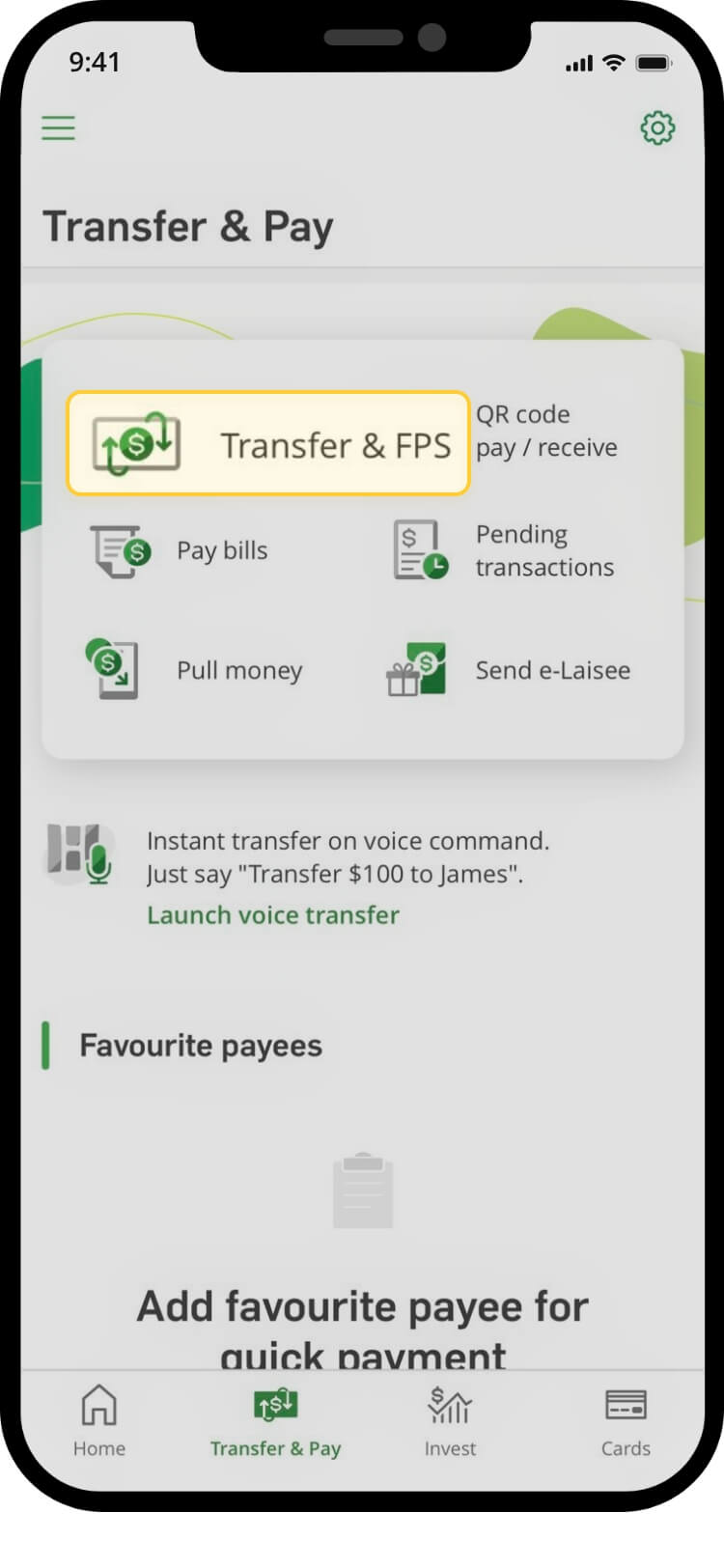
tap on “transfer & pay”, then “transfer & fps”
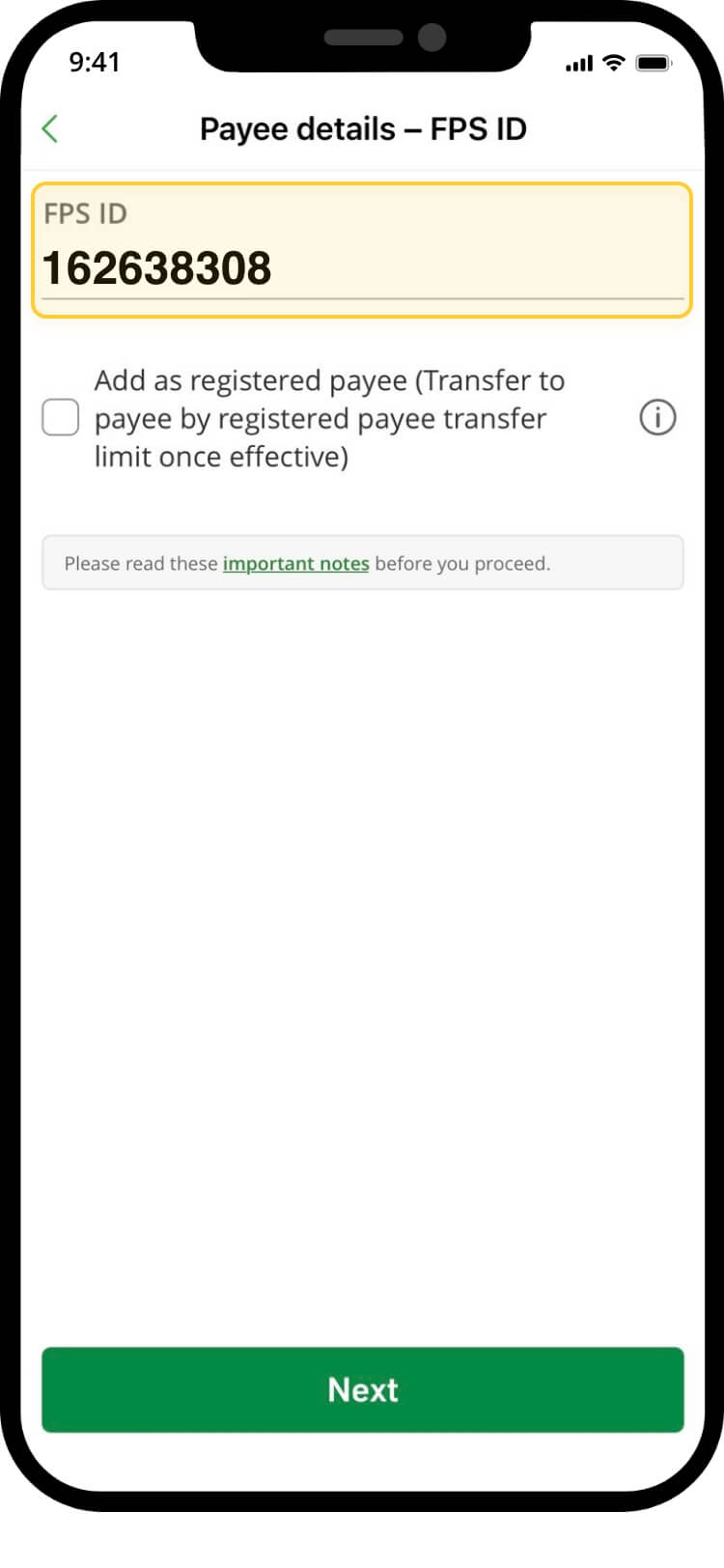
enter: 162638308
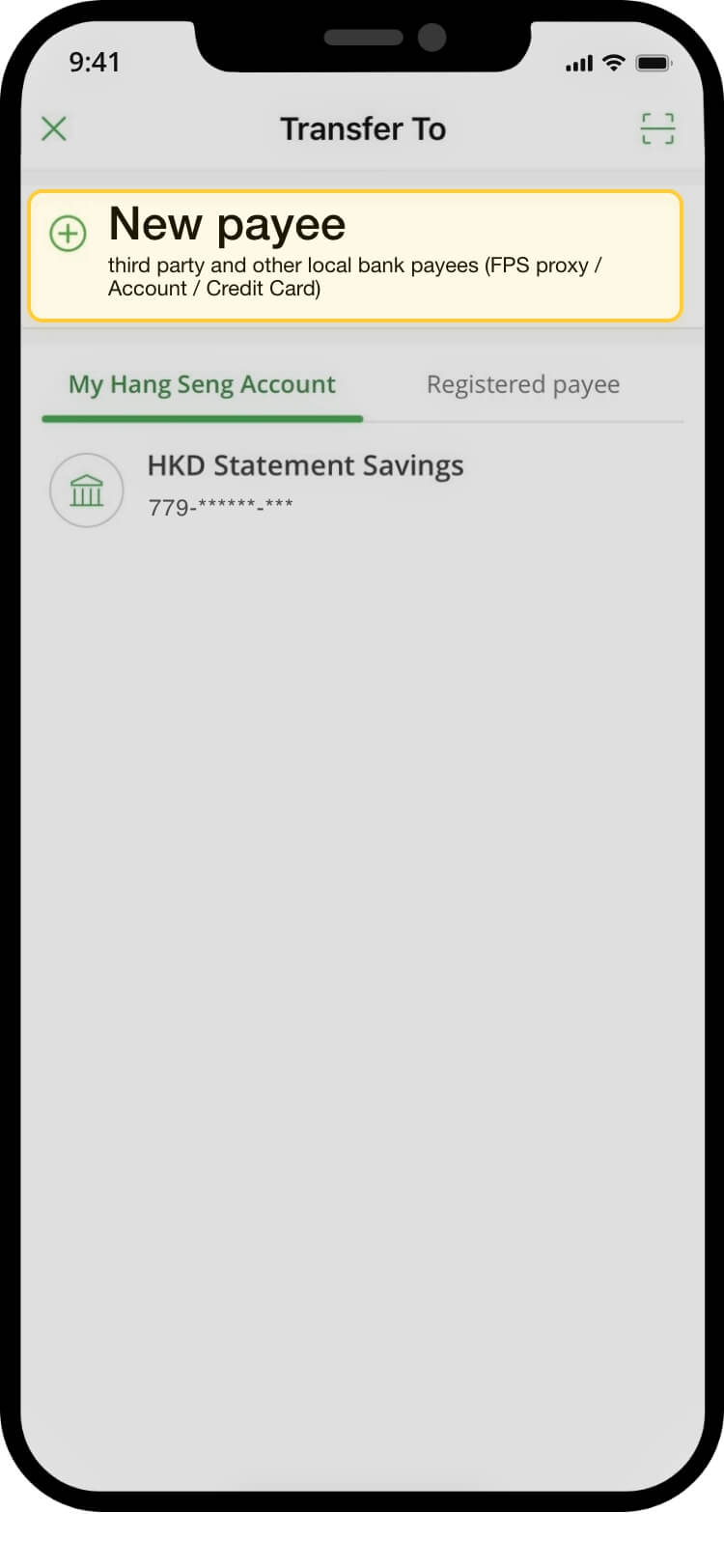
tap “new payee”
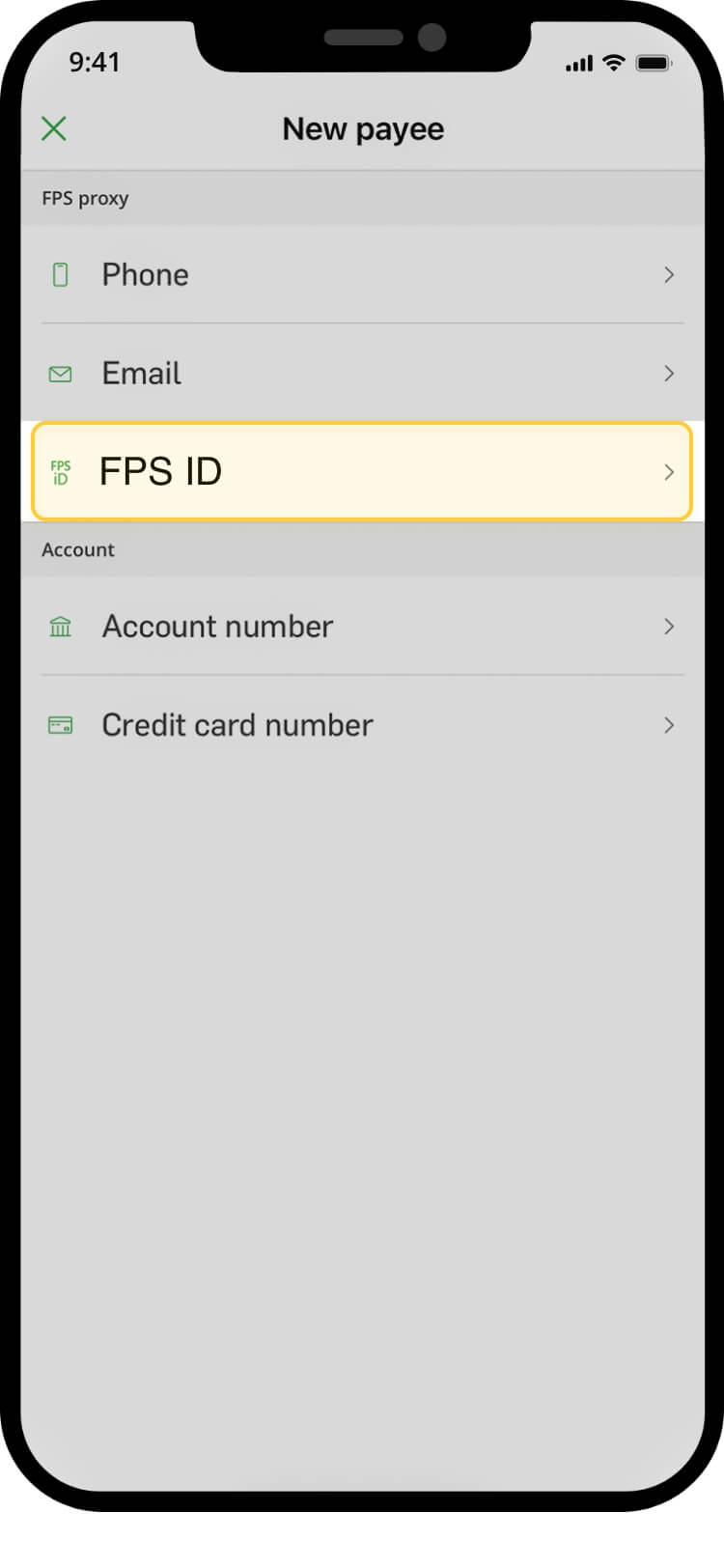
select “fps identifier”
select “from account”, input payment amount & the 6 character code at “message to payee”
verify transaction details and “confirm” the transaction
your transfer is complete! you will receive a confirmation via sms and email *if you send the payment without the 6 character code, your order might not be confirmed instantly
scan qr code
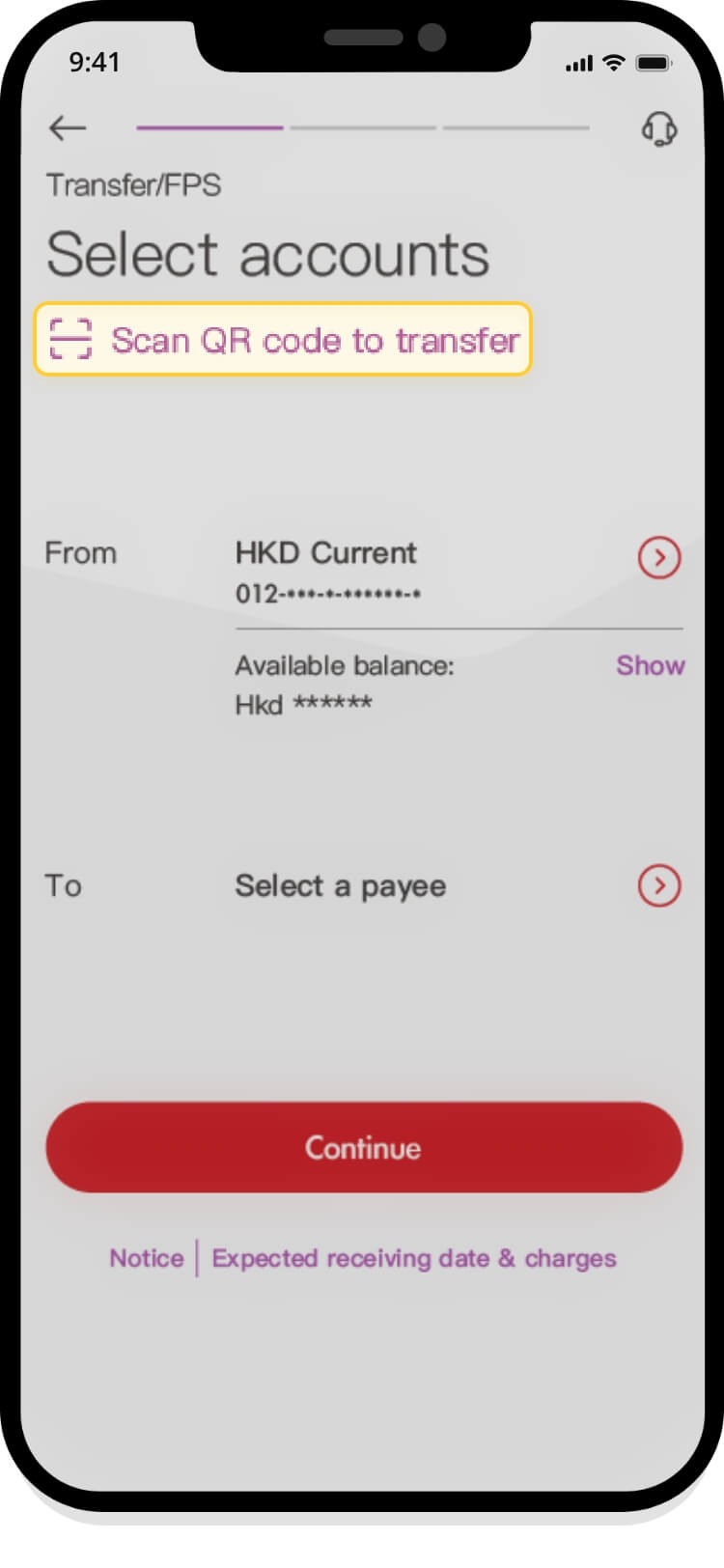
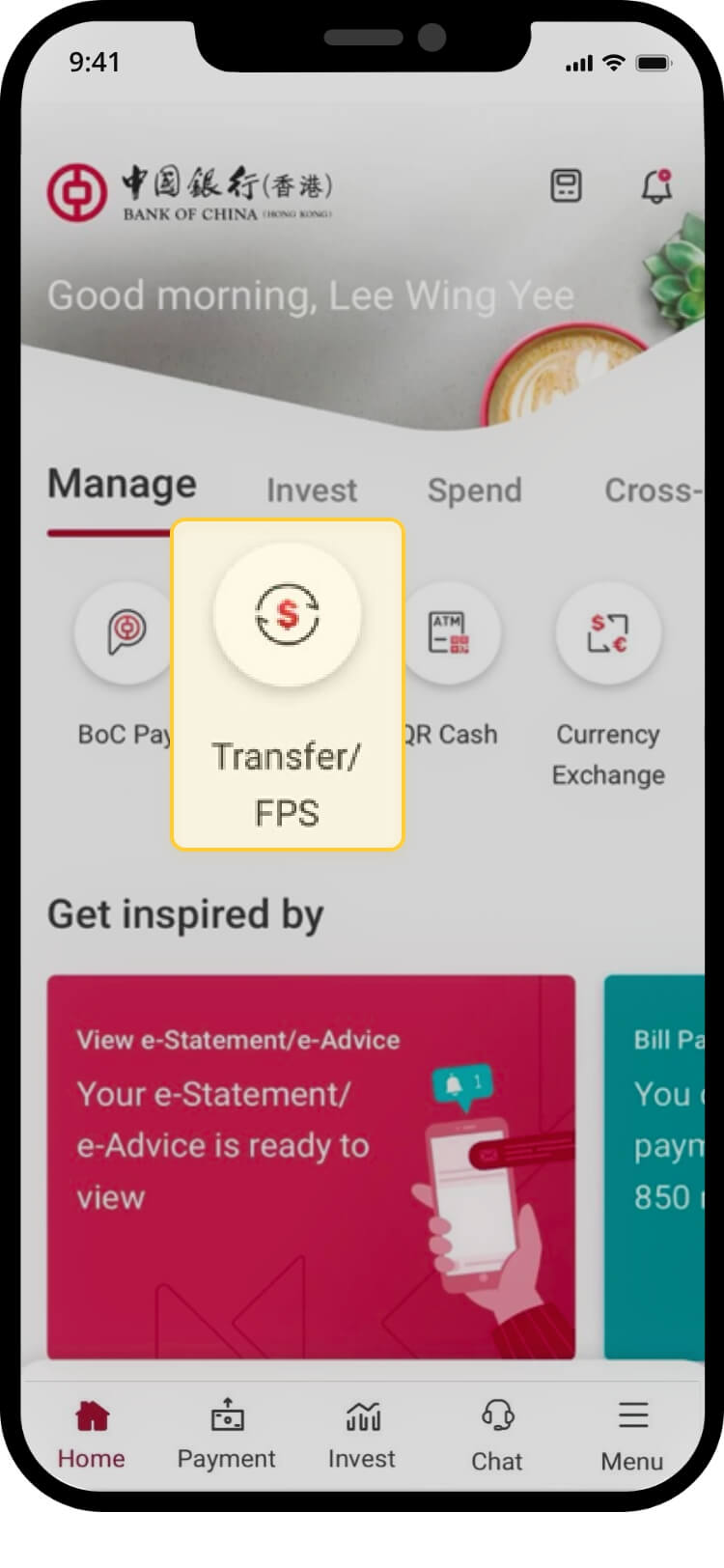
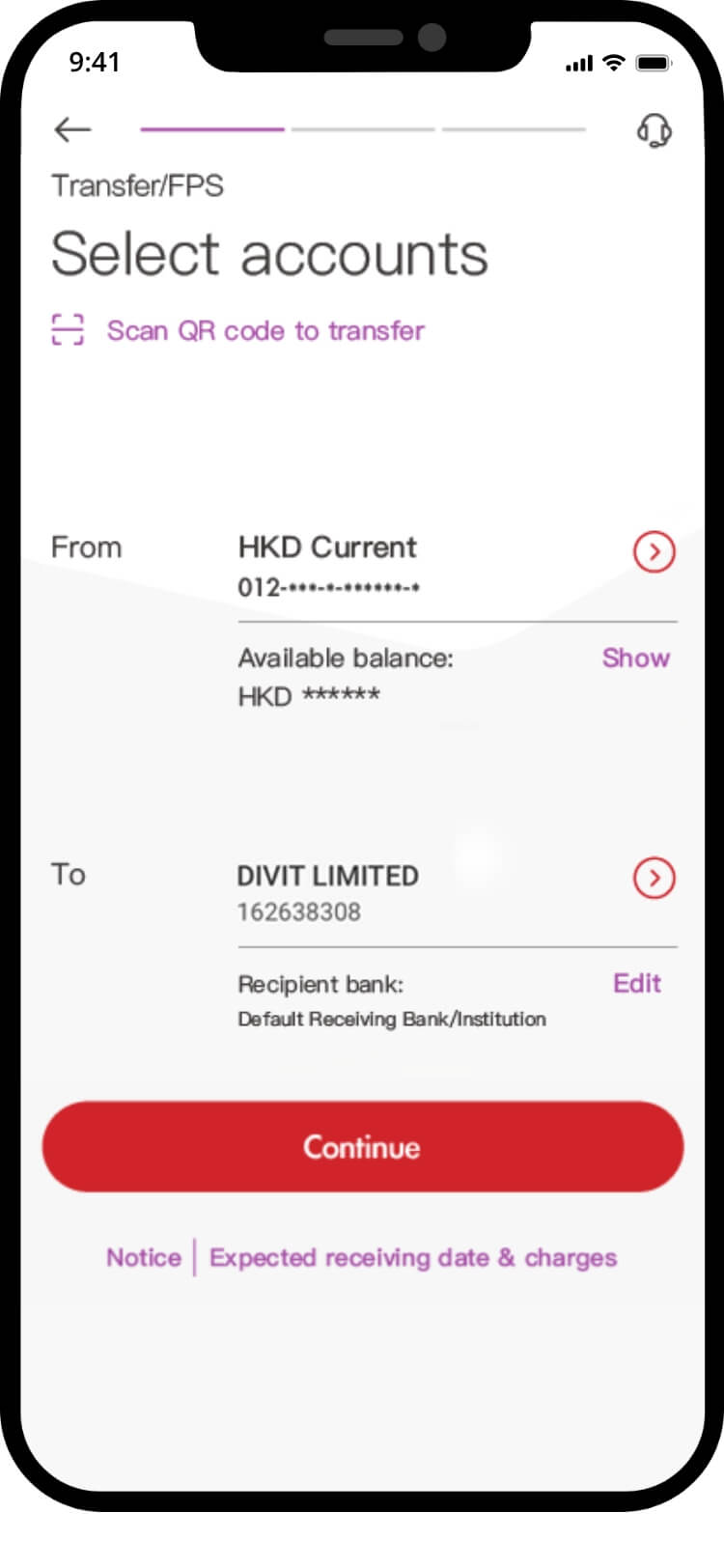
login and tap on “transfer/fps” under “manage”
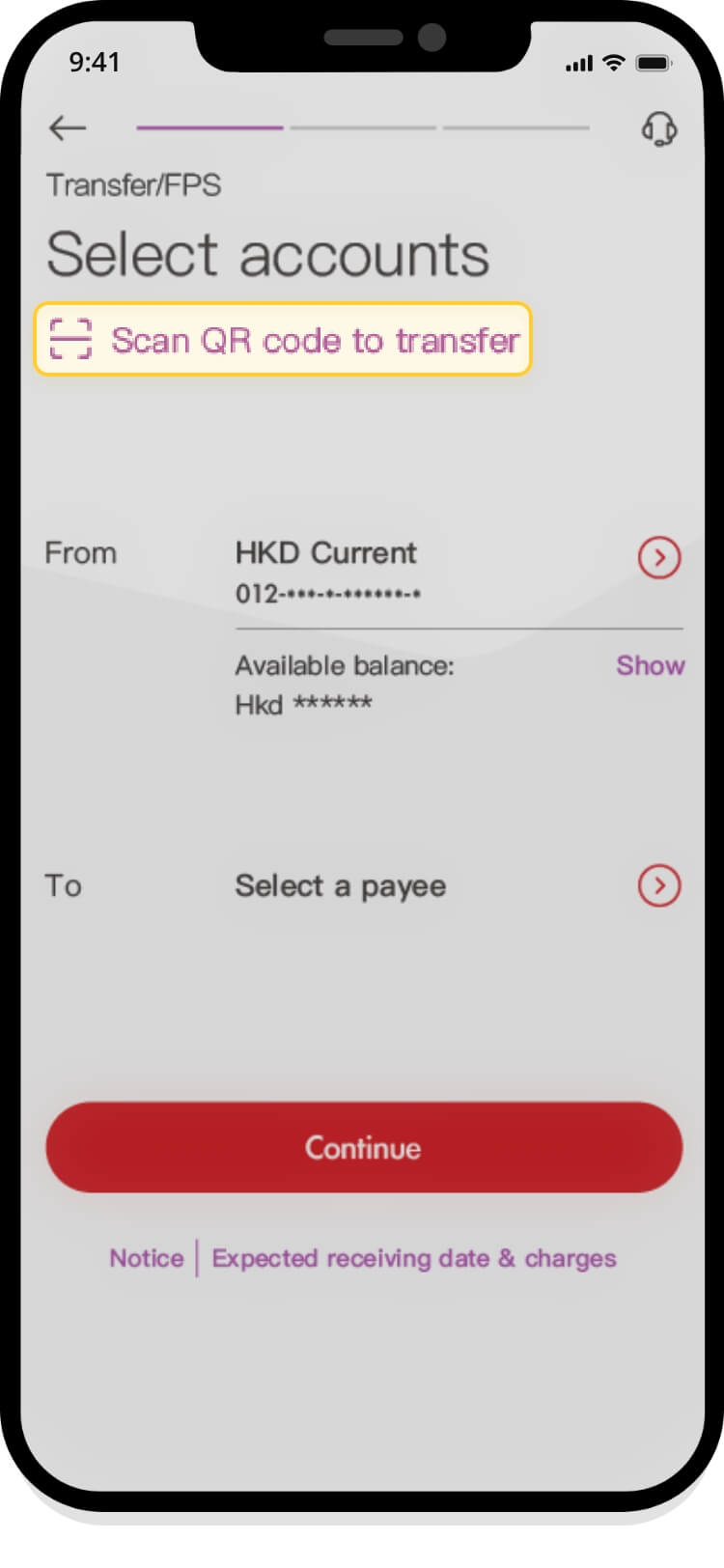
tap “scan qr code to transfer”
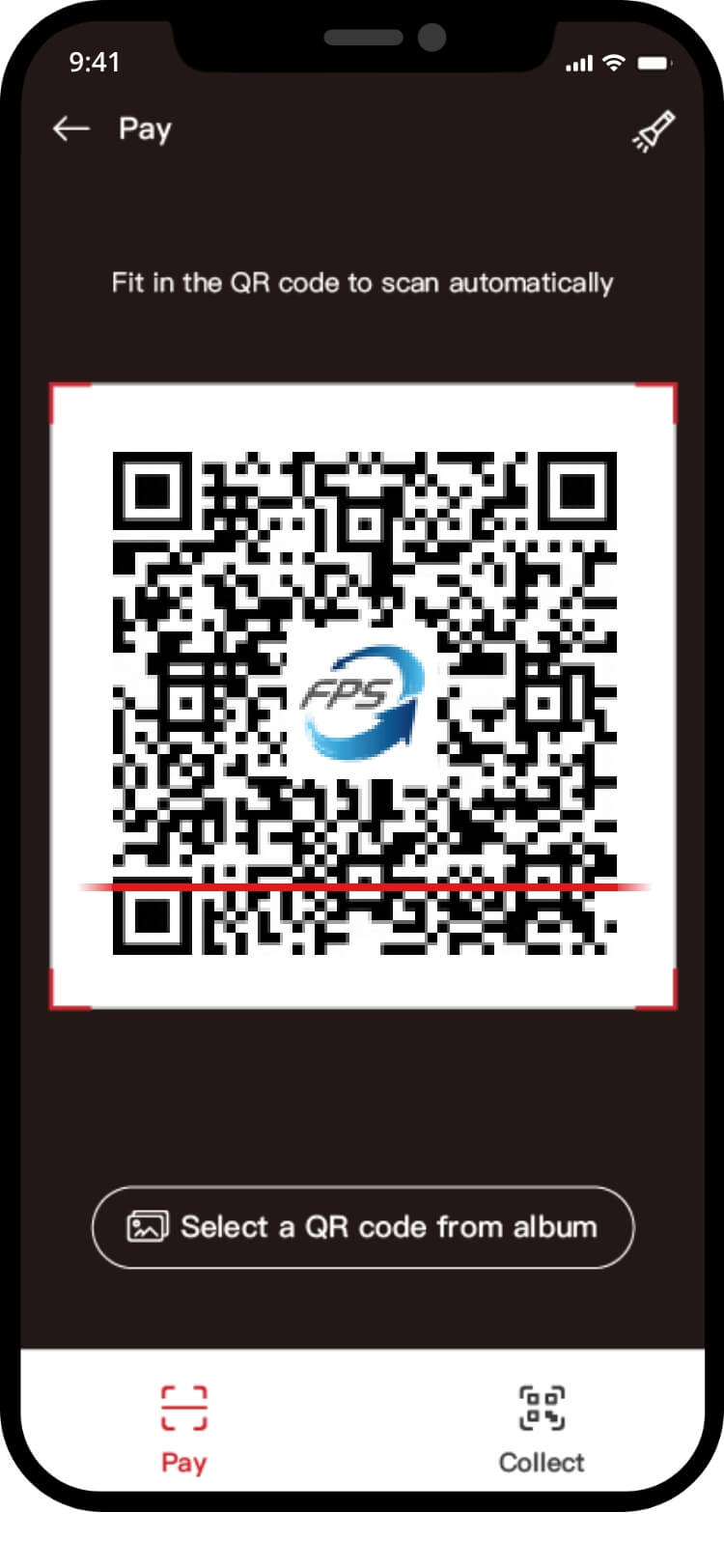
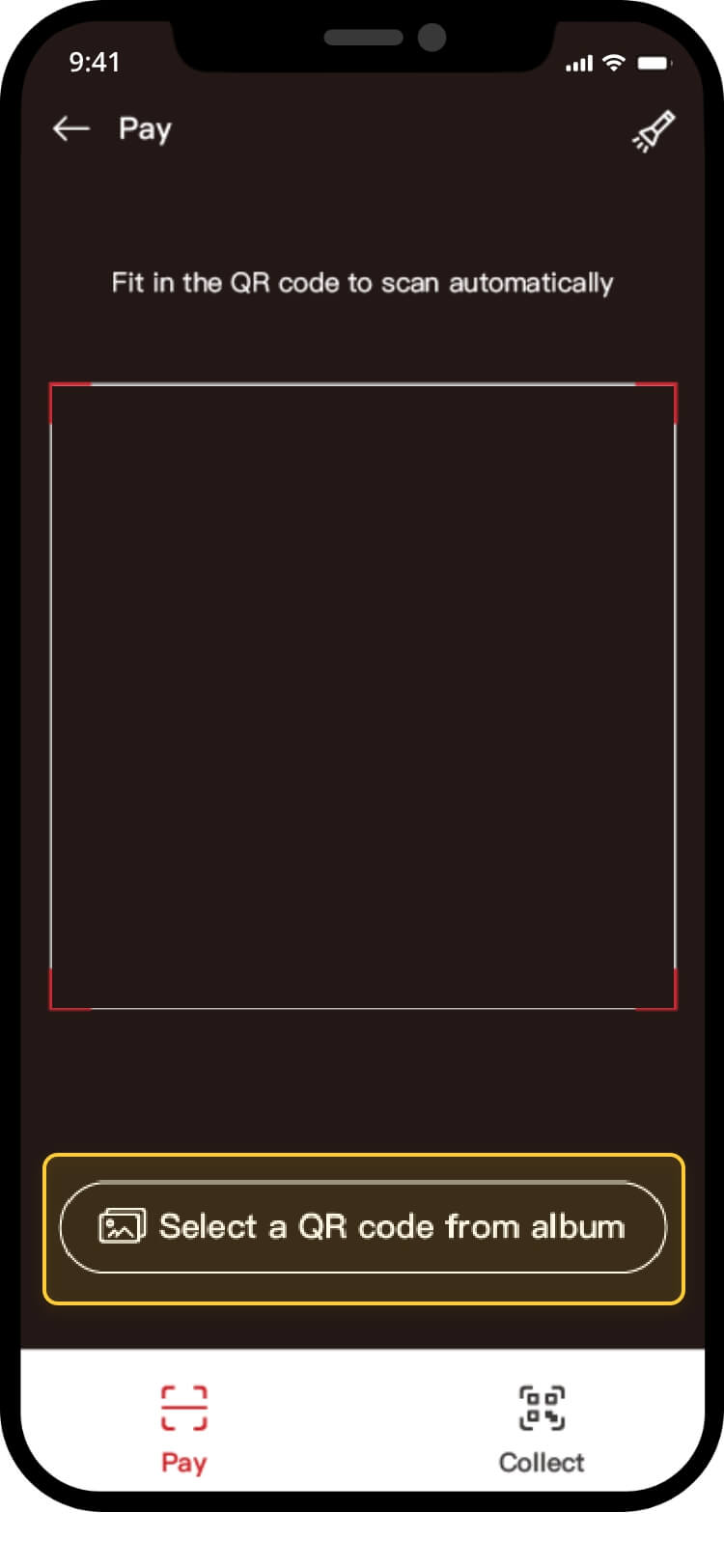
tap “select a qr code from album”
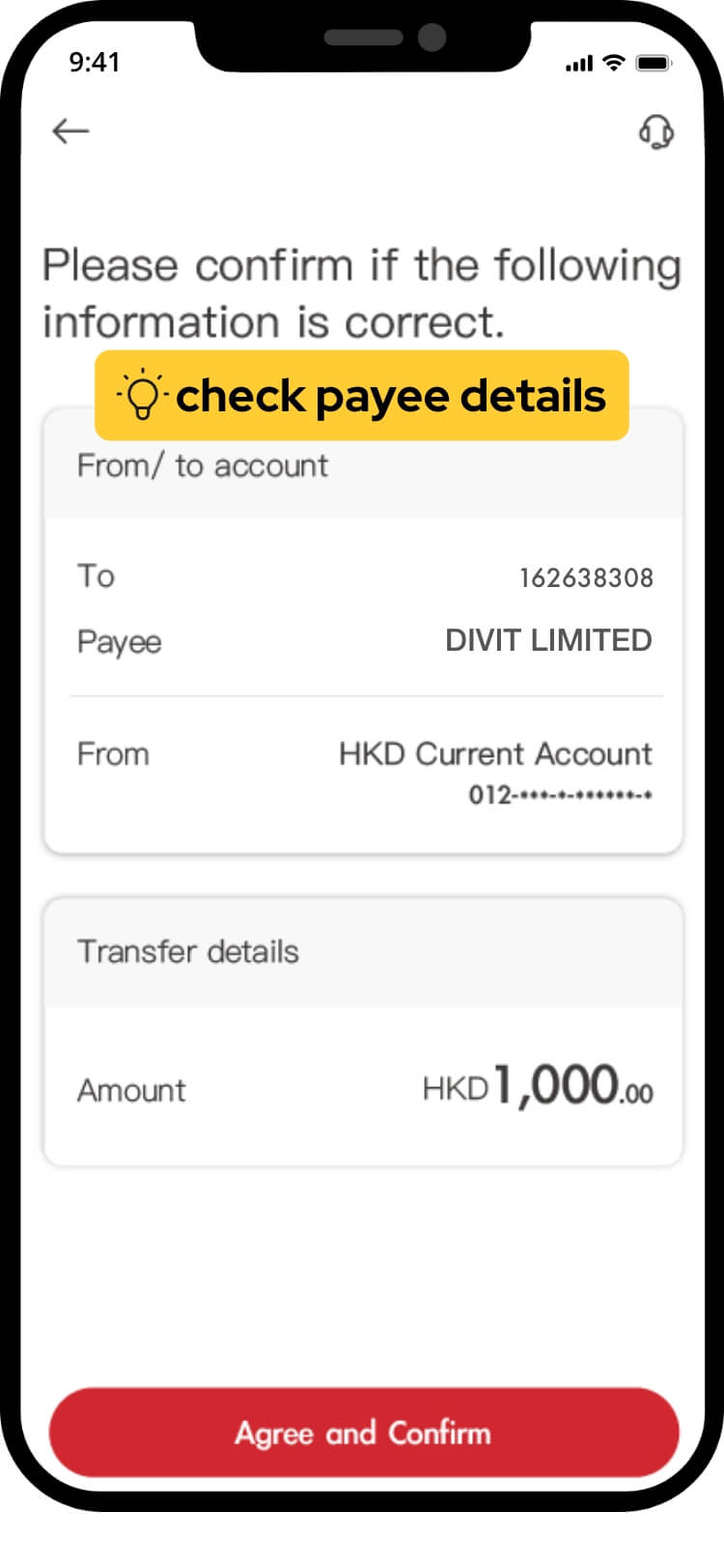
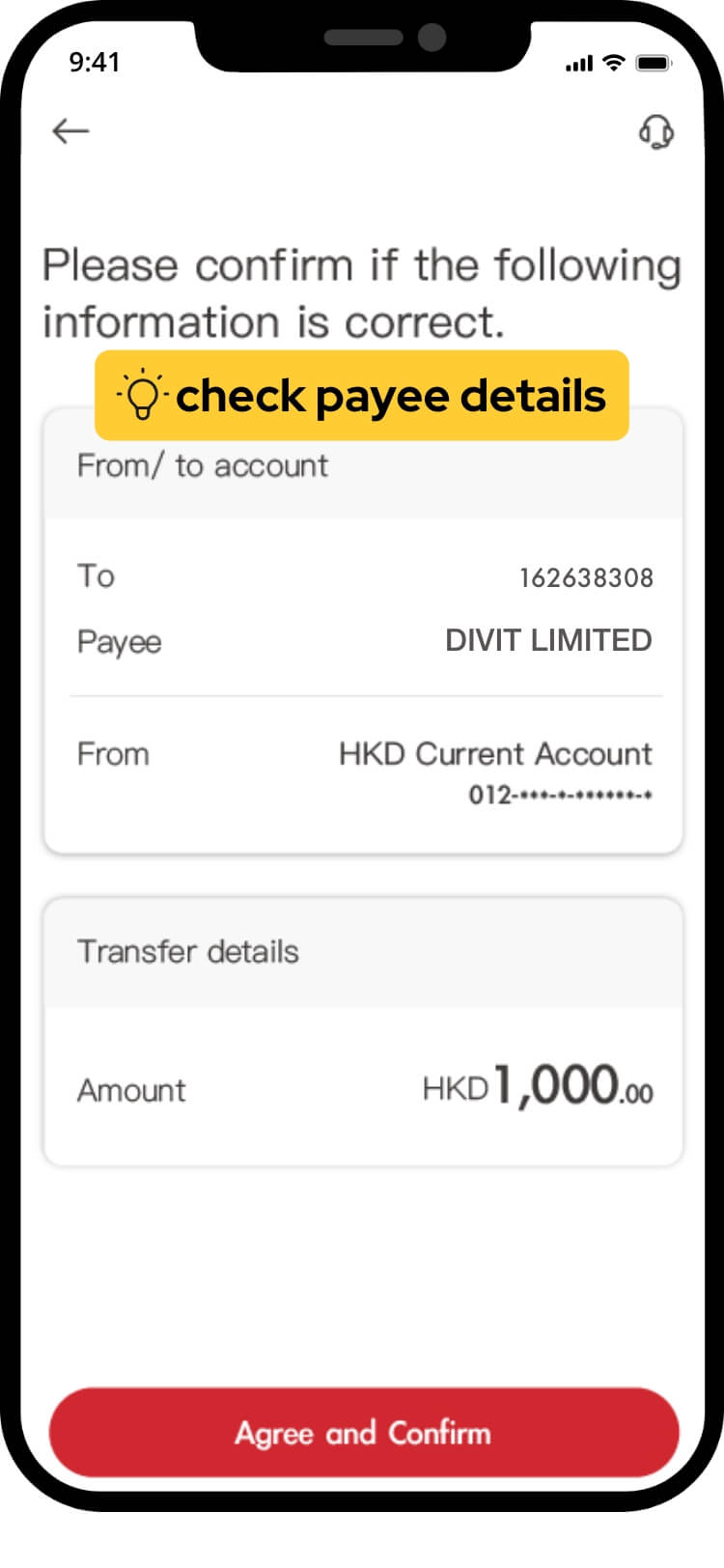
verify transaction details and tap “confirm” the transaction
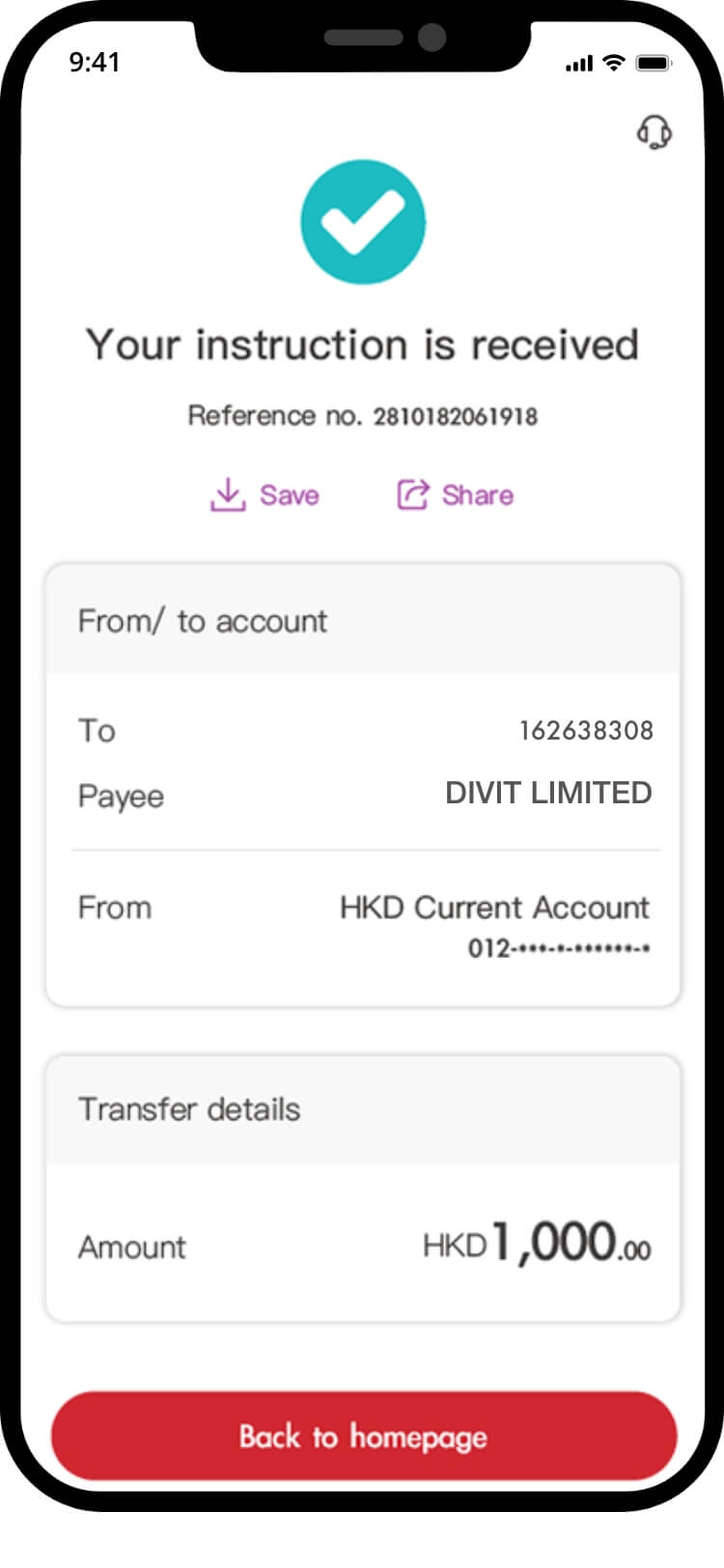
your transfer is complete! you will receive a confirmation via sms and email
import qr code
login and tap on “transfer/fps” under “manage”
tap “scan qr code to transfer”
tap “select a a qr code from album”
verify transaction details and tap “confirm” the transaction details and tap “confirm” the transaction
your transfer is complete! you will receive a confirmation via sms and email
fps id
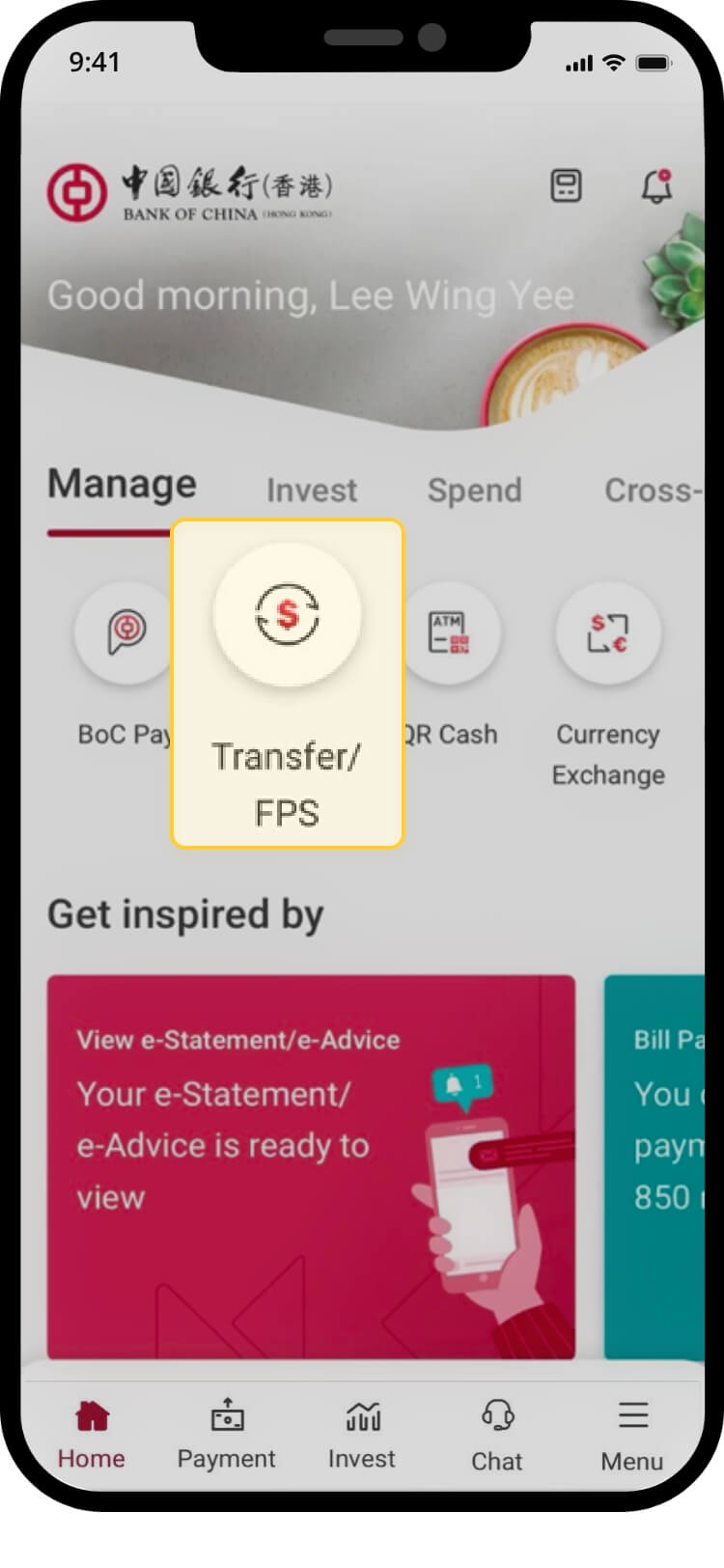
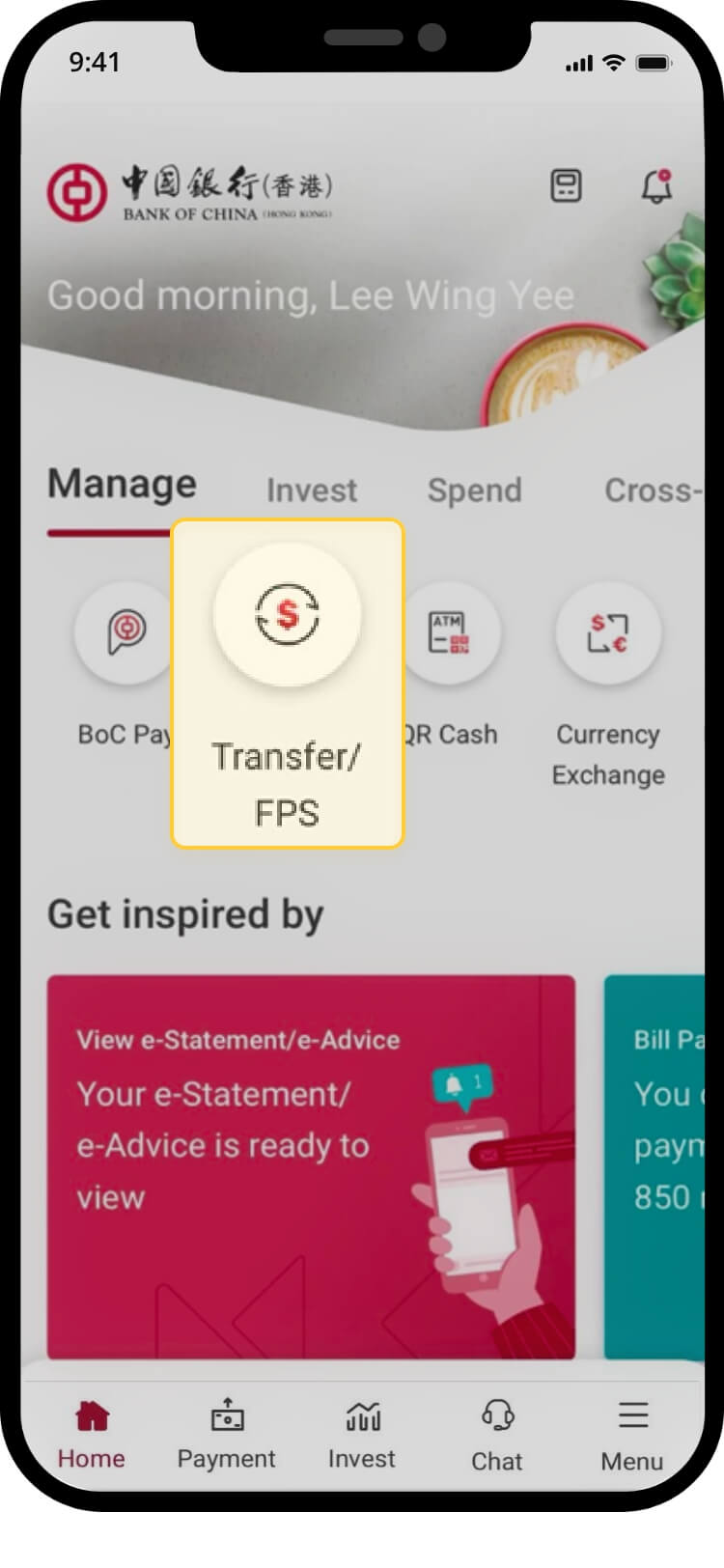
login and tap on “transfer/fps” under “manage”
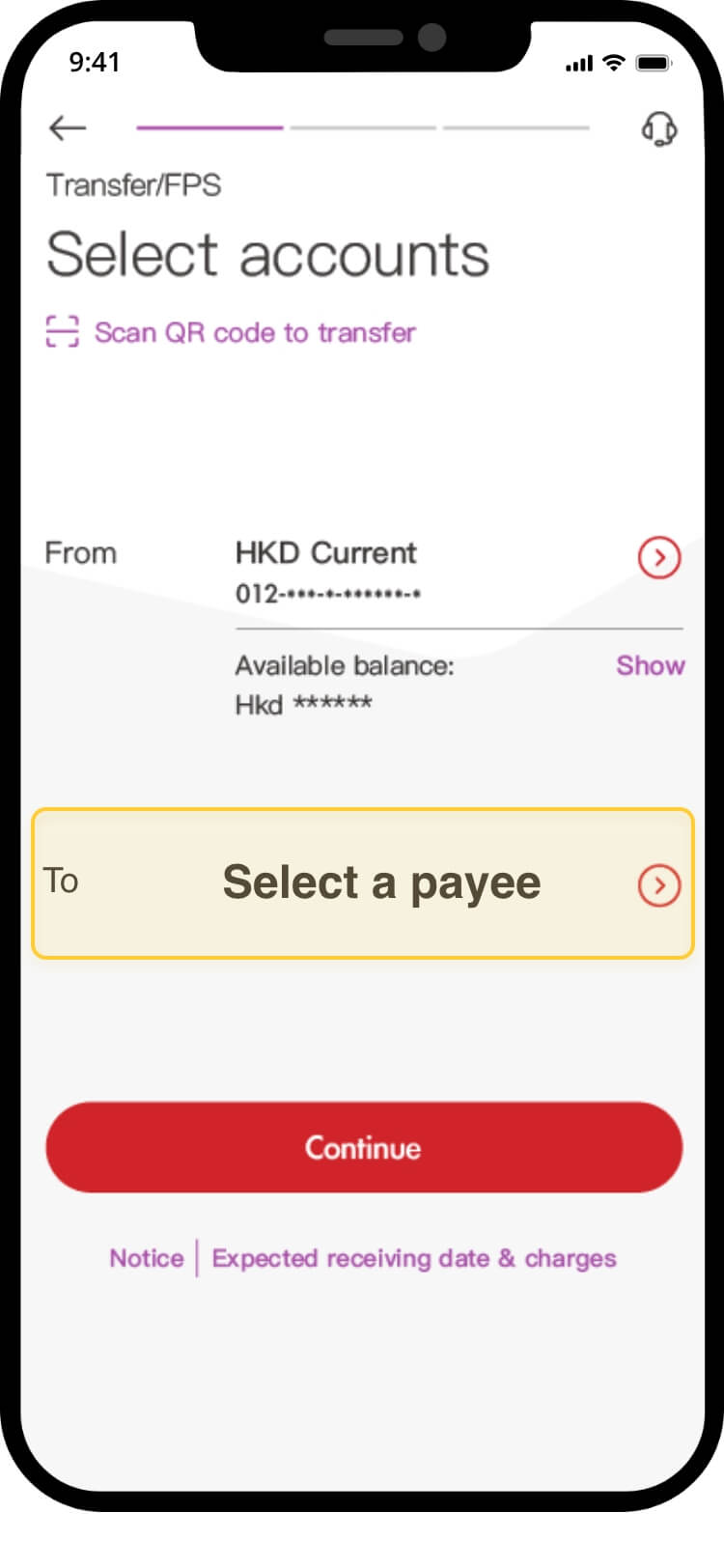
tap “select a payee”
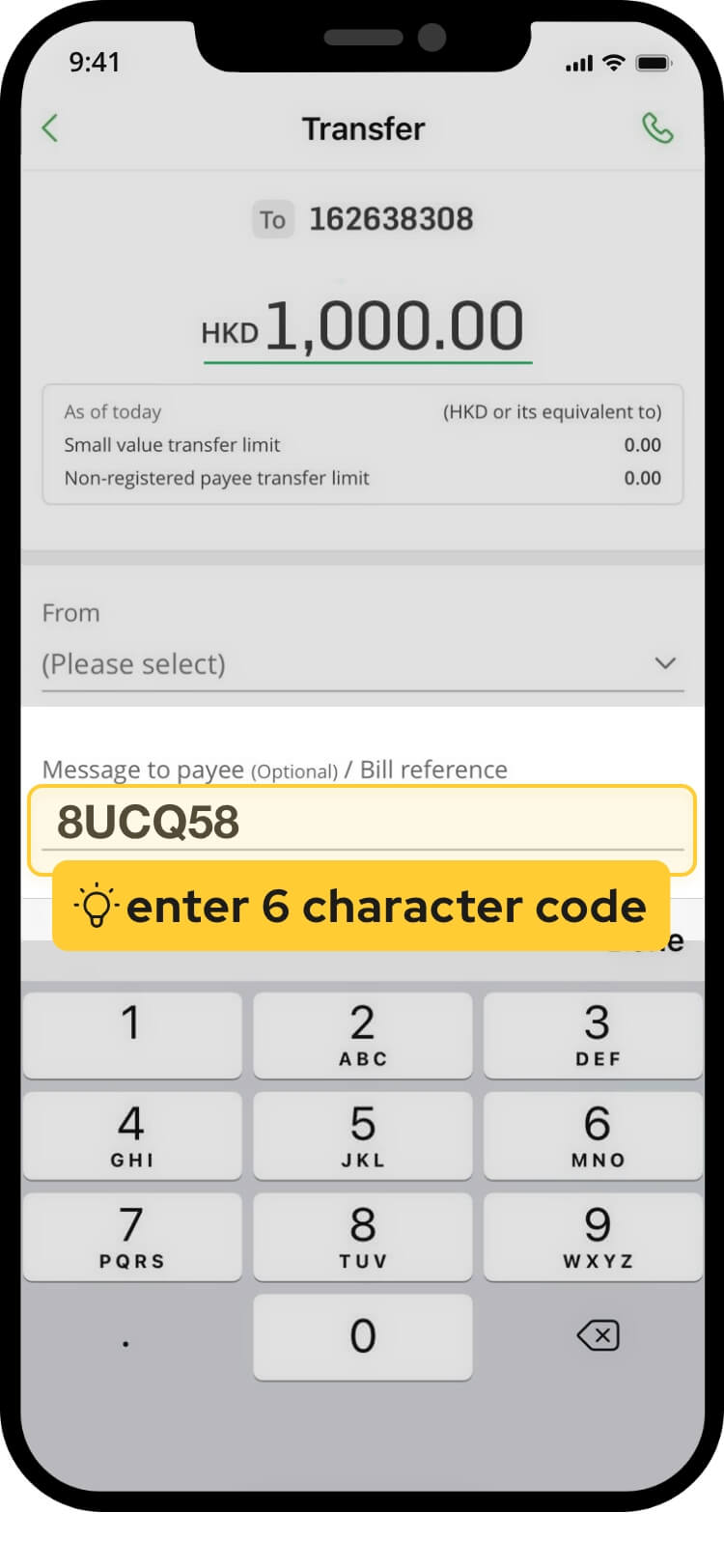
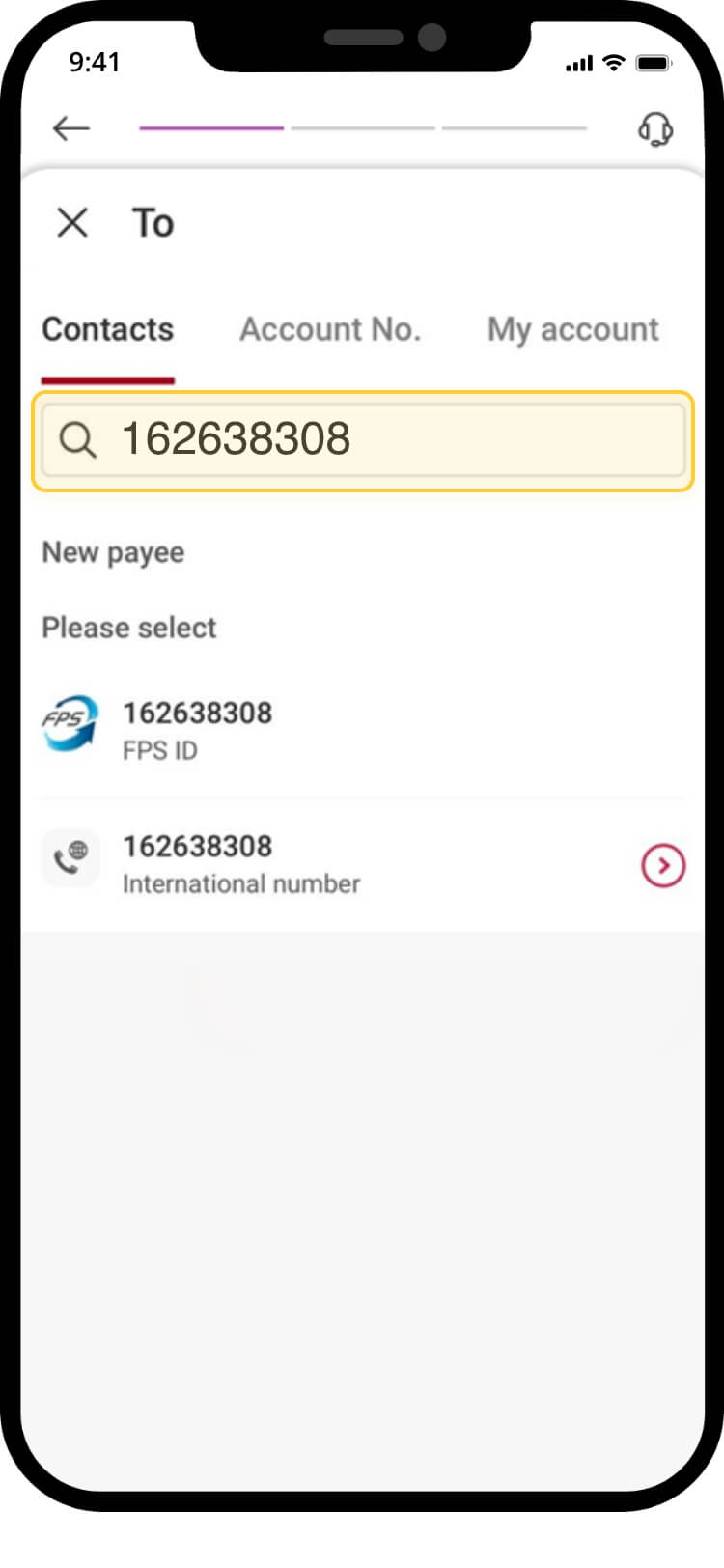
enter: 162638308 and select the appropriate option
select your preferred account for payment
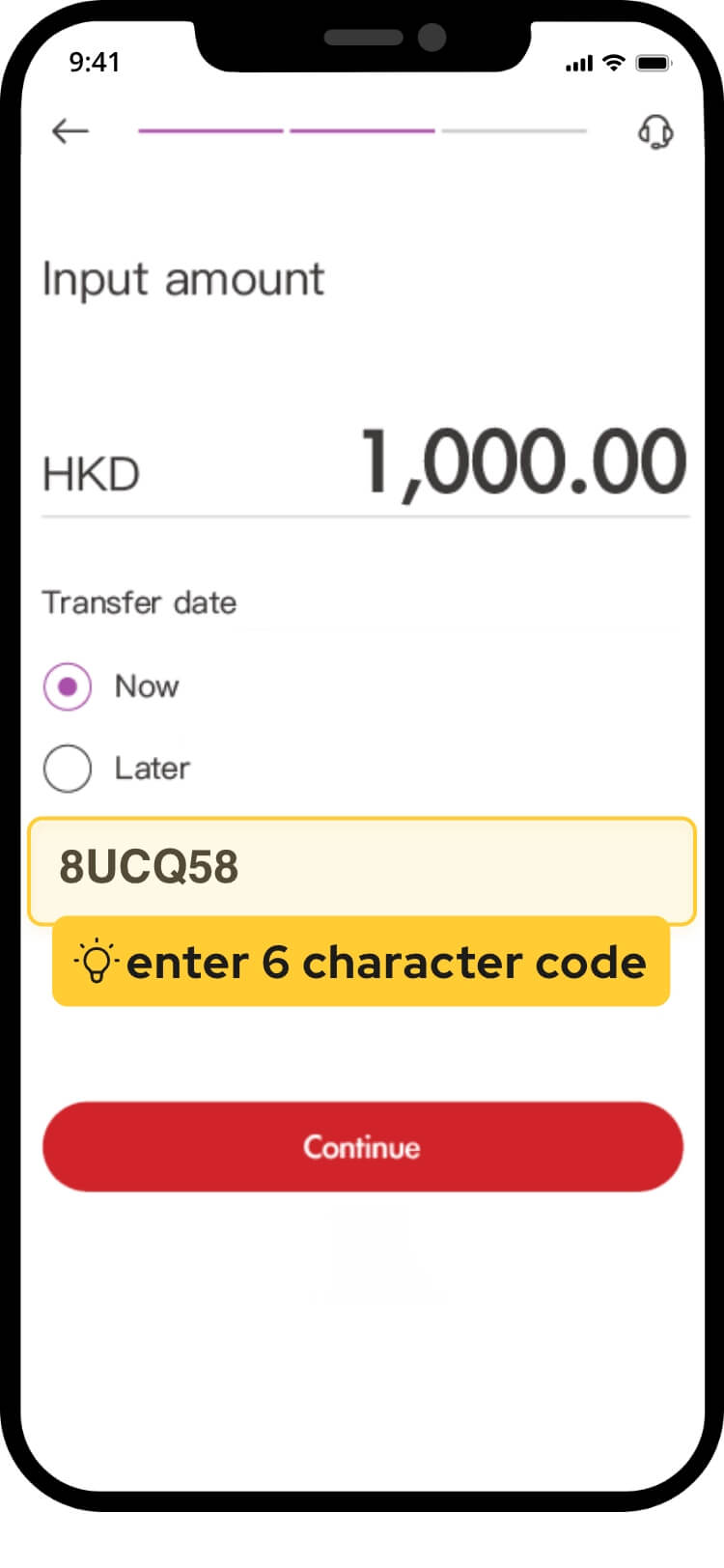
input payment amount & your 6 character code at “remarks”
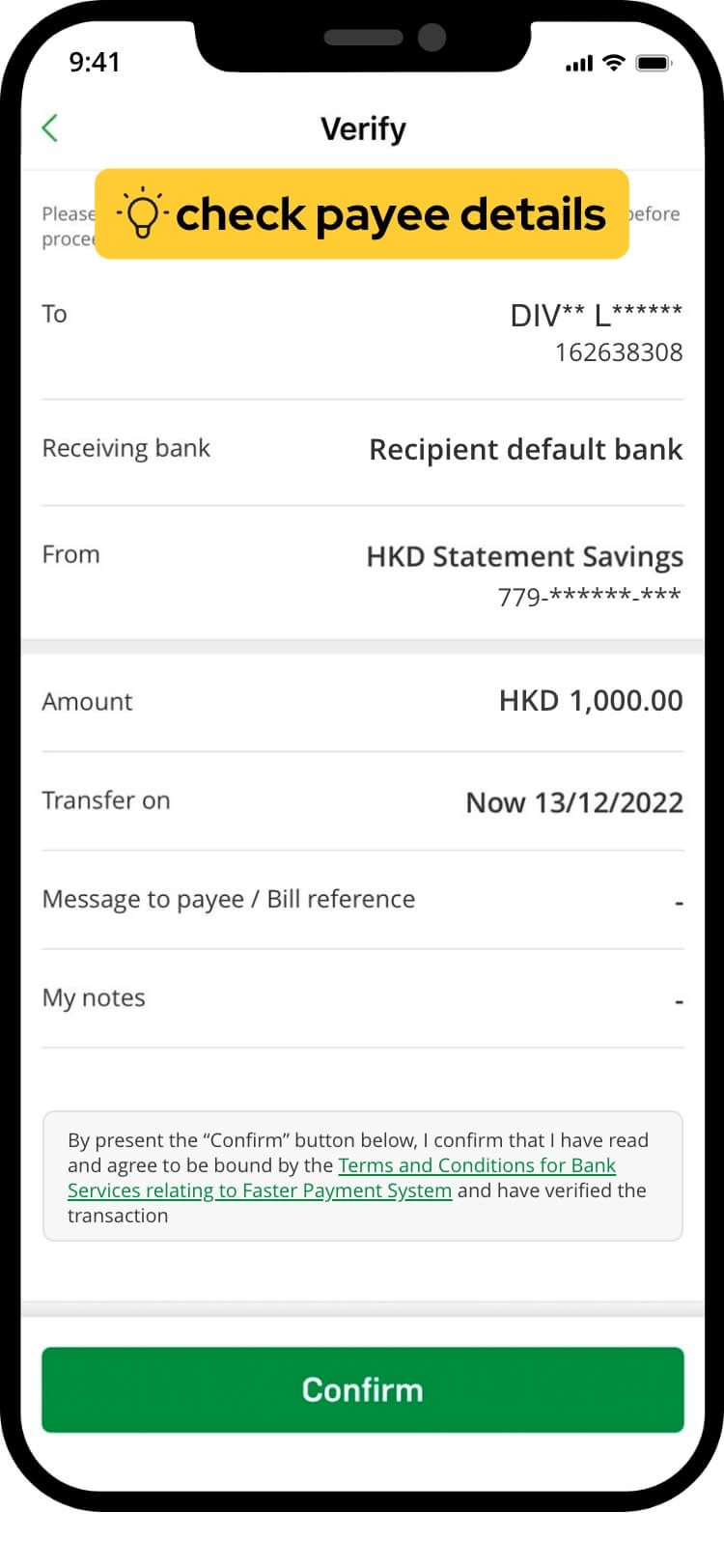
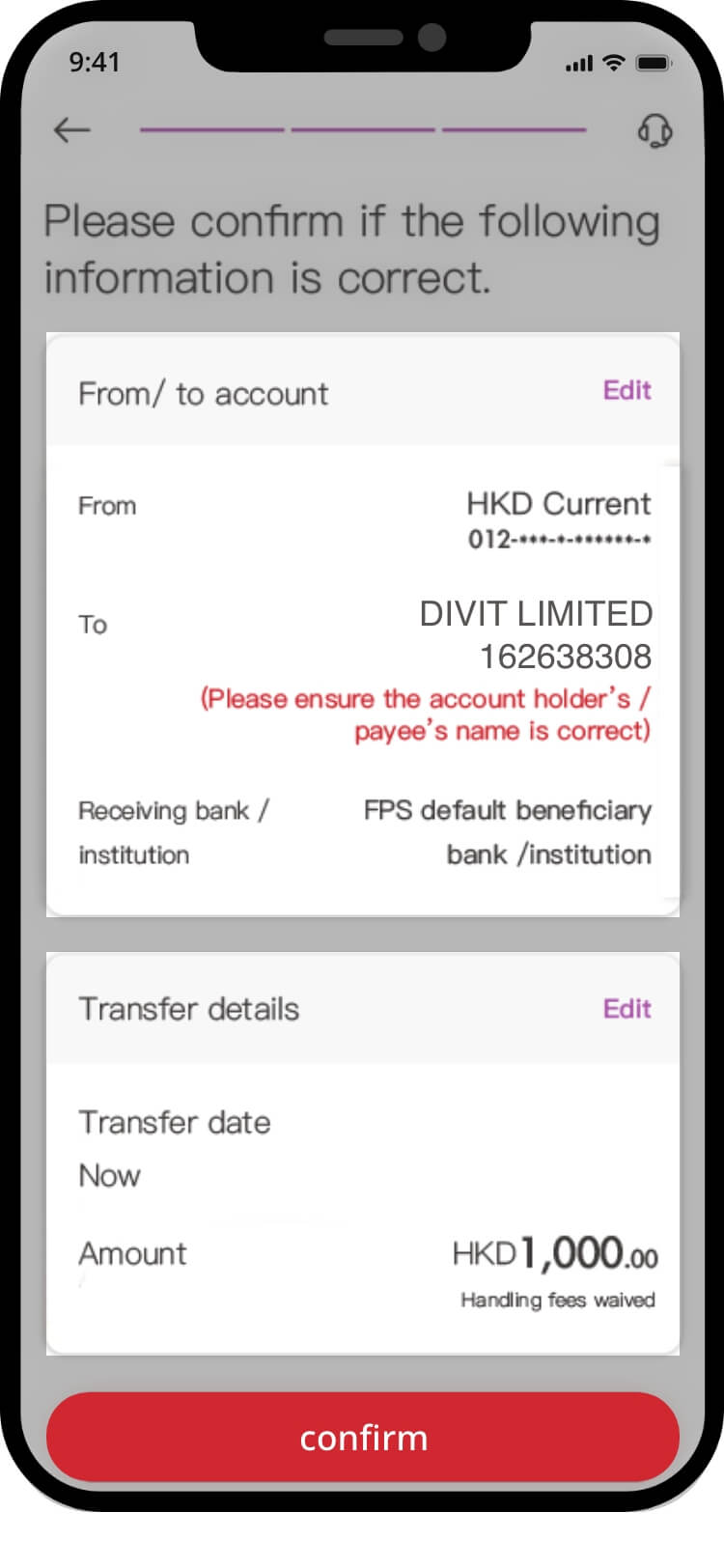
verify transaction details and “confirm” the transaction
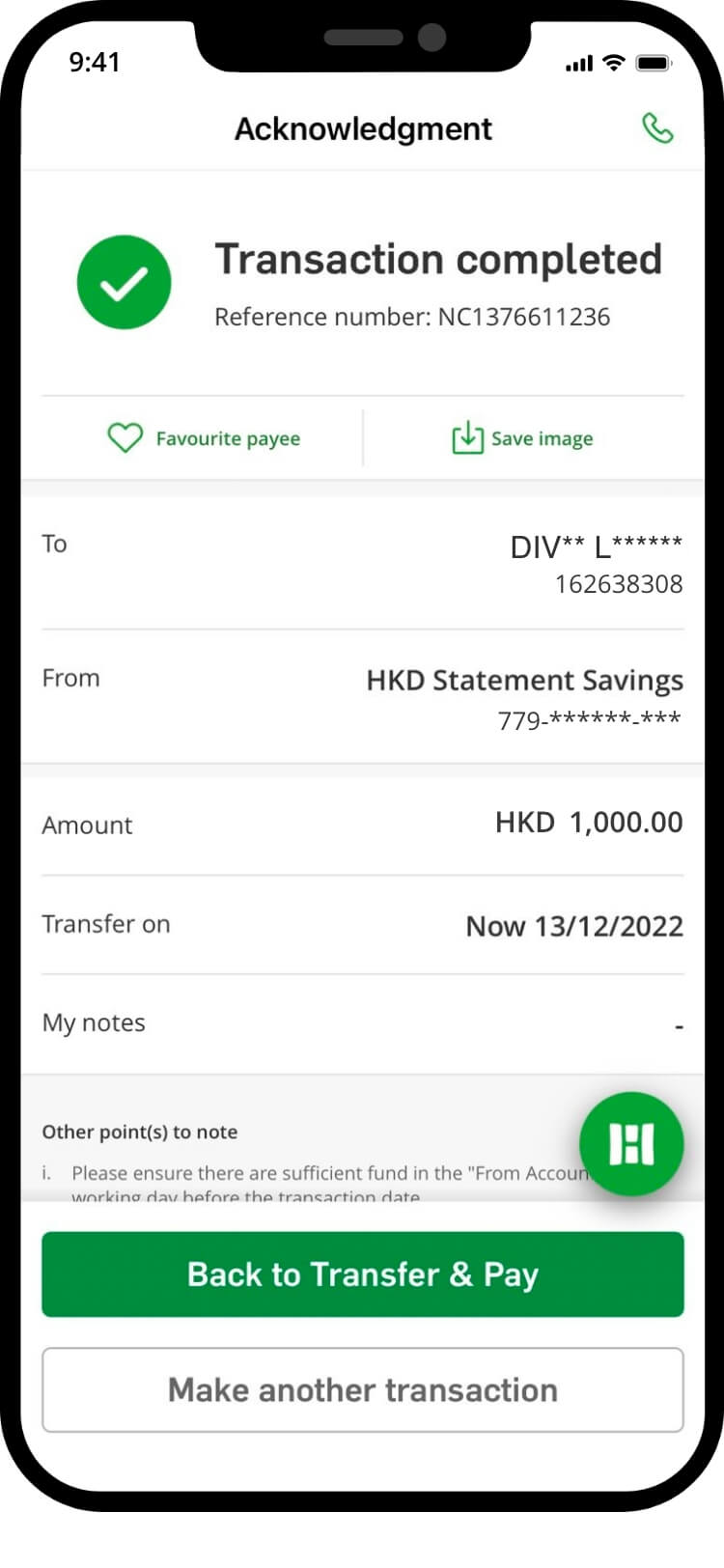
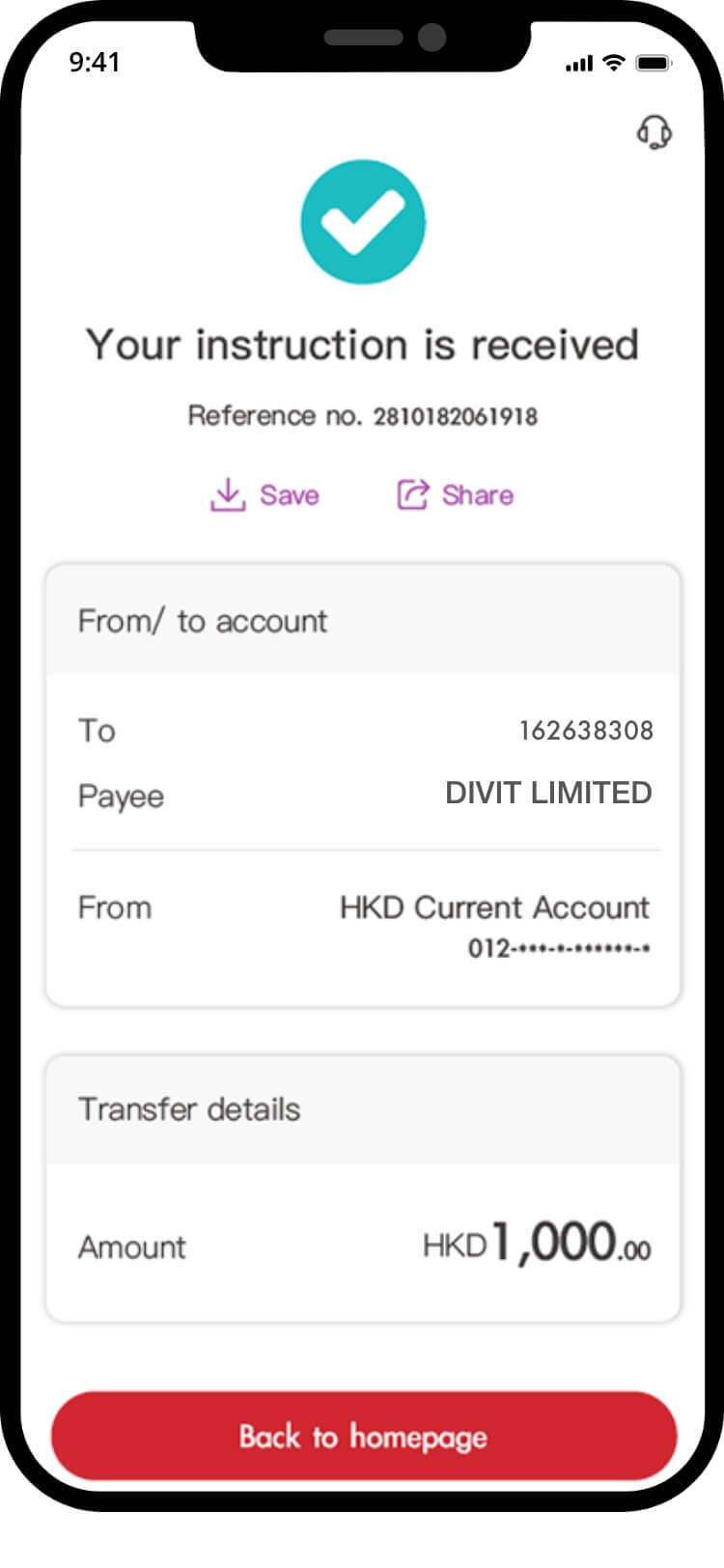
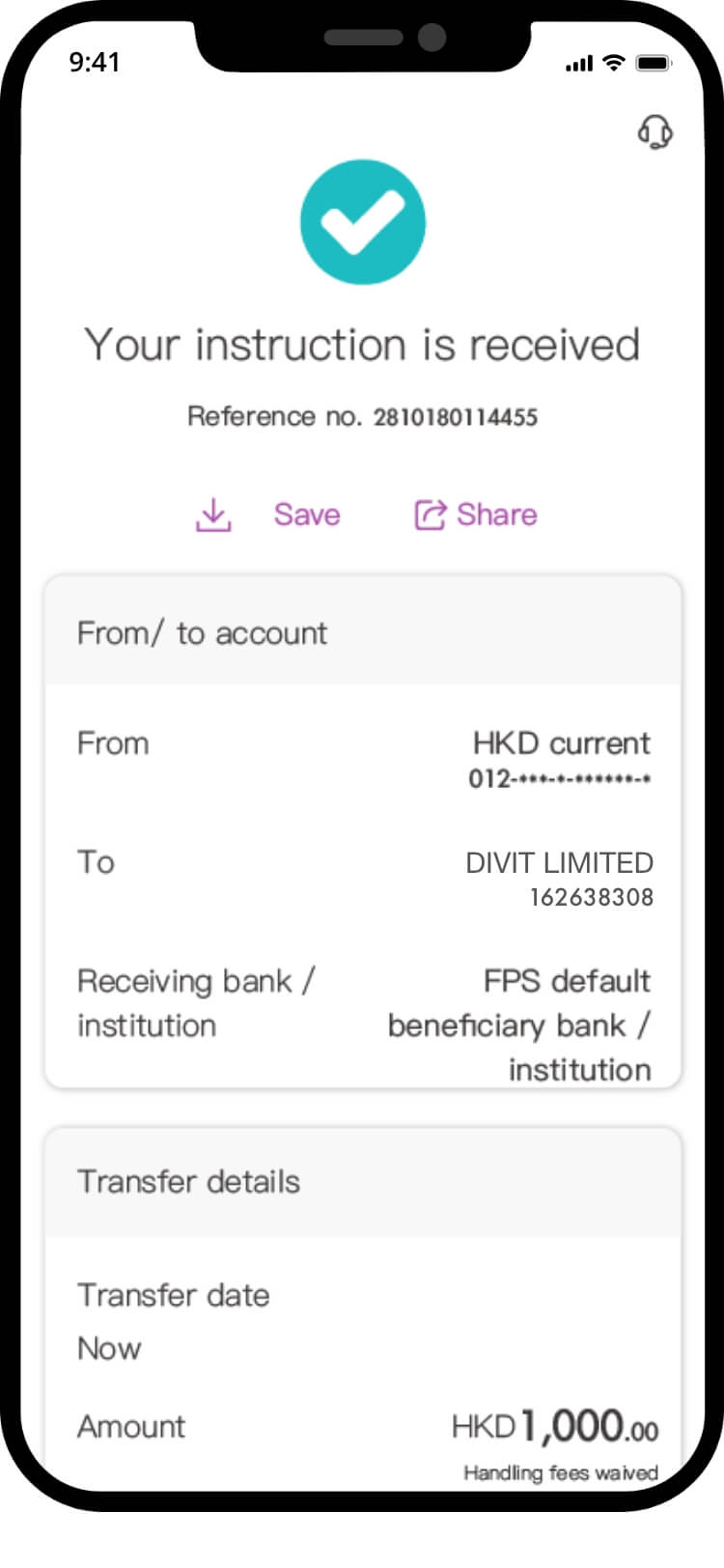
your transfer is complete! you will receive a confirmation via sms and email *if you send the payment without the 6 character code, your order might not be confirmed instantly
scan qr code
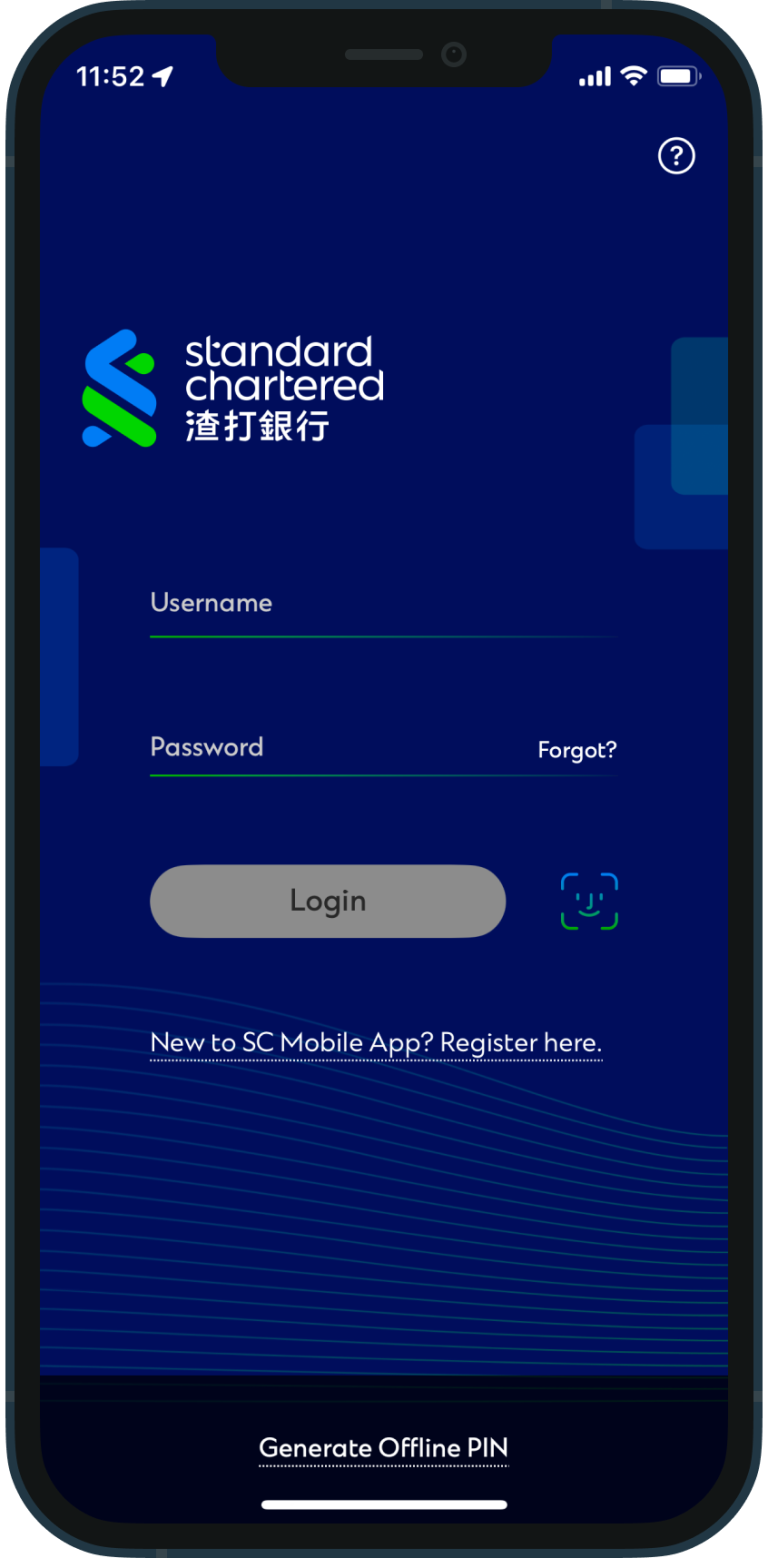
login to your bank app
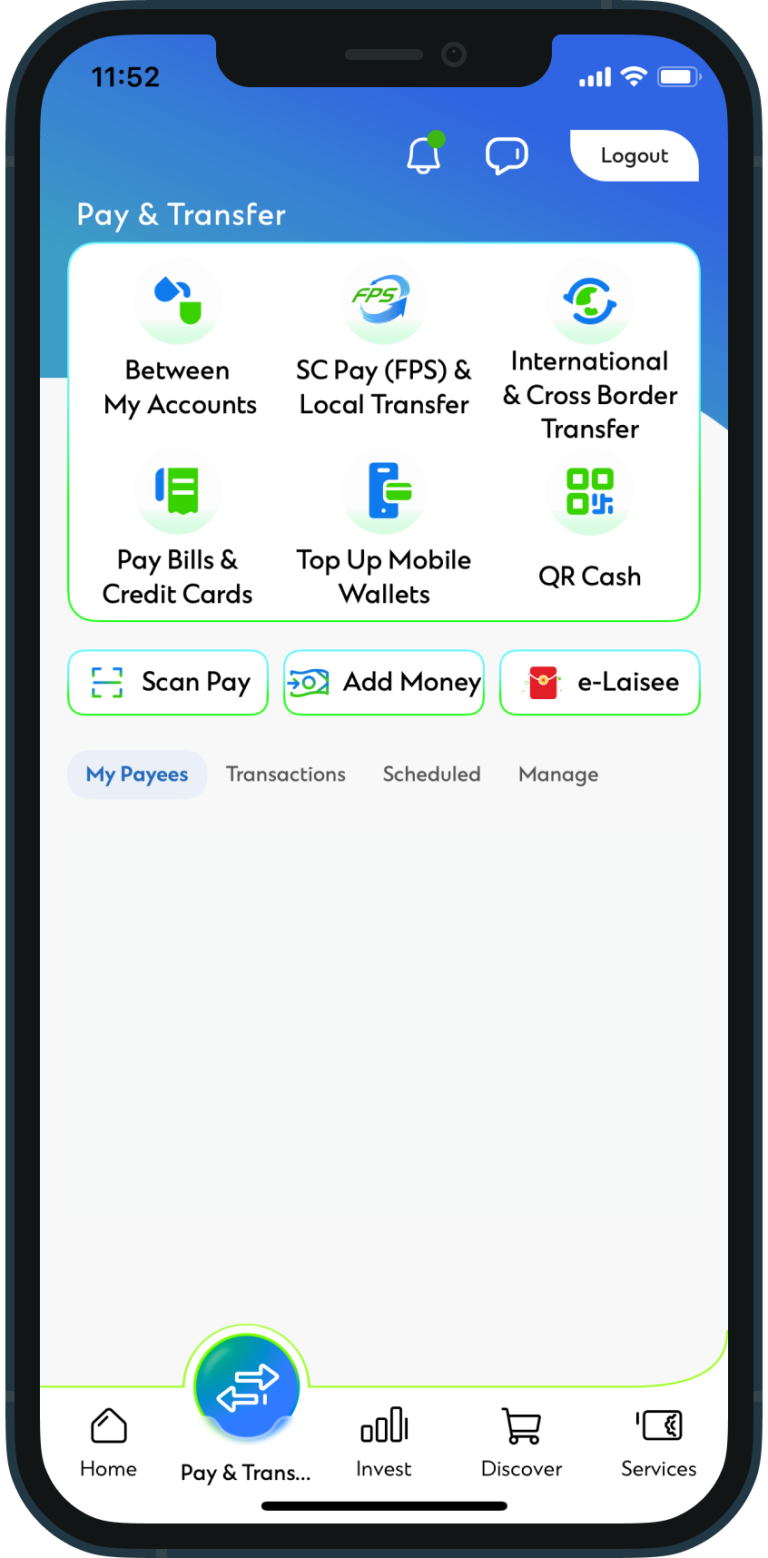
tap “SC (FPS)”
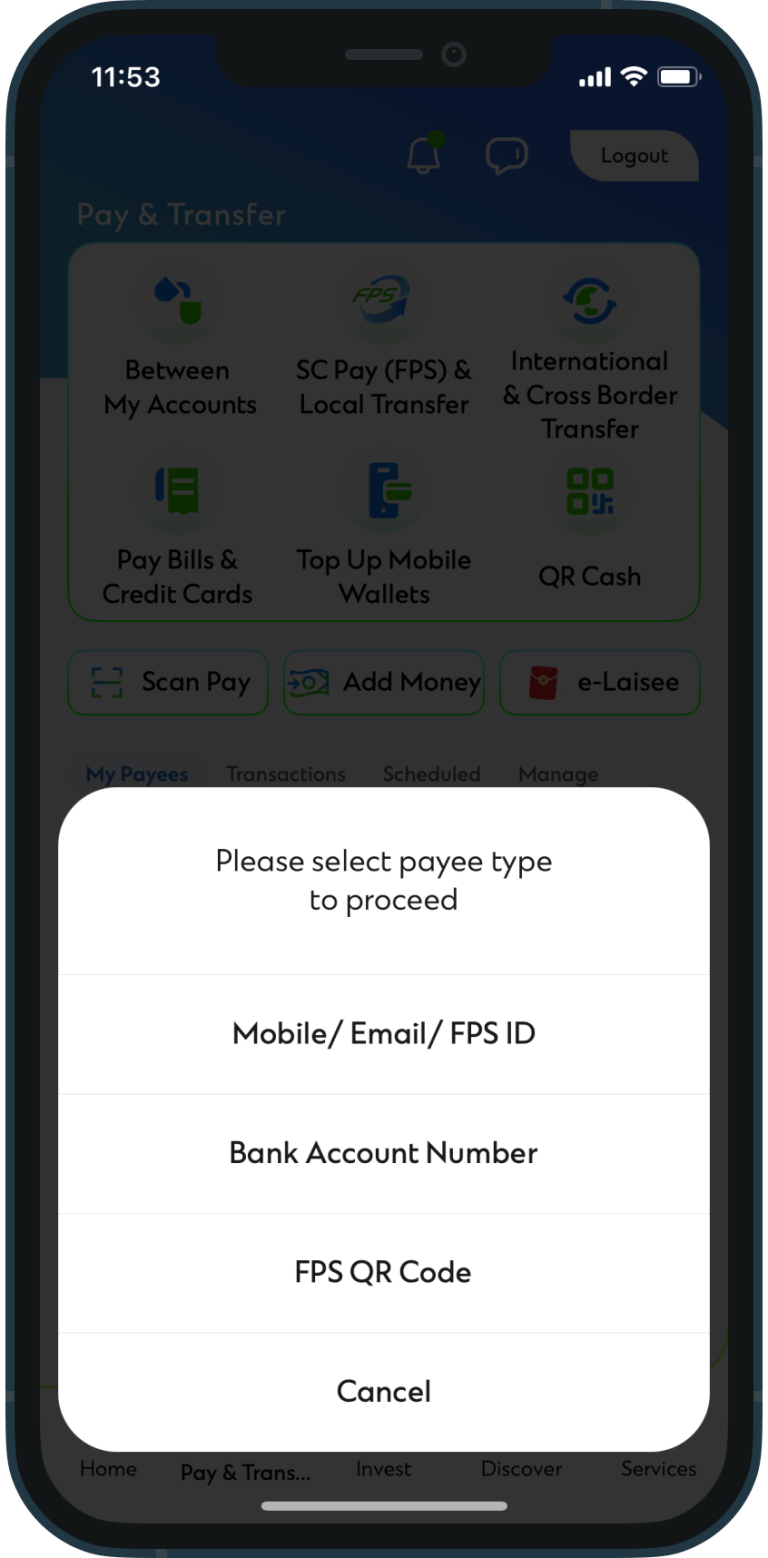
tap on “FPS QR code”
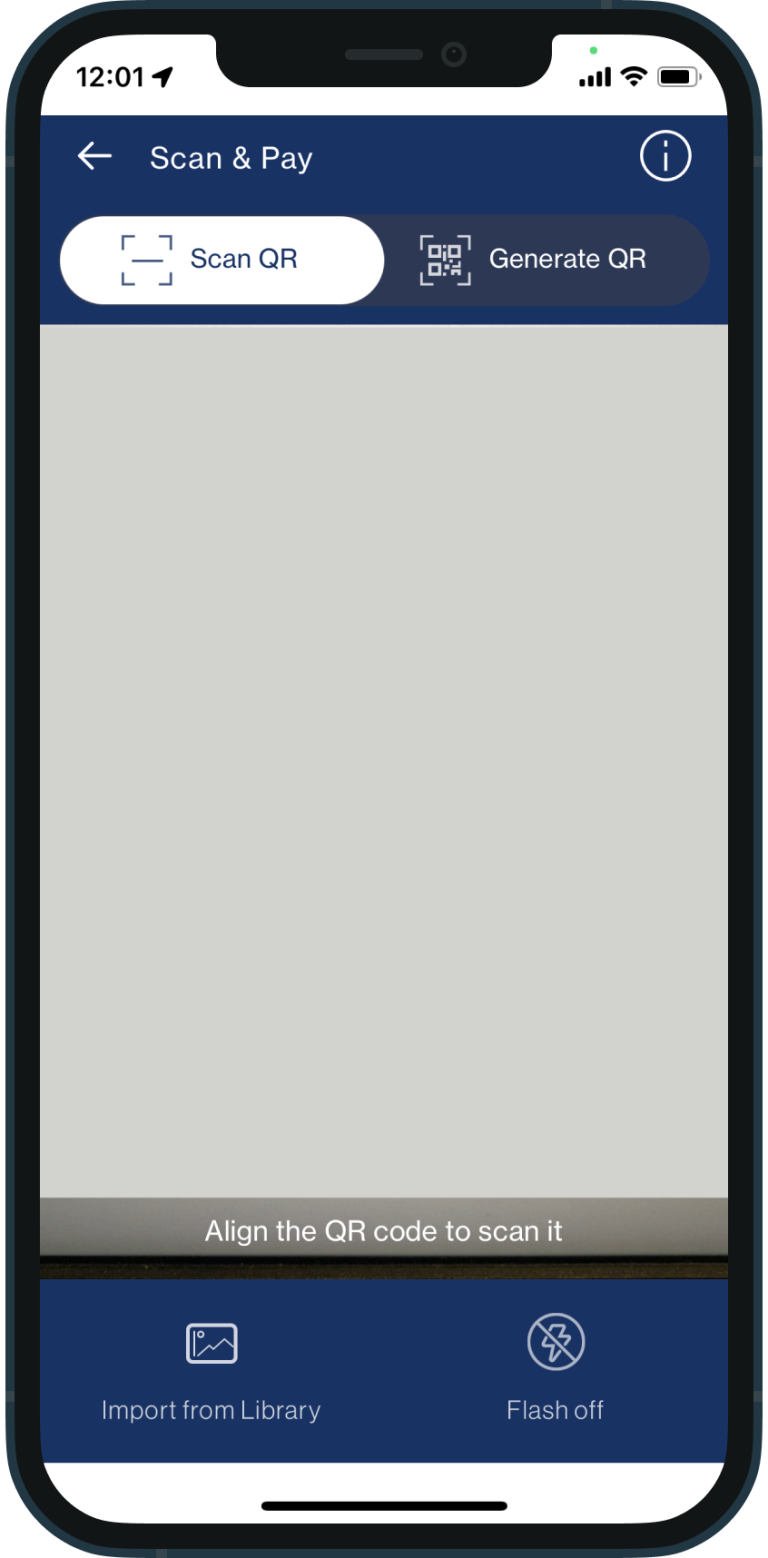
click “scan QR”
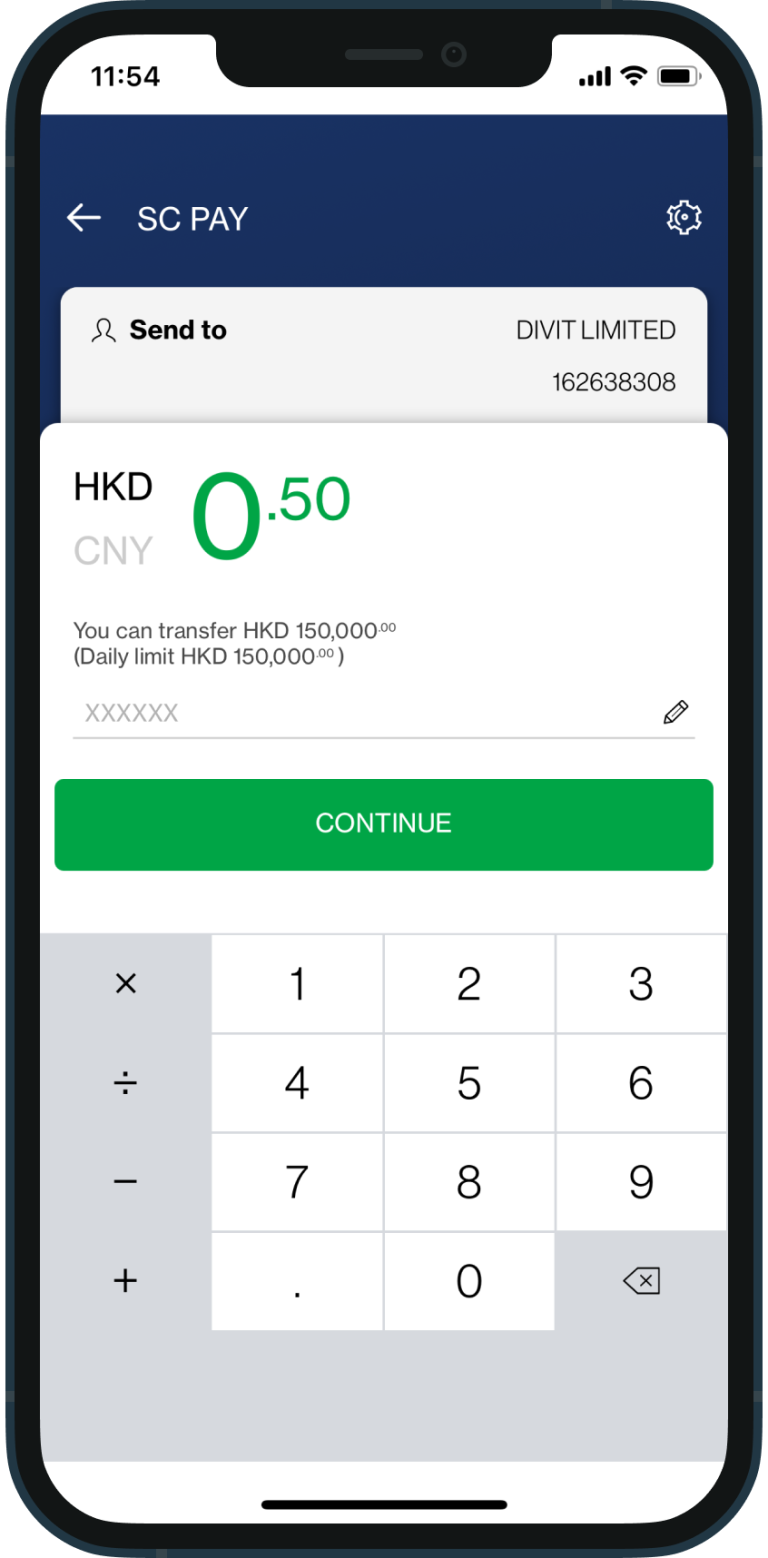
enter the amount and tap continue to confirm your payment.
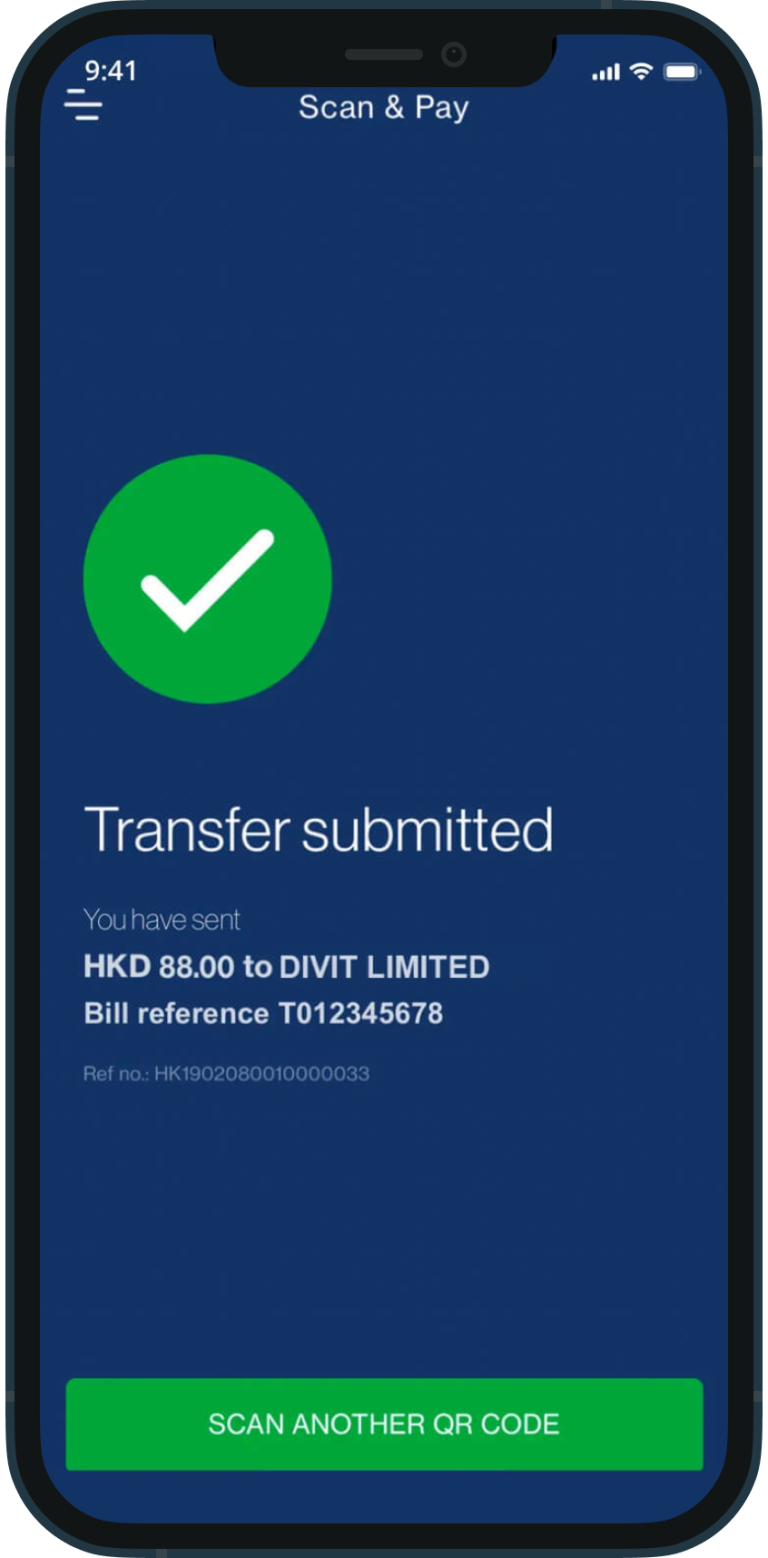
your transfer is complete! you will receive a confirmation via sms and email
import qr code
login to your bank app
tap “SC (FPS)”
tap on “FPS QR code”
select “import from library” on the bottom left
enter the amount and tap “continue” to confirm your payment
your transfer is complete! you will receive a confirmation via sms and email
fps id
login to your bank app
tap “SC (FPS)”
tap on “FPS ID”
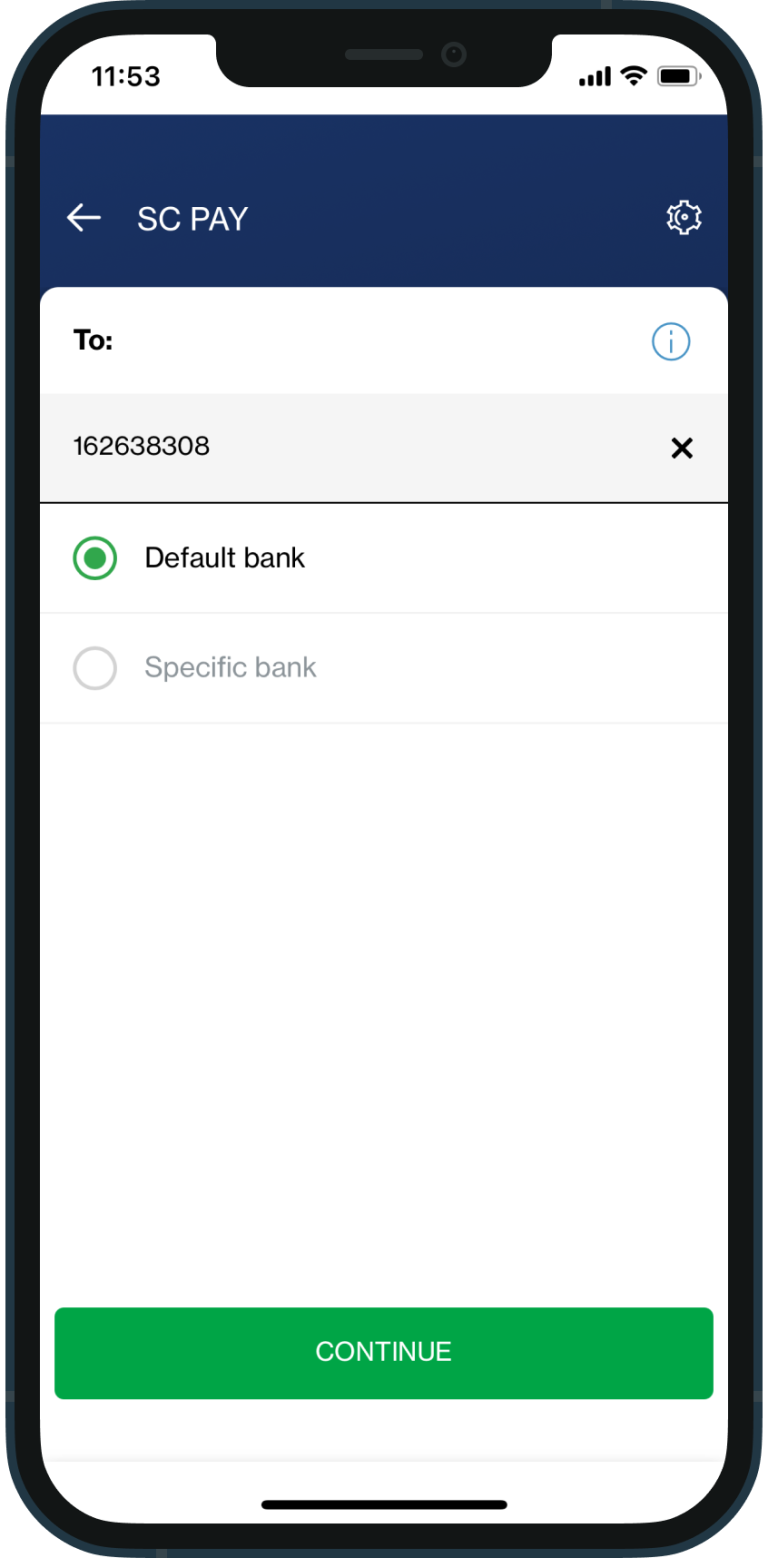
enter 162638308 and select “default bank” and “continue”
enter the amount and tap continue to confirm your payment
your transfer is complete! you will receive a confirmation via sms and email. *if you send the payment without the 6-character code, your order may not be confirmed instantly